
Recipe Smart Card
Recipe Smart Card: Save Recipe Links You Can Actually Cook
Turn supported recipe links into a clean, step-by-step mobile recipe workflow in LinkBook.
In this guide
- Why saving recipe links is not the same as saving a cookable recipe.
- What Recipe Smart Card shows when recipe data is available.
- How to move from save to prep to cook in four screens.
- What to expect from supported and unsupported recipe links.
You know the pattern: you find a recipe on Instagram, Google, or a friend’s text message, then you save the link for later. But when later turns into right now, in the kitchen, the page fights you with endless scrolling, popups, and a wall of text while your hands are messy.
LinkBook’s Recipe Smart Card is built for that exact moment. When you share a supported recipe link into LinkBook and recipe data is available, LinkBook can turn that page into a recipe smart card that is easier to scan, prep, and cook from your phone while still keeping the original source one tap away.
If you want to try it immediately, download LinkBook and save your next recipe link.
Try LinkBook on iPhone
Install in 30 seconds, save your first link from Share Sheet, and see Smart Cards immediately.

Why saving recipe links is not the same as saving a recipe
Most recipe pages are optimized for browsing, not cooking. On mobile, that usually means:
- The ingredient list is buried mid-page.
- Steps are split across paragraphs, ads, and jump links.
- You lose your place every time the screen times out.
- It is hard to track what you already added or completed.
A browser bookmark or generic read-later list stores a URL. It does not give you a cooking-friendly flow.
Recipe Smart Card: what it is and what it shows
A Recipe Smart Card is a structured, interactive view of a recipe link. Instead of forcing you to wrestle with the original page layout, the card surfaces the parts you need to cook.
- Recipe title and image.
- Quick facts like time, servings, and rating when available.
- Ingredients list you can tap to check off as you prep.
- A step preview so you can see what is coming before you start.
When you are ready to cook, you can switch to a dedicated Cook Mode with a step-by-step sequence and simple Back and Next controls. You can open the original recipe page at any time.
Want a deeper product overview? See How Smart Cards work in LinkBook.
How LinkBook’s Recipe Smart Card works: 4 screens, one workflow
The fastest way to understand LinkBook is to walk through the exact mobile recipe workflow you will use when dinner planning turns into dinner happening.
1) Save from anywhere with Share
If you can open a recipe in a browser or another app, you can save the link to LinkBook.
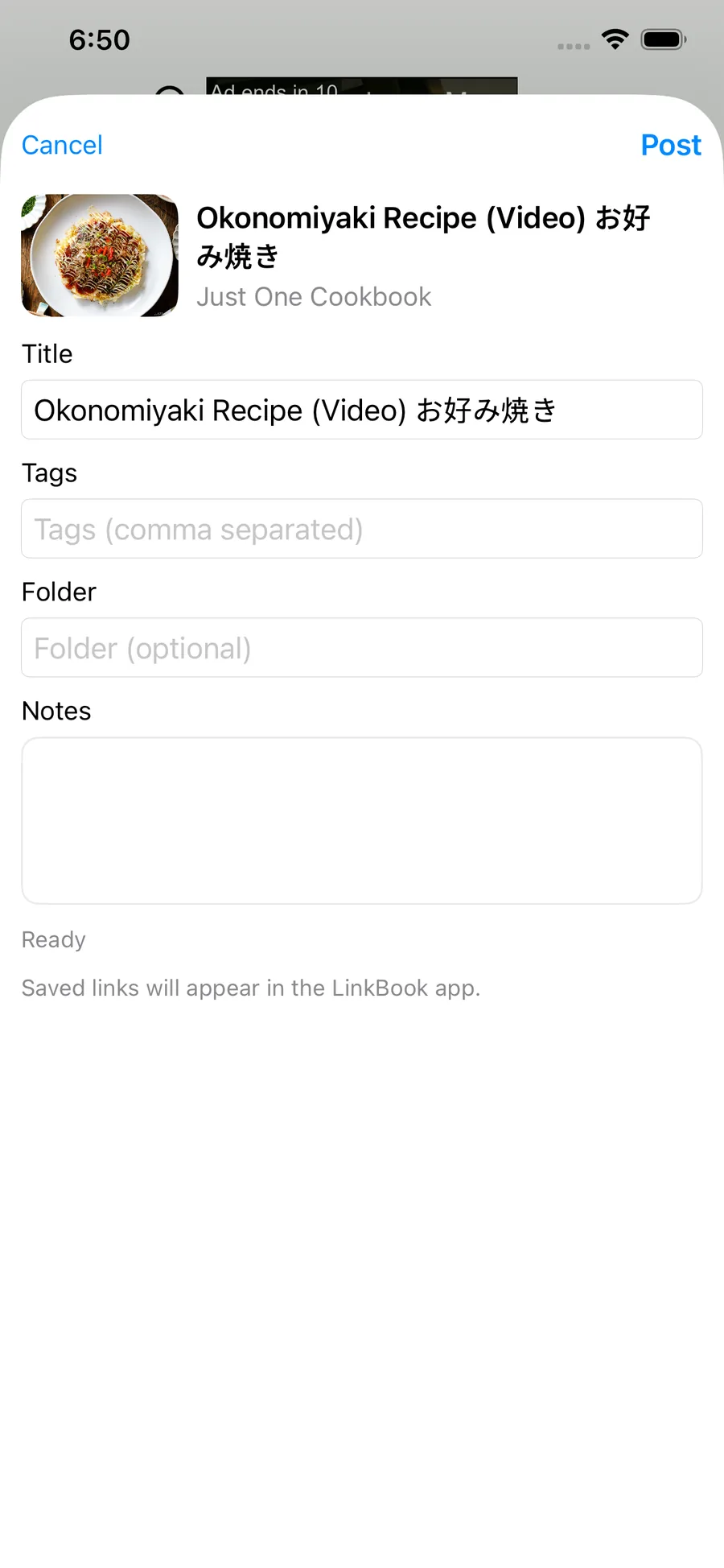
Once it is saved, LinkBook keeps the original link, and for supported recipe links it can generate a Recipe Smart Card when recipe data is available.
2) Find it in your library with a recipe-aware preview
Instead of a plain list of bookmarks, your library can show a recipe-style preview so you can spot the right dish without opening ten tabs.
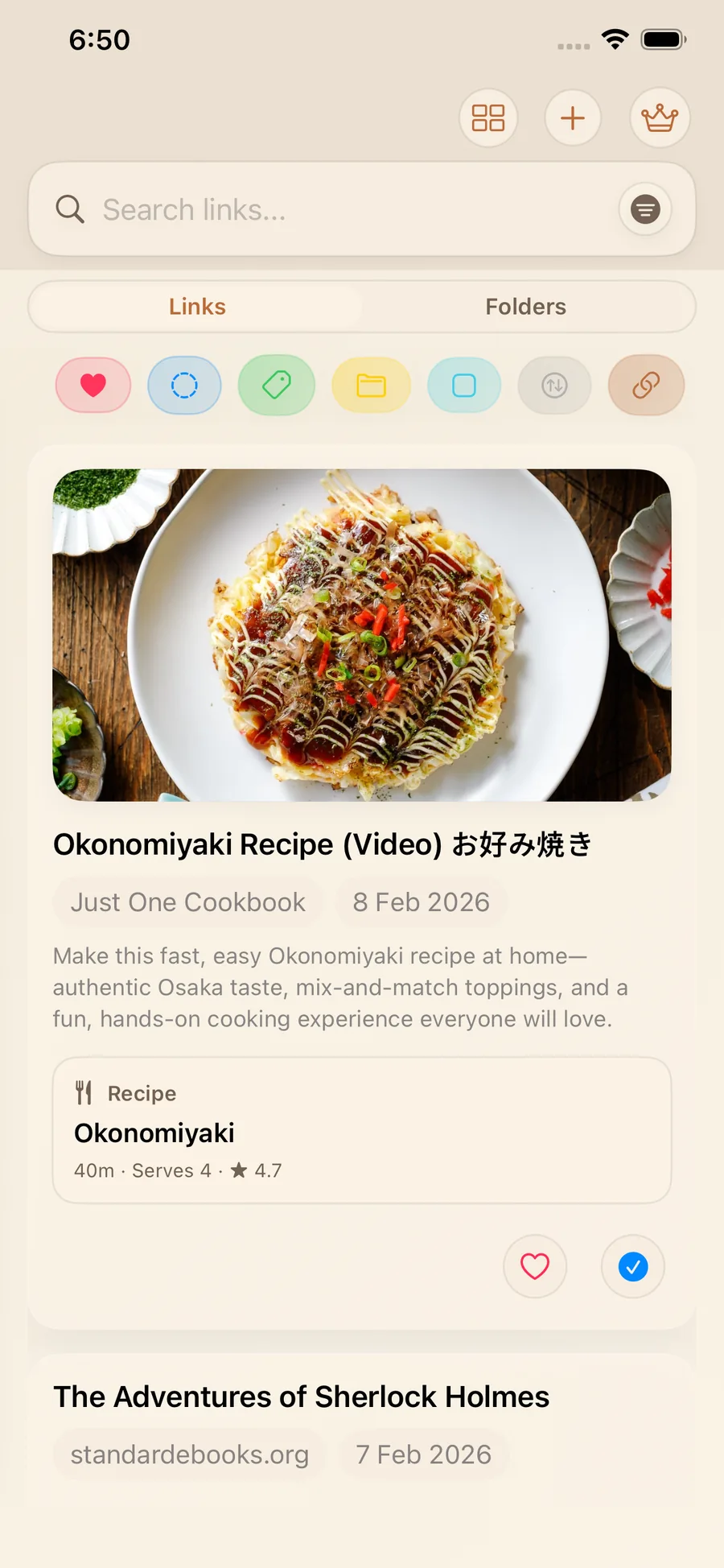
This is where LinkBook starts to feel like a recipe organizer app for real life: you are not just collecting links, you are building a usable collection you can cook from.
3) Open the Smart Card detail to prep faster
Tap into the saved recipe to view the full card. This is your prep view, with the information you need before heat hits the pan.
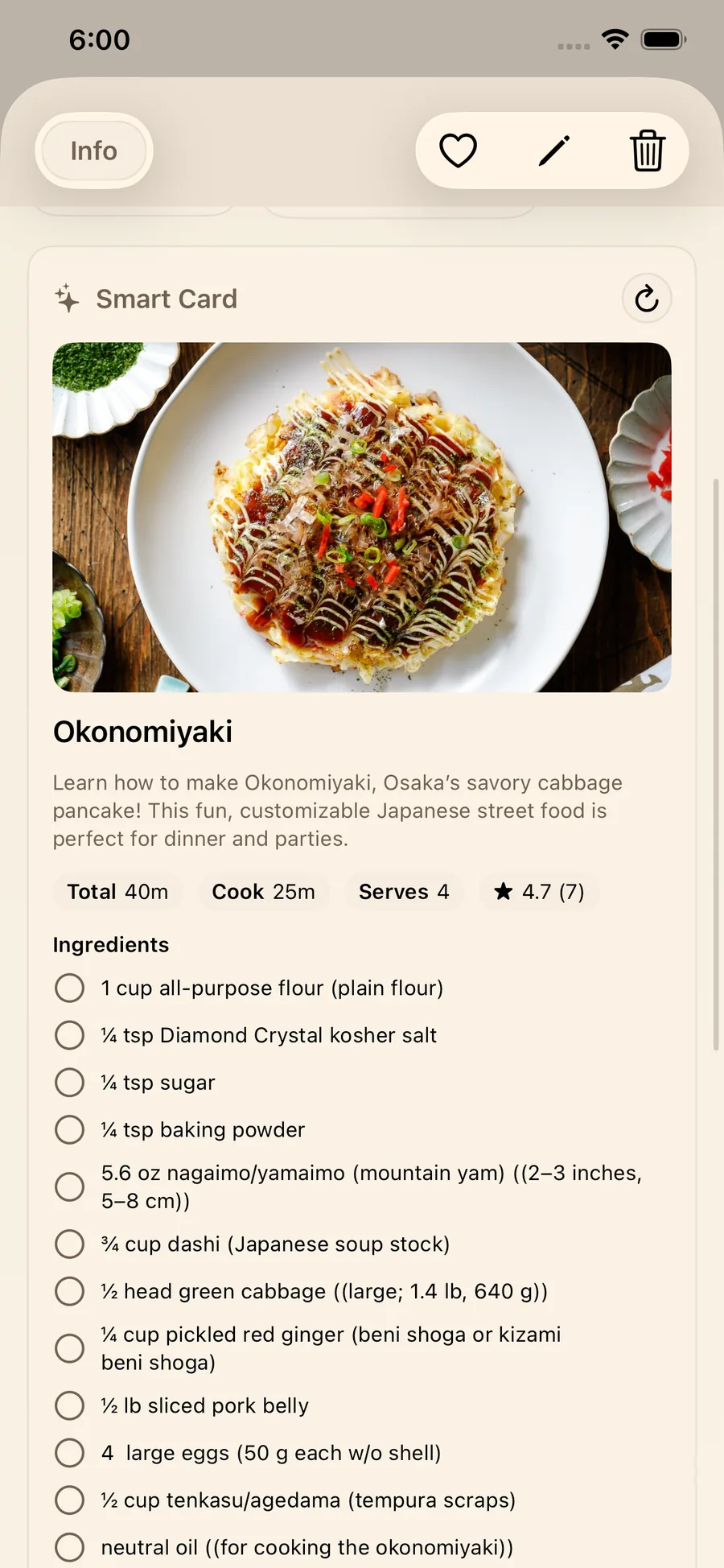
In the Smart Card detail, you can:
- Scan time, servings, and rating when available for quick decisions.
- Read the ingredients list without page clutter.
- Tap ingredient rows to check them off as you measure and add.
That ingredient checklist sounds small until you are mid-recipe and cannot remember if you already salted the sauce.
4) Tap Cook Mode for step-by-step focus
When you are ready to cook, enter Cook Mode. It is designed to keep you on the current step, with Back and Next controls for fast navigation.
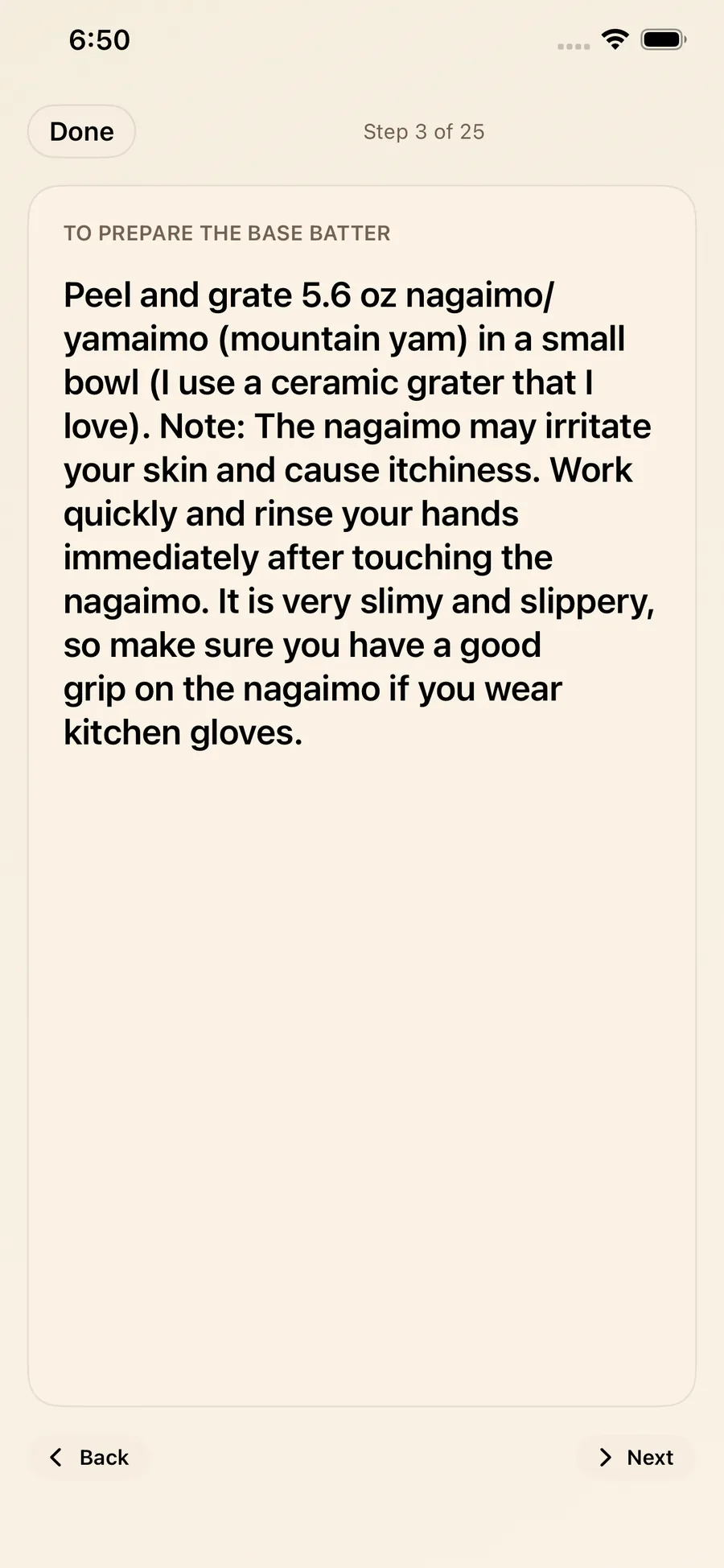
Cook Mode is especially useful when:
- You are cooking with one hand.
- You are timing multiple components.
- You want to avoid losing your place when the phone locks.
And if you ever need full context like notes from the author, substitutions, or comments, you can still open the original recipe page right from the saved link.
The real win: a calmer mobile recipe workflow
Once you use Recipe Smart Card and Cook Mode once, it becomes hard to go back to raw recipe pages. Here is what changes in day-to-day cooking.
Less scrolling, more doing
You spend less time hunting for step four and more time actually cooking.
Prep is a checklist, not a memory test
Checking off ingredients reduces the “Did I already add that?” loop, especially when you are juggling multiple dishes.
Decision and execution in one place
Quick facts help you choose a recipe. The ingredients list helps you prep. Cook Mode helps you execute.
You keep the source, always
LinkBook does not replace the recipe page. It gives you a cooking layer on top while keeping the original link available whenever you want it.
Supported recipe links: what to expect
LinkBook can turn supported recipe links into a Recipe Smart Card when recipe data is available. In practice, that means:
- Some links generate a full card with title, image, ingredients, steps, and quick facts.
- Some links may show partial information.
- Some links remain a standard saved link you can open normally.
Why the difference? Recipe pages vary in how they publish recipe information. If you are curious, Google Search Central’s recipe structured data documentation explains how recipe pages can expose data.
Ready to cook from your saved recipes?
The next time you are tempted to bookmark that pasta recipe and hope for the best, do this instead:
- Share the recipe link to LinkBook.
- Open the Recipe Smart Card.
- Check off ingredients as you prep.
- Cook step by step in Cook Mode.
If cooking from your phone is part of your routine, the Recipe Smart Card is a practical upgrade you will feel on the very next meal. Try LinkBook with one supported recipe link today on the App Store and explore the Smart Cards overview.
FAQ
What is a recipe smart card?
A Recipe Smart Card is a structured view of a recipe link in LinkBook. When you save a supported recipe link and recipe data is available, the card can show the recipe title and image, quick facts like time, servings, and rating when available, an ingredients list you can check off, and a step preview, plus a dedicated Cook Mode.
How do I save recipe links into LinkBook?
Open the recipe page anywhere on your phone, tap Share, then choose LinkBook to save the link. LinkBook keeps the original page available, and supported links can become a Recipe Smart Card when recipe data is available.
Does LinkBook work with all recipe websites?
Not necessarily. LinkBook can generate a Recipe Smart Card from supported recipe links and when recipe data is available. If a link is not supported, or data is unavailable, you can still save it and open the original recipe page normally.
Can I check off ingredients while I cook?
Yes. The ingredients list in the Smart Card supports an ingredient checklist, so you can tap rows to check off items as you prep and add them.
What is Cook Mode?
Cook Mode is a focused, step-by-step cooking flow inside LinkBook, with simple Back and Next controls. It helps you follow instructions without constantly scrolling through a cluttered recipe page.
Is LinkBook a recipe organizer app?
If you mainly collect recipes from the web, LinkBook can work like a recipe organizer app: you save recipe links, and for supported ones you get a cookable Smart Card plus Cook Mode, while still keeping the original source available.
Ready to build your link library?
Download LinkBook and start saving in seconds.