
Share Sheet Guide
How to Save Links From Any iPhone App in Seconds (And Actually Find Them Later)
If you save links by opening endless tabs, screenshots, or messaging yourself, you are not alone. LinkBook gives you a faster, cleaner way to save links on iPhone and find them later.
In this guide
- Why tabs, screenshots, and notes apps fail as a save system.
- How LinkBook uses the iOS Share Sheet to save in seconds.
- What your saved links look like inside the app.
- How Reader Mode and offline access work for eligible articles.
You are scrolling through X. You spot an article you want to read later. You screenshot it, tell yourself you will find it again, and then you never do. Or maybe you open Safari tabs like they are free real estate. Forty-seven tabs later, your phone is begging for mercy and that recipe you saved three weeks ago is buried somewhere in the chaos.
Sound familiar? There is a better way.
Try LinkBook on iPhone
Install in 30 seconds, save your first link from Share Sheet, and see Smart Cards immediately.

The problem with how most people save links
Most of us have makeshift systems for saving interesting content: screenshots, browser tabs, notes apps, and messaging ourselves. None of them actually work for long‑term retrieval.
- Browser bookmarks get buried or forgotten.
- Tabs slow your phone and disappear at the worst time.
- Screenshots lack context and are impossible to search.
- Notes require extra steps just to save a link.
What you actually need is a dedicated space for links that is fast to save to and easy to search through.
Meet LinkBook: your personal link library
LinkBook is a bookmark app designed for one thing: helping you save links fast from any app and find them when you need them. No tab hoarding. No lost articles. Just a clean, organized library of everything you saved.
What makes LinkBook different
Save from anywhere, add folders and tags in seconds, and get smart card previews so you can recognize content at a glance. For eligible articles, Reader Mode cleans the page and Premium fetches the text automatically for offline reading.
How to save a link to LinkBook (it takes seconds)
Here is exactly what the experience looks like on iPhone.
Step 1: Tap Share
You are in any app — Safari, YouTube, a news app, X, wherever. See something you want to save? Tap the Share button.
Step 2: Choose LinkBook
From the Share Sheet, select LinkBook. A save screen appears instantly with a preview so you know the right link is ready.
Step 3: Add details (optional)
The save screen shows you:
- A preview with the link title and source.
- An editable title field if you want to rename it.
- A tags field for comma‑separated tags.
- An optional folder selector.
- An optional notes field for context.
You can save immediately or take a few seconds to organize.
Step 4: Tap Post
Hit the Post button and you are done. The link is saved to your LinkBook library with a smart card preview.
Step 5: Find it later
Open LinkBook whenever you are ready. Your saved link is waiting with its preview, tags, and notes intact. Open it in‑app, switch to Reader Mode, or read offline if the reader text has been fetched.
Why your current system is not working
Let us be honest about the alternatives:
- Browser tabs were not designed for long‑term storage.
- Screenshots have no searchable context.
- Notes apps slow you down with copy and paste.
- Emailing yourself clutters inboxes meant for communication.
LinkBook exists specifically for this use case. It is fast to add to, easy to organize, and built for retrieval.
Key features at a glance
| Feature | What it does |
|---|---|
| Share Sheet integration | Save links from any iOS app that supports sharing. |
| Smart Card previews | See titles and sources at a glance. |
| Folders and tags | Organize your library your way. |
| Search | Find any saved link by keyword. |
| Reader Mode | Clean, distraction‑free reading for eligible articles. |
| Offline reading (Premium) | Auto‑fetch reader text so articles are ready without internet. |
| Notes | Add context to any saved link. |
Who LinkBook is for
LinkBook is built for anyone who regularly finds interesting content but struggles to save and retrieve it.
- Researchers collecting sources for projects.
- Content creators building swipe files and inspiration libraries.
- Professionals saving industry articles and resources.
- Curious readers who find more than they can read in one sitting.
- Students organizing study materials and references.
Stop losing links. Start building a library.
Every interesting article, video, thread, or resource deserves better than a forgotten browser tab or a buried screenshot. LinkBook gives your saved content a proper home — organized, searchable, and always accessible.
Save links in seconds. Find them when you need them. Read them on your terms.
Download LinkBook (scan to install)
Ready to take control of your saved links? Scan the QR code to install LinkBook.
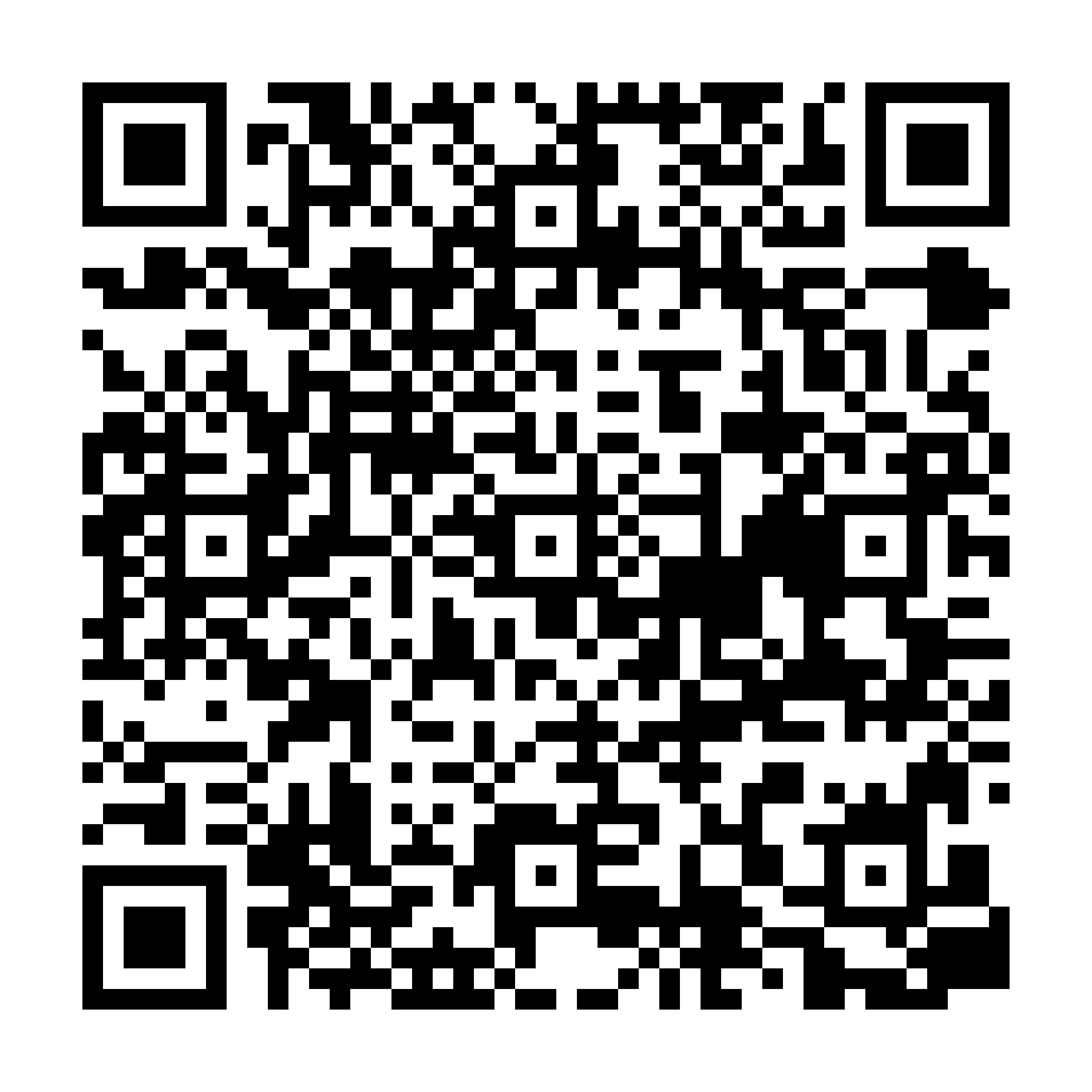
Scan to download
App StoreFAQ
How do I save links on iPhone from any app?
Use the Share Sheet and choose LinkBook. Your link saves instantly with a preview.
Does LinkBook work with the Share Sheet?
Yes. LinkBook integrates with the Share Sheet across iOS apps that support sharing.
Can I read saved links offline?
Premium fetches reader text automatically for eligible articles so they are ready offline.
Ready to build your link library?
Download LinkBook and start saving in seconds.