
Backup Guide
Backup and Restore Bookmarks on iPhone: LinkBook Library Backups
You usually discover bookmark backup problems after the damage is done: a sync mistake, an app reinstall, a missing Safari folder, or an old service you cannot export from anymore. The safer workflow is boring: keep a portable copy before you need it.
LinkBook gives you a more controllable saved-link library: import bookmark HTML when you have it, save new links through the Share Sheet, then back up and restore the LinkBook library itself.
In this guide
- Why iPhone bookmark recovery is different from everyday sync.
- How to think about Safari sync, bookmark exports, and LinkBook backups.
- What LinkBook backup archives contain.
- When to use merge restore versus replace restore.
- How automatic backups and iCloud backup history fit the workflow.
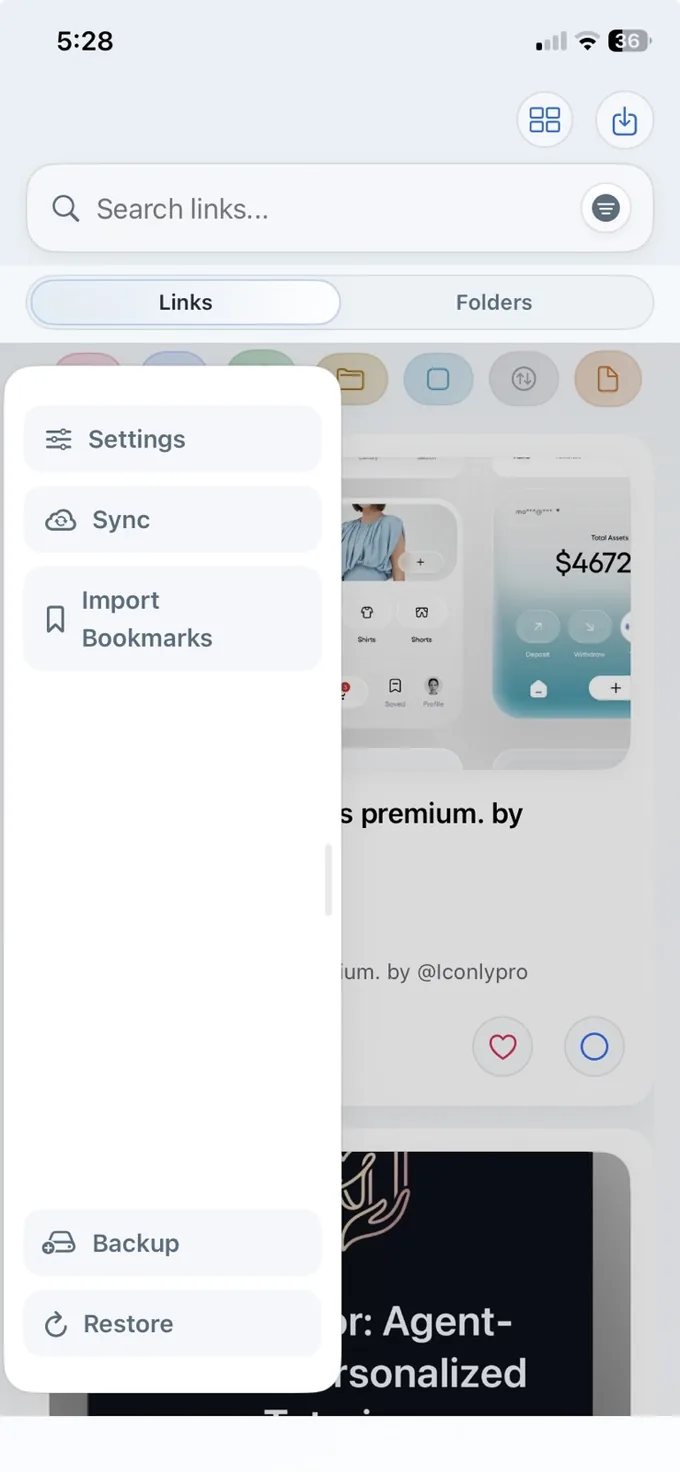
Use sync for continuity and backup for recovery
Sync keeps the latest library available across devices. Backup gives you a recovery point before cleanup, migration, or a restore test. For a saved-link library, both jobs matter: sync is for everyday continuity, backup is for rollback.
A good iPhone workflow keeps browser bookmarks portable, then protects the richer LinkBook layer where saved links, PDFs, EPUBs, notes, highlights, and Smart Card context live together.
Protect the library you actually use
Import old bookmark HTML if you have it, then use LinkBook backups for the links, files, highlights, notes, and Smart Cards you keep going forward.

What LinkBook backs up
LinkBook's library backup is snapshot-oriented. It creates a backup archive for the current LinkBook library instead of acting like live browser sync. A LinkBook backup archive includes:
- Saved links from the LinkBook library.
- Reader highlights attached to saved links.
- Managed local file attachments for saved file links and images.
- A manifest with backup date, app version, trigger, link count, highlight count, and attachment count.
That means a LinkBook backup is most useful after LinkBook becomes your working library. Import is how you move old bookmark exports in. Backup is how you protect the LinkBook state after that.
Restore modes: merge or replace
A good restore flow gives you options for different recovery scenarios. LinkBook separates restore into two modes:
| Restore mode | Use it when | What it does |
|---|---|---|
| Merge | You want missing links or highlights from a backup without discarding current saves. | Keeps your current library and merges items from the backup. |
| Replace | You intentionally want a backup to become the current library state. | Creates a fresh safety backup, then replaces the current library with the selected backup. |
| Restore from Files | You have a backup archive in Files or iCloud Drive. | Lets you choose a backup file instead of relying only on the local catalog. |
Recommended backup workflow
- Export old bookmarks where possible. Use a browser or service export to create bookmark HTML before switching tools.
- Import into LinkBook. Use LinkBook's Import Bookmarks flow for Safari, Chrome, Firefox, Raindrop, or similar HTML exports.
- Save new links through the Share Sheet. Do not rebuild another scattered tab system.
- Create a manual local backup after major changes. This is useful after imports, cleanup, folder moves, or large research sessions.
- Use automatic backups for routine protection. Set an automatic backup cadence and keep iCloud backup history.
- Prefer merge restore first. Use replace only when you understand that the backup should become the current library.
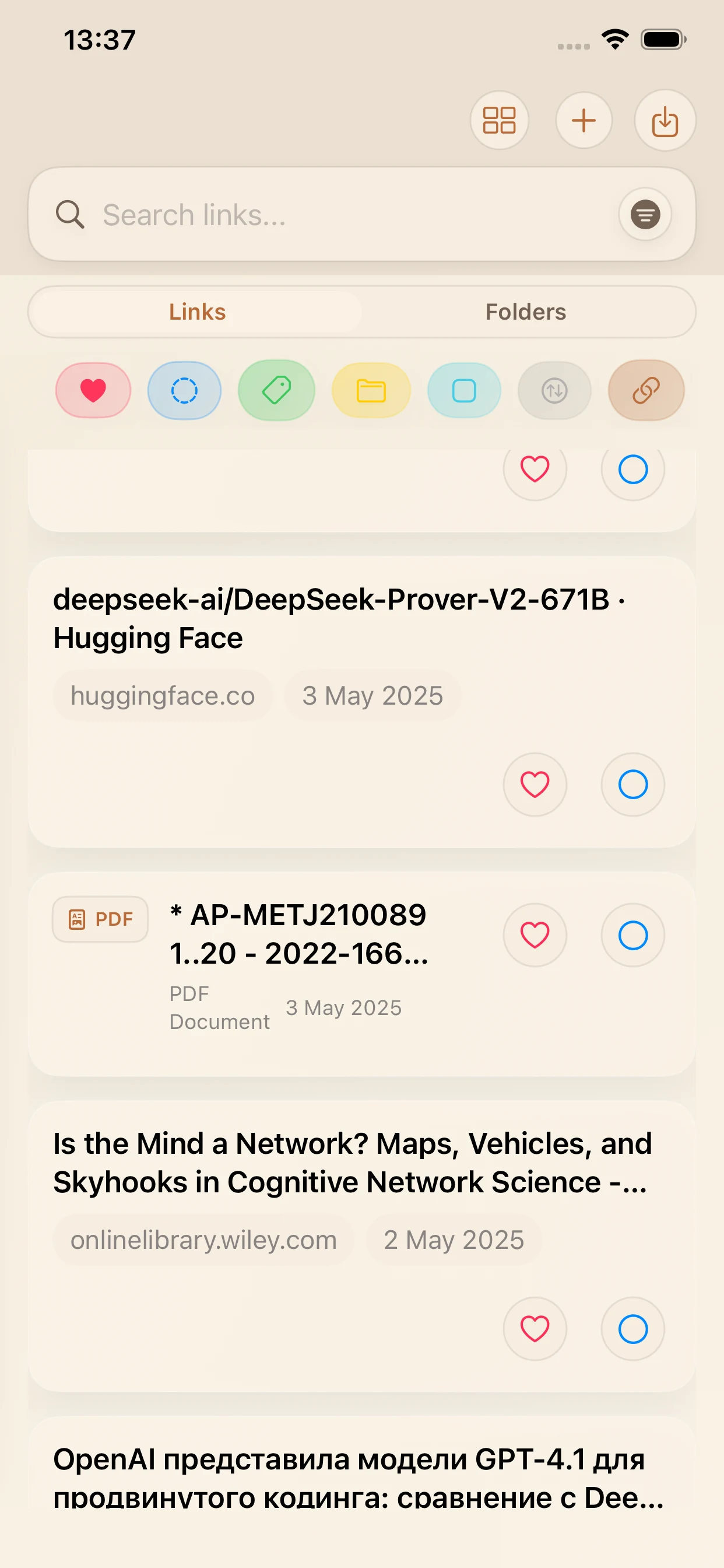
What to do if Safari bookmarks disappeared
If Safari bookmarks are already missing, treat recovery separately from LinkBook. Check iCloud Bookmarks, device backups, and any Mac or browser export you may still have. LinkBook protects the links you bring into its own library.
Once you recover or rebuild the important links, move the links you actively care about into LinkBook and start a backup routine there. That keeps the important part of the library in a format built for export, restore, and mixed-source use.
FAQ
Can LinkBook back up my Safari bookmarks?
LinkBook backs up the library you keep in LinkBook. If you export Safari bookmarks as HTML from a Mac, or copy links manually on iPhone, you can bring those links into LinkBook and then back up the LinkBook library.
Does LinkBook keep iCloud backup history?
Yes. Alongside manual local backup and restore, LinkBook offers scheduled automatic backups and iCloud backup history.
Does a backup include imported PDFs or EPUBs?
LinkBook backups include managed local attachments when they are available in the app-managed storage path. That makes backups more useful than a plain URL list for people who import files.