Sync Guide

iCloud Bookmark Sync on iPhone: Safari Sync vs LinkBook Sync

If you search for iCloud bookmark sync on iPhone, you are probably trying to solve one of three problems: your Safari bookmarks are not showing up on another device, you want a second copy of important saved links, or you want a private link library that follows you across your own Apple devices.

Those are related, but they are not the same problem. Safari iCloud sync, LinkBook private iCloud sync, and backups each protect a different part of the workflow.

In this guide

  • What Apple's iCloud Safari bookmark sync actually covers.
  • Why sync and backup should be treated separately.
  • How LinkBook's private iCloud sync fits its own saved-link library.
  • When to import Safari bookmarks into LinkBook instead of relying only on browser sync.
LinkBook private iCloud sync and backup workflow for saved links
Sync, import, backup, and restore are separate jobs. Treating them separately prevents surprises.

What Safari iCloud bookmark sync does well

Safari iCloud sync is the right default for ordinary browser continuity. It keeps Safari bookmarks, Reading List, Tab Groups, and open tabs aligned across the Apple devices where you use Safari.

That is useful for browser continuity. A bookmark saved on your iPhone can show up on your Mac, and a tab group can follow you between devices. If your main need is "keep Safari acting like Safari everywhere," use Safari iCloud sync.

Where browser sync is not enough

Browser sync keeps your browser data current. It does not automatically turn a pile of links into a research library. It also does not separate sensitive links from normal bookmarks, add project notes, turn supported links into Smart Cards, or keep PDFs and EPUBs beside related web pages.

LinkBook is the layer for material that needs more than a browser folder: saved research, private links, PDFs, EPUBs, notes, highlights, and Smart Card context you want to search and revisit later.

Keep your saved-link library in sync

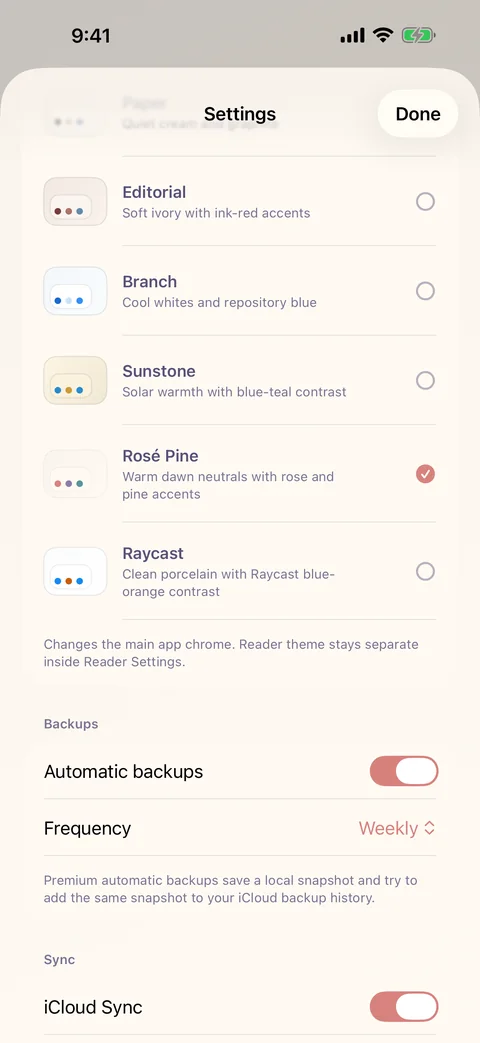
LinkBook Premium adds private iCloud sync for the LinkBook library, plus automatic backup and iCloud backup history for stronger recovery planning.

Download on the App Store

LinkBook private iCloud sync: what it is for

LinkBook's private iCloud sync is for the LinkBook library itself: saved links, library changes, and the app's own organization layer. The app's sync code uses a private Apple-device workflow rather than a public social bookmark account.

  • Use Safari iCloud sync when the item should stay a normal Safari bookmark.
  • Use LinkBook import when you want to move existing browser bookmarks into a richer saved-link library.
  • Use LinkBook private iCloud sync when your LinkBook library should stay available across your Apple devices.
  • Use backups when you need a recoverable snapshot in case sync repeats a mistake.

Sync is not backup

This distinction matters. Sync is current-state movement. If you delete or edit something, sync may carry that change to other devices. A backup is a snapshot you can restore from later. People often discover the difference only after a bookmark folder disappears.

Feature Best for Risk if used alone
Safari iCloud sync Keeping browser bookmarks current across devices Browser organization still stays browser-shaped.
LinkBook private iCloud sync Keeping the LinkBook library available across your Apple devices It is not a historical backup by itself.
Manual local backup Creating a snapshot before cleanup, import, or restore work You must remember to run it.
Premium automatic backup and iCloud history Reducing the chance that a link library has no recent recovery point Still worth checking before major library changes.

Recommended workflow for iPhone users

  1. Keep Safari iCloud sync on if you want ordinary browser bookmarks across Apple devices.
  2. Export or copy important bookmark groups before major cleanup work.
  3. Import bookmark HTML into LinkBook when browser folders have become a long-term reference library.
  4. Use LinkBook folders, notes, and tags to add context missing from browser bookmarks.
  5. Turn on private iCloud sync in LinkBook Premium if your LinkBook library should follow your Apple devices.
  6. Create a local backup before replacing, bulk importing, or reorganizing a large library.

When to import bookmarks into LinkBook

Import is the right move when bookmarks have stopped being quick browser shortcuts and have become research material. Common signs:

  • You have folders full of articles you still have not read.
  • You need notes explaining why a link matters.
  • You want to merge duplicate bookmarks instead of carrying them forever.
  • You want saved links grouped with PDFs, EPUBs, Smart Cards, or Reader highlights.
  • You want selected folders or links hidden from the normal visible library.

FAQ

Does LinkBook replace Safari iCloud bookmarks?

No. Safari iCloud sync is for Safari. LinkBook is a separate saved-link library. You can import browser bookmarks into LinkBook, but LinkBook does not take over Safari's own bookmark system.

Can I restore Safari bookmarks from iCloud?

Safari bookmark recovery belongs to Safari and iCloud. LinkBook restore applies to LinkBook backup archives, so your saved-link library has its own recovery path.

Should I use sync or backup before importing bookmarks?

Use both if the library matters. Sync keeps devices current. A backup gives you a recovery point if a cleanup, import, or replace operation does not go as expected.

Sources

Sync the library you actually use

Save important links in LinkBook, keep them organized, and add private iCloud sync when you need them across devices.

Download on the App Store