
PDF Reading Guide
Best PDF Reader iPhone 2026: Read PDF on iPhone Without Zooming
The search behind read PDF on iPhone without zooming is painfully practical. Most PDFs were laid out for desktop paper sizes, not for a narrow phone screen. So every paragraph turns into the same gesture loop: pinch in, pan right, pan left, lose your place, repeat.
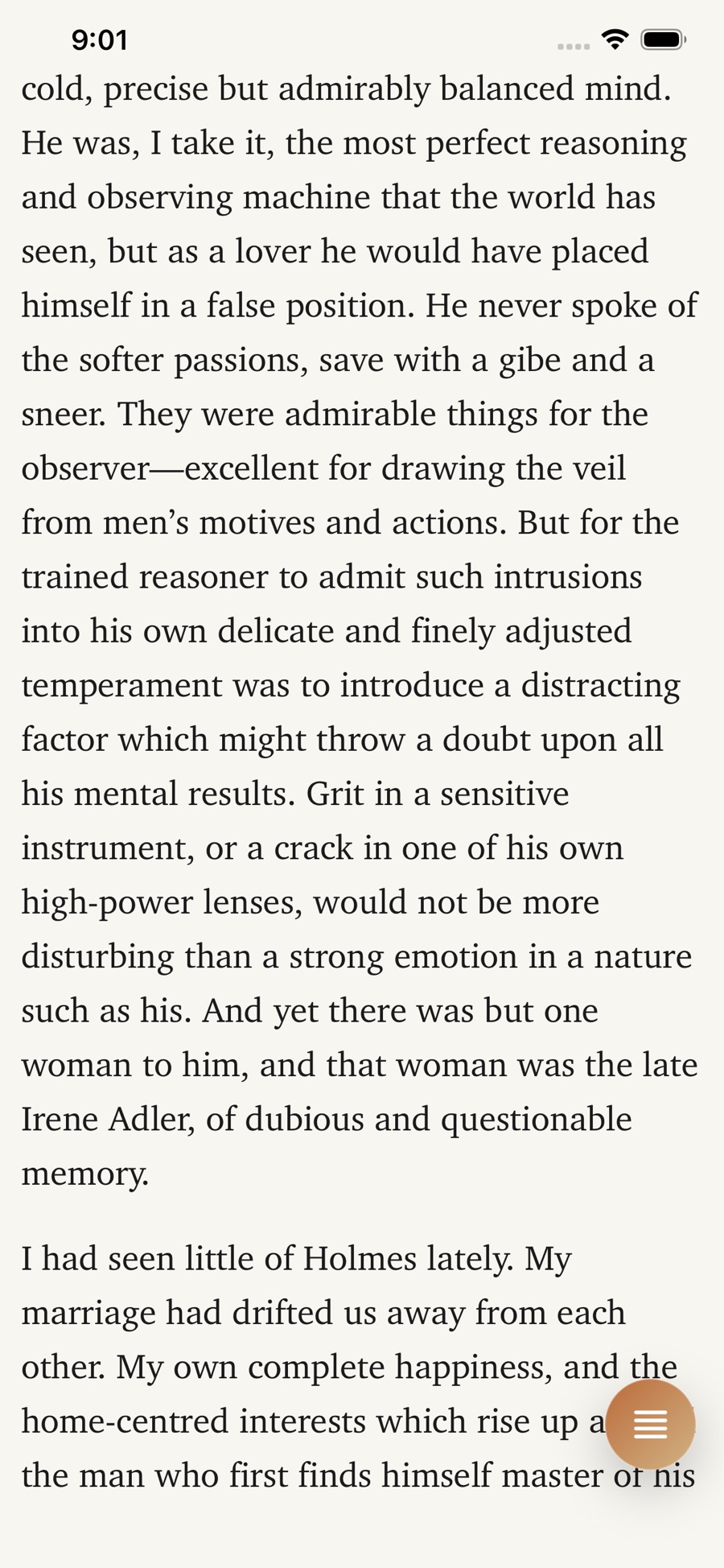
The fix is not just "a PDF app." The fix is a reader that can break out of the fixed page layout and let you read in a mobile-friendly text view. That is where LinkBook's PDF Book Mode has a real angle. It does not just make PDFs easier to read. It keeps PDFs in the same library as the articles, TikToks, Reddit threads, and recipes you already save on iPhone.
In this guide
- How to read PDFs on iPhone without constant zooming.
- What makes a PDF reader good in 2026, beyond basic page rendering.
- A head-to-head comparison of LinkBook, Adobe Acrobat Reader, GoodReader, PDF Expert, Foxit, and Highlights.
- Why LinkBook wins when your reading life includes more than PDFs.
Why PDFs feel unreadable on iPhone
PDF is a fixed-layout format. That is useful when you need the page to look exactly the same everywhere, but it is also the reason phone reading can feel awful. A report, textbook chapter, white paper, or manual that looks fine on a laptop often becomes too small on iPhone. You can still technically read it, but you do it through friction.
That is why the best solutions in 2026 do more than render the page. They offer some form of reflow reading: extract the text from the PDF, reformat it for a narrow display, and let you change typography without breaking every line. Adobe calls its version Liquid Mode. GoodReader talks about PDF reflow. LinkBook's angle is PDF Book Mode and text view for a broader read-everything workflow.
The key distinction is this: a lot of apps can open a PDF. Far fewer actually solve the without zooming part.
Try LinkBook on iPhone
If you want readable PDFs without building a separate PDF silo, LinkBook keeps documents, articles, and saved links in one iPhone library.

How to read PDF on iPhone without zooming
If your real problem is readability, the workflow should be simple:
- Open a text-based PDF in an app that supports reflow or text view.
- Switch out of the original fixed page view and into the mobile reading view.
- Increase font size, line spacing, and margins until the text feels natural on a phone.
- Keep the original PDF available in case you need the exact page layout, diagrams, or tables.
- Highlight key lines and resume later without losing your place.
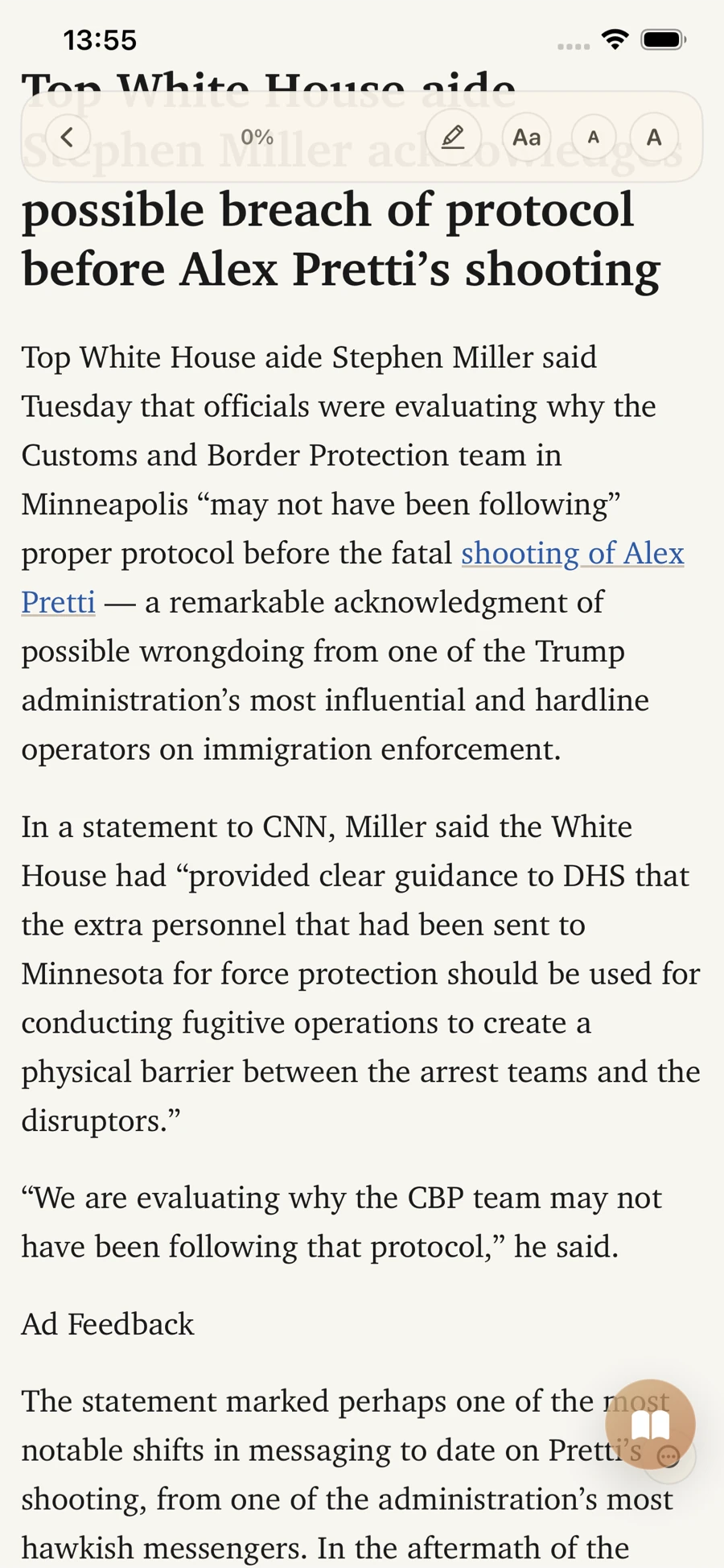
In LinkBook's PDF reader, that means you can open the original PDF, switch to a text view when the PDF has selectable text, then tune the reading setup with font size, line spacing, paragraph spacing, margins, font family, theme, alignment, and contrast. For longer sessions, Premium unlocks Book Mode so the text view feels more like reading a book than dragging around a desktop page on glass.
There is one honest limitation every reflow-style app shares: it works best when the PDF contains real text. If a document is just scanned pages or images with no usable text layer, no-zoom reading becomes harder. LinkBook can still open the original PDF, but the text-based view is strongest on PDFs where text can actually be extracted.
What the best PDF reader for iPhone needs in 2026
The keyword best PDF reader iPhone 2026 sounds broad, but the answer depends on the job. If you mainly sign forms and edit pages, you should buy an editor. If you mostly read dense PDFs on your phone, you should optimize for comfort first.
- True no-zoom reading: some kind of reflow, Liquid Mode, or text view for phone-sized reading.
- Original-layout fallback: tables, charts, diagrams, and forms still need the native PDF page.
- Annotation support: highlights, notes, and search should survive beyond one reading session.
- Typography controls: font size alone is not enough; spacing, margins, theme, and contrast matter on a phone.
- Offline-friendly access: documents should stay readable when you are commuting or traveling.
- A realistic content model: in 2026 most people save more than PDFs, so the ideal app may be broader than a dedicated PDF tool.
Feature and pricing comparisons below reflect official product pages and App Store listings reviewed on March 9, 2026.
LinkBook's positioning advantage: readable PDFs plus everything else you save
This is the gap most comparison posts miss. Adobe Acrobat Reader, GoodReader, PDF Expert, Foxit, and Highlights are all dedicated PDF products. They compete on editing tools, file management, OCR, forms, and annotation depth. LinkBook is different. It solves PDF readability inside a broader save-and-return workflow.
That matters because your phone library probably is not just documents. It is also saved TikToks, Reddit threads, recipes, articles, and reference links. LinkBook already uses Smart Cards to make mixed-source saves easier to recognize and reopen. PDF Book Mode extends that same philosophy to documents: do not make the user juggle separate systems if the real need is simply "make this readable and keep it with the rest of my saved stuff."
That also changes the buying decision. If you spend all day editing contracts, LinkBook is not trying to replace a full PDF workstation. But if your core pain is reading PDFs on iPhone comfortably while keeping them next to the rest of your saved reading, LinkBook has a sharper product fit than a pure PDF editor. For the broader category, also see Best Bookmark Manager for iPhone and LinkBook Reader & Book Mode.
Best PDF reader iPhone 2026: 6 apps worth considering
LinkBook — best for readable PDFs plus everything else you save
LinkBook wins this list if your real problem is bigger than PDFs. It gives you a dedicated PDF reading path, but it does it inside the same app you can already use for articles, social links, recipes, and research material. That makes it unusually practical for iPhone users who do not want one app for web reading, another for saved links, and another again for documents.
On the PDF side, LinkBook lets you switch between the original PDF page and a text-based reading view when the document has selectable text. That reading view is not just a dump of extracted text. It is tunable: font size, font family, line spacing, paragraph spacing, margins, theme, alignment, and contrast all matter on a phone-sized display. Highlights and notes stay part of the workflow, and the app keeps reading progress so you can reopen and continue. Premium unlocks Book Mode for a more immersive layout and includes PDF import from Files.
The tradeoff is straightforward. LinkBook is Apple-focused, and it is not designed as a contract-editing or enterprise-PDF tool. Image-only PDFs also have the same limitation every reflow-style reader has: without selectable text, there is less to adapt into a comfortable text view. But if your question is "what is the best PDF reader on iPhone for actual reading, without creating another app silo?" LinkBook has the most differentiated answer on this page. (App Store)
Adobe Acrobat Reader — best if you already live in Acrobat and want Liquid Mode
Adobe Acrobat Reader remains the default answer for many people because Adobe still owns the broadest PDF mindshare. On iPhone, its most relevant feature for this article is Liquid Mode, which restructures many PDFs into an easier mobile reading layout and lets you adjust size and spacing. If your pain is strictly "this PDF is miserable on my phone," Adobe deserves to be in the conversation.
Acrobat is also the most complete general-purpose PDF environment here for users who need forms, signing, cloud storage integrations, comments, and broader document workflows. That is the upside of choosing the category incumbent: it does a lot, and many organizations already use it.
The downside is that Acrobat is still fundamentally a PDF product. It is excellent when your world is PDFs. It does not solve the broader "everything I save on my phone" problem, and once you need premium editing features the subscription path becomes more relevant. (Adobe)
GoodReader — best for power users with large local and cloud file libraries
GoodReader has survived for years because it is still one of the strongest combinations of document reader and file manager on iPhone and iPad. If you work from synced folders, network shares, cloud drives, and large collections of files, GoodReader feels built by people who respect that workload.
It also directly addresses the no-zoom problem with PDF Reflow, which the company highlights as a better way to read PDFs without horizontal scrolling all the time. That makes GoodReader one of the closest dedicated-reader competitors to LinkBook on pure readability. It is also more file-management-heavy than most modern minimalist apps.
Where GoodReader trails LinkBook is not PDF depth. It is breadth of saved-content workflow. GoodReader is for documents and file management. It is not trying to be your mixed-source save-later library for web articles, TikToks, Reddit posts, and recipes. If documents dominate your mobile work, that is fine. If your library is broader, it starts to feel like only part of the answer. (GoodReader)
PDF Expert — best for polished Apple-native editing and signing
PDF Expert is one of the most polished PDF apps on Apple platforms, and that matters if you care about speed, annotation, conversion, OCR, signing, and a refined interface. Readdle positions it as a premium PDF tool rather than a narrow reader, and the product feels strongest when you actively work on documents, not just consume them.
If you regularly edit text, rearrange pages, convert files, sign documents, or want a high-end Apple experience for PDFs across iPhone, iPad, and Mac, PDF Expert is a serious option. Its pricing also gives you more than one path, including yearly and lifetime plans.
The reason it does not rank first for this keyword is simpler: the user's problem here is specifically "read PDF on iPhone without zooming." PDF Expert is excellent, but its core pitch is broader PDF power, not primarily reflow-style reading. It is a better buy for editing-heavy workflows than for mixed-source reading workflows. (PDF Expert) (Pricing)
Foxit PDF Editor — best for mobile PDF work with reflow and enterprise-style features
Foxit is the strongest option here if you want a PDF app that leans more corporate than consumer. On iPhone it combines reflow viewing, annotation, forms, signing, cloud connections, OCR-related features, and a much broader editor-style toolset than a reading-only app.
That gives Foxit a credible answer to the no-zoom problem while still serving users who need serious PDF operations. If Acrobat feels too Adobe-shaped but you still want a full PDF platform, Foxit belongs on the shortlist.
The tradeoff is complexity. Foxit is not trying to disappear into the background. It is a real PDF workspace, with the pricing and interface weight that usually come with that. For reading alone, that may be more product than you need. (Foxit) (App Store)
Highlights — best for research-heavy PDF annotation
Highlights is a different kind of PDF app. It is built for people who read papers, mark them up heavily, extract notes, export annotations, and want OCR help when a PDF is not searchable. That makes it much more specialized than Adobe or PDF Expert, but also more compelling for academics, researchers, and note-driven readers.
The app's strengths are annotation speed, note extraction, citation workflows, and Smart OCR for PDFs without a good text layer. If your reading habit is really a research habit, Highlights may feel more purpose-built than a general PDF editor.
It is not the best answer for the average person looking for a general iPhone read-later and save-later system, because it stays concentrated on the PDF research workflow. That is the same reason it complements LinkBook more than it replaces it. (Highlights) (Pricing)
Comparison table: which app fits your PDF workflow?
| App | Best for | No-zoom reading | Notes and highlights | Broader save-everything workflow | Pricing model | Platforms |
|---|---|---|---|---|---|---|
| LinkBook | Readable PDFs plus saved links, articles, social, and recipes | Text view plus Premium Book Mode for text-based PDFs | Yes, with reading progress and in-reader workflow | Yes, this is the main differentiator | Free download + Premium unlock | iPhone, iPad, Mac |
| Adobe Acrobat Reader | General PDF use, forms, signing, Liquid Mode | Yes, via Liquid Mode on supported PDFs | Yes | No, dedicated PDF workflow | Free + subscription features | iPhone, iPad, Android, web, desktop |
| GoodReader | Power-user file and document management | Yes, via PDF Reflow | Yes | No, dedicated document and file workflow | Paid app | iPhone, iPad |
| PDF Expert | Editing, signing, conversion, polished Apple UI | Readable standard view, but not primarily sold on reflow reading | Yes | No, dedicated PDF workflow | Subscription or lifetime | iPhone, iPad, Mac |
| Foxit PDF Editor | Mobile PDF work with enterprise-style features | Yes, with reflow support | Yes | No, dedicated PDF workflow | Free + subscription features | iPhone, iPad, Android |
| Highlights | Research annotation and OCR-heavy reading | Standard PDF reading, with OCR help for unsearchable text | Very strong | No, focused on research PDFs and notes | Free + Pro subscription | iPhone, iPad, Mac |
Sources: official product pages and App Store listings reviewed on March 9, 2026. Feature availability can change.
Quick recommendations by use case
- Best overall if you save more than PDFs: LinkBook.
- Best for classic PDF reading plus forms and signing: Adobe Acrobat Reader.
- Best for file-management-heavy power users: GoodReader.
- Best for editing and conversion on Apple devices: PDF Expert.
- Best for enterprise-style mobile PDF workflows: Foxit PDF Editor.
- Best for academic and research annotation: Highlights.
FAQ
Can you read a PDF on iPhone without zooming?
Yes. You need a PDF app that supports some kind of reflow or text-based reading view. That is the key difference between simply opening a PDF and actually making it comfortable on a phone.
What is PDF reflow reading?
Reflow reading extracts the text from a fixed PDF page and lays it out in a phone-friendly reading view. That lets you increase font size and spacing without horizontal panning on every line.
What is the best PDF reader for iPhone in 2026?
For pure PDF editing and enterprise workflows, Adobe Acrobat Reader, PDF Expert, and Foxit are strong. For people who want readable PDFs inside a broader save-later system for articles, social links, and reference material, LinkBook is the better overall fit.
Do all PDFs work in LinkBook's PDF Book Mode?
Text-based PDFs work best. If a PDF has selectable text, LinkBook can build a text view that is much easier to read on iPhone. Scanned image-only PDFs are more limited because there may be no usable text layer to reflow.
Can LinkBook keep my highlights and reading position?
Yes. LinkBook supports highlighting during reading and keeps progress so reopening a document feels like continuing a session, not starting from scratch.
Do I need Premium for PDF Book Mode?
Premium unlocks Book Mode itself and PDF import from Files. If you mainly care about long-form PDF comfort on iPhone, that is the feature tier to look at.
Ready to make PDFs readable on iPhone?
If the problem is constant zooming, the answer is not another raw file viewer. It is a reading workflow that adapts to your phone and keeps PDFs with the rest of what you save. That is exactly where LinkBook's PDF Book Mode stands out.
- Download LinkBook: App Store
- See the product overview: LinkBook homepage
- Learn the broader reading workflow: Reader & Book Mode guide
Sources
- LinkBook App Store listing
- LinkBook homepage
- LinkBook Smart Cards guide
- LinkBook Reader & Book Mode guide
- LinkBook TikTok workflow guide
- LinkBook Reddit workflow guide
- LinkBook recipe workflow guide
- Adobe Acrobat Reader
- GoodReader official site
- PDF Expert official site
- PDF Expert pricing
- Foxit PDF Editor Mobile
- Foxit App Store listing
- Highlights official site
- Highlights pricing