
Bookmark Import
New in LinkBook: Import Bookmarks from Safari, Chrome, Firefox, and Raindrop on iPhone
If you already have years of saved links somewhere else, starting from an empty library feels like unnecessary friction. LinkBook now lets you import bookmark HTML on iPhone, preserve folders, merge duplicates, and begin with a library you can actually use.
In this guide
- What the new Import Bookmarks flow supports today.
- How to move bookmarks from Safari, Chrome, Firefox, Raindrop, and similar services.
- What LinkBook keeps from the import, including folder paths and duplicate handling.
- What to do after import so your old saves become useful again instead of staying as archive clutter.
One of the biggest blockers when switching bookmark apps is not learning the new interface. It is moving the old library. If your bookmarks live across Safari, Chrome, Firefox, Raindrop, or an older read-later tool, rebuilding everything one link at a time is the kind of work that makes people give up before they start.
That is why LinkBook now includes an Import Bookmarks flow inside the app. Instead of asking you to manually re-save links, LinkBook lets you bring in a bookmark HTML export and start from the library you already built.
Try LinkBook on iPhone
Move your old bookmarks first, then keep saving new links through the Share Sheet instead of splitting your library across apps.

What LinkBook supports today
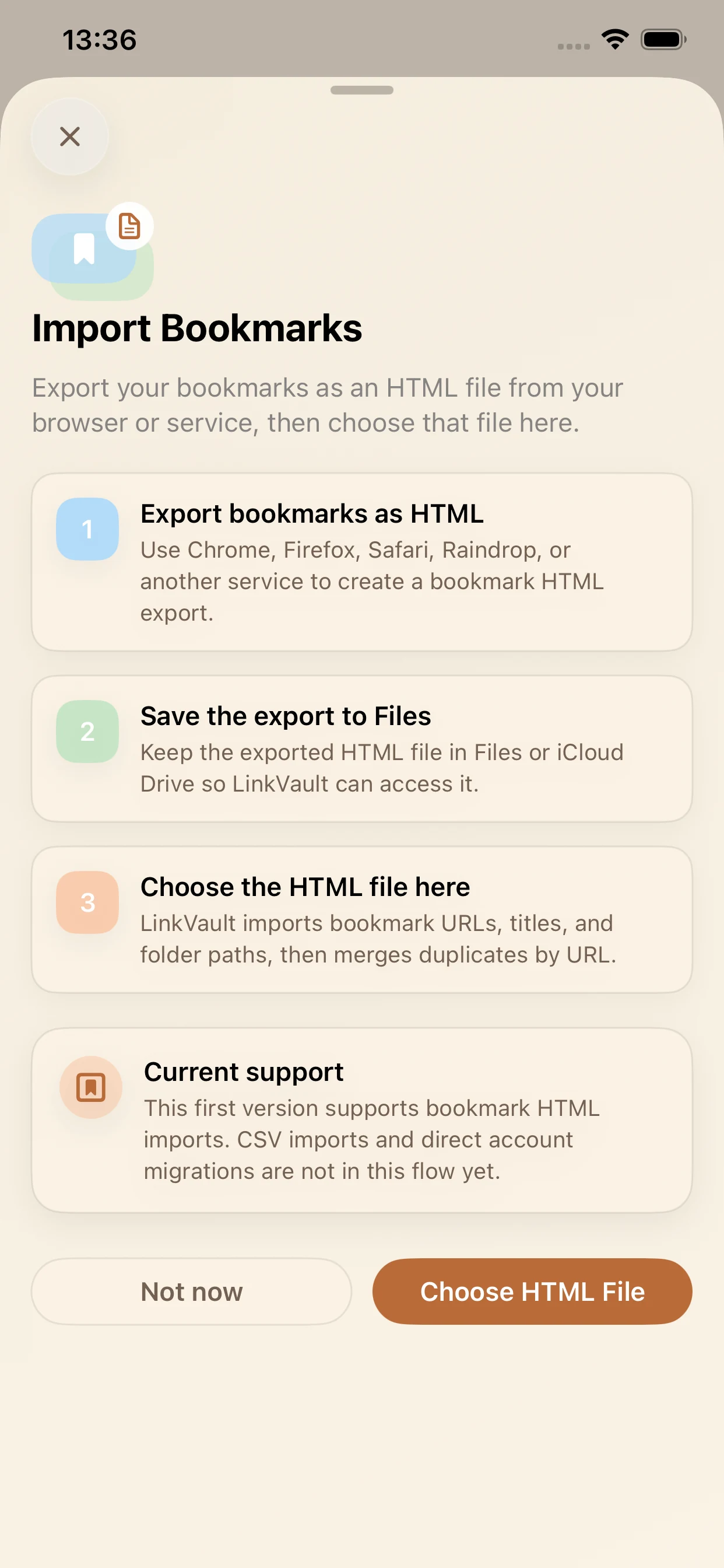
The wording in the import sheet is clear about the current scope. LinkBook asks you to export bookmarks as an HTML file from your browser or service, then choose that file on iPhone. The flow explicitly calls out Chrome, Firefox, Safari, and Raindrop, but it is not limited to those names. Any service that gives you a standard bookmark HTML export fits the same pattern.
- Input format: bookmark HTML.
- Example sources: Safari, Chrome, Firefox, Raindrop, and similar services with HTML export.
- Where to keep the file: Files or iCloud Drive, so LinkBook can access it from iPhone.
- Current limitation: as of March 14, 2026, CSV imports and direct account migrations are not part of this flow yet.
That matters because the feature is specific and practical. It does not pretend to be every migration path at once. It solves the most common, portable format first: the bookmark HTML file that many browsers and services can already produce.
How to import bookmarks into LinkBook on iPhone
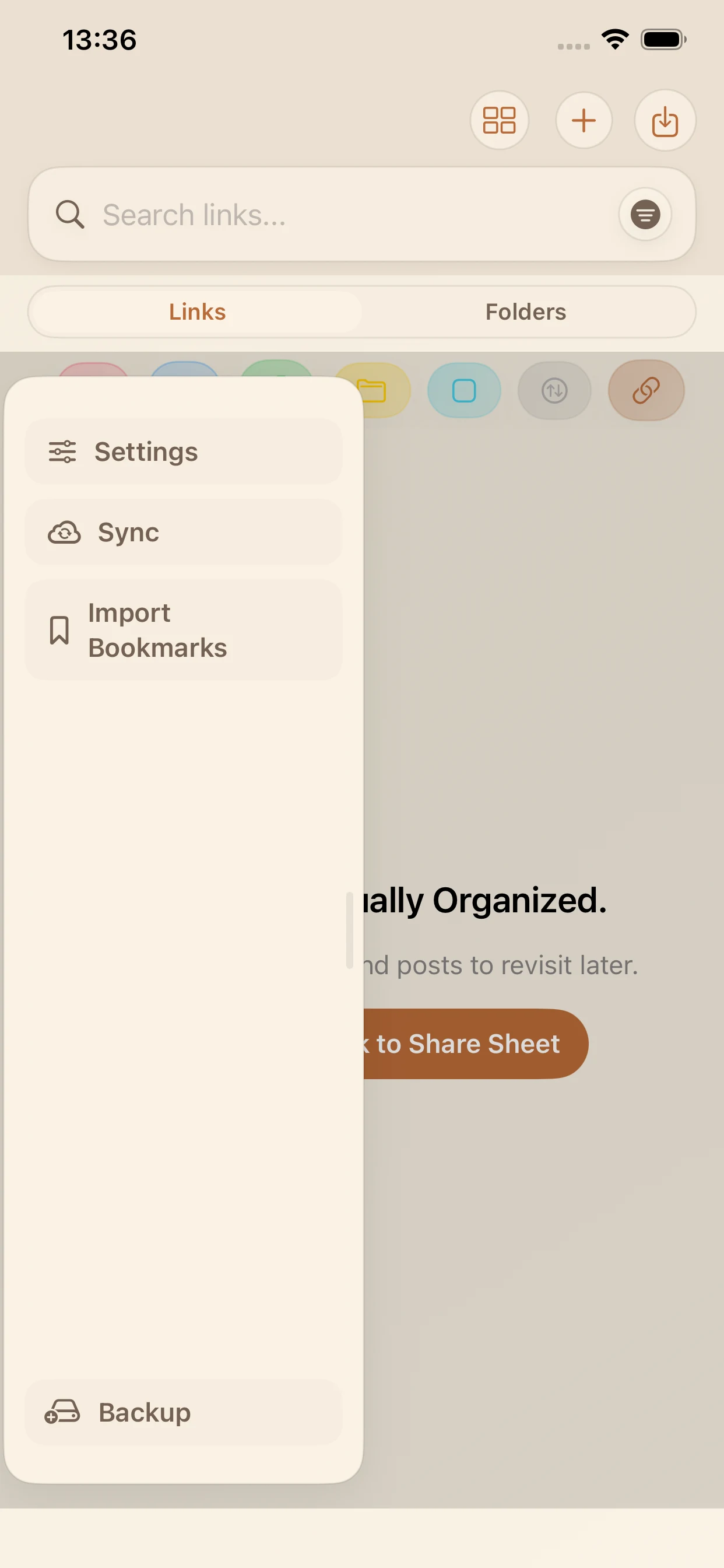
- Open Settings in LinkBook and tap Import Bookmarks.
- Export bookmarks as HTML from your current browser or service.
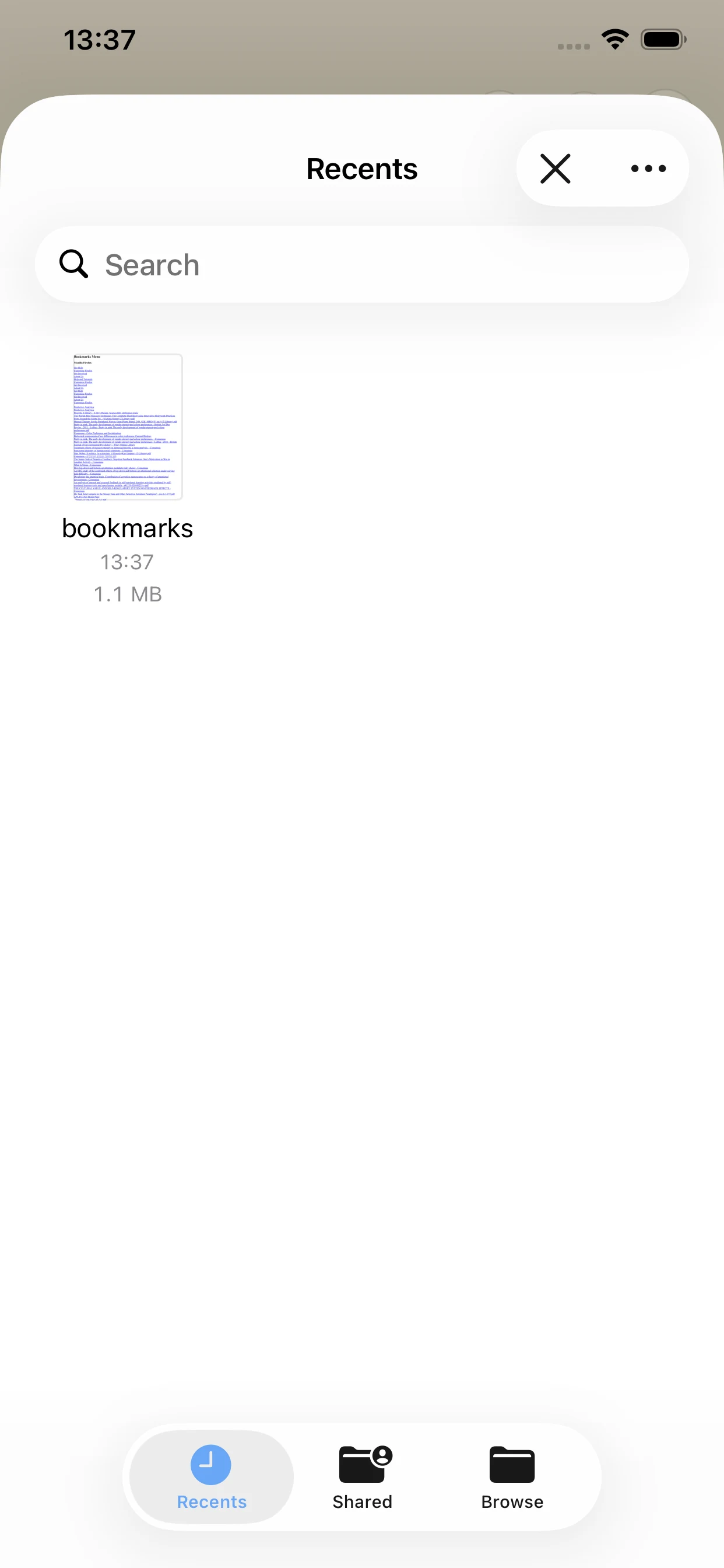
- Save the export to Files or iCloud Drive, not just a temporary share target.
- Tap Choose HTML File in LinkBook and select the export.
From there, LinkBook reads the file and starts building your library. The app imports bookmark URLs, titles, and folder paths, then merges duplicates by URL instead of blindly duplicating every row in an old export.
What carries over after import
The most important part of a bookmark migration is not the number of rows imported. It is whether the structure still makes sense when you land in the new app. LinkBook keeps three pieces that matter immediately:
- URL: the actual destination you saved.
- Title: the name attached to the bookmark in the export.
- Folder path: the hierarchy you already used to group saved items.
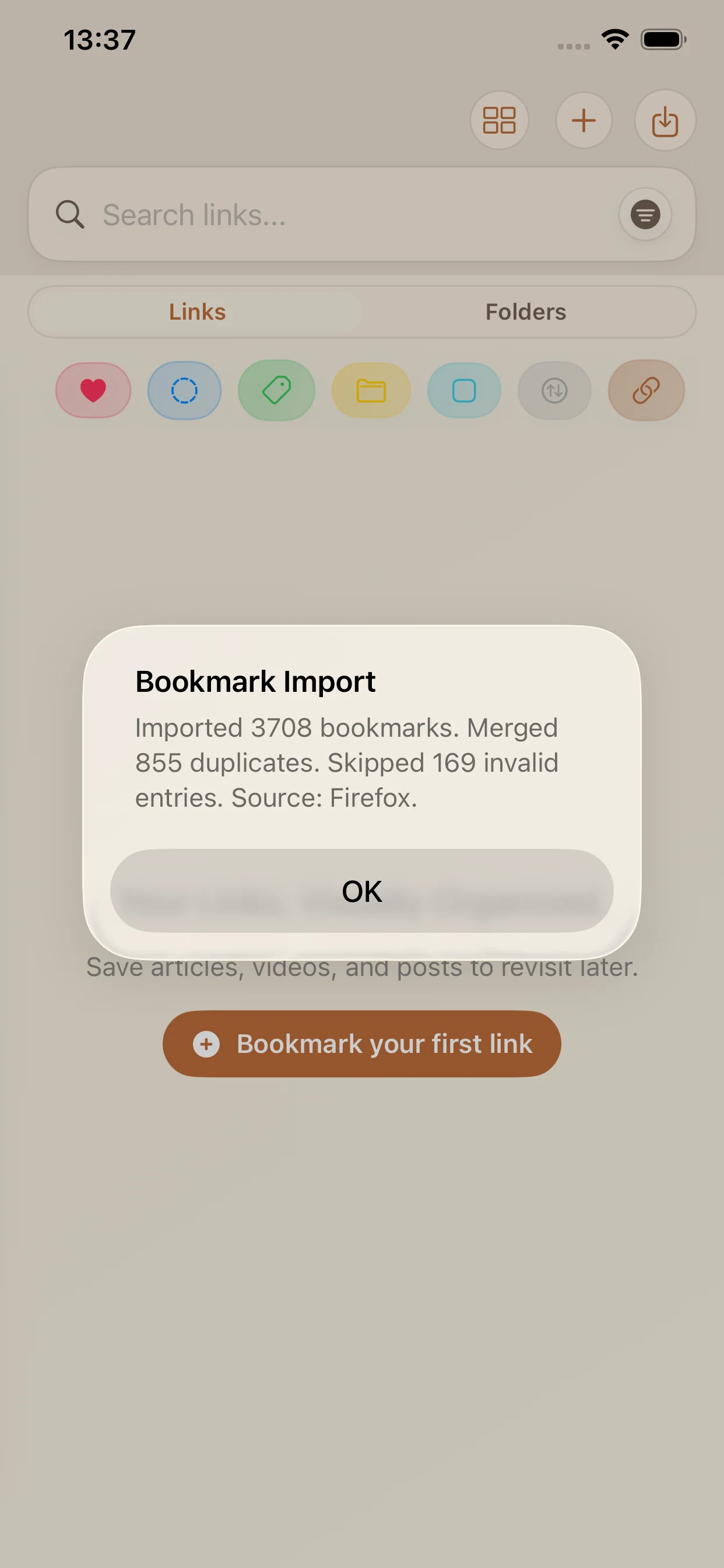
Duplicate handling matters too. In the example shown below, a Firefox import brought in 3,708 bookmarks, merged 855 duplicates, and skipped 169 invalid entries. That is exactly the kind of cleanup you want the app to do for you when migrating a long-lived library.
What to do right after your import
Import gets your old saves into LinkBook. The second step is making them useful again. A quick cleanup pass goes a long way:
- Star the small set of links you reach for most often.
- Add a few core tags for broad buckets like reading, research, shopping, or recipes.
- Archive or ignore stale links you no longer need to see in day-to-day browsing.
- Start saving new links through the iPhone Share Sheet so future saves land in the same library.
That is where LinkBook becomes more than a migration target. Imported bookmarks give you a starting library. Ongoing saving, organization, and source-aware views are what turn that import into a system you keep using.
Bookmark import on iPhone without starting over
A lot of iPhone bookmark apps ask you to imagine the perfect future workflow while ignoring the library you already have. Import Bookmarks fixes that. If your current browser or service can give you an HTML export, LinkBook can now meet you where you are and help you move forward from there.
If you have been waiting for a clean way to bring Safari bookmarks, Firefox bookmarks, Chrome bookmarks, or a Raindrop export into an iPhone-first library, this is the update that removes the main migration excuse.
FAQ
Can I import Safari bookmarks into LinkBook on iPhone?
Yes. Export your Safari bookmarks as an HTML file first, save that file to Files or iCloud Drive, then choose it in LinkBook through Import Bookmarks.
Can I import Firefox or Chrome bookmarks too?
Yes. The current import flow specifically references Chrome and Firefox alongside Safari and Raindrop. The important requirement is an HTML bookmark export.
Will LinkBook keep my folders?
Yes. LinkBook imports folder paths together with bookmark titles and URLs, so the migration is not just a flat dump of links.
Does LinkBook remove duplicates during import?
It merges duplicates by URL. That helps clean up older exports where the same page may have been saved more than once over time.
Does bookmark import support CSV or direct account migration?
Not in this version. As of March 14, 2026, the in-app flow is focused on bookmark HTML imports.