
How to Save Links on iPhone: Safari and LinkBook
For a Safari bookmark, open the page and use Add Bookmark from Safari’s page or sharing controls. For a separate LinkBook library, tap Share, choose LinkBook, and tap Post.
Save to LinkBook
- Install and open LinkBook once. Then open a page in Safari or another app that can share a web link.
- Tap the iOS Share button. In the app row, choose LinkBook.
- If LinkBook is missing, scroll the app row to More. Use Edit to add it to favorites when that option is available.
- Check the title and link in the LinkBook sheet, then tap Post.
- Open LinkBook and find the saved item in your library.
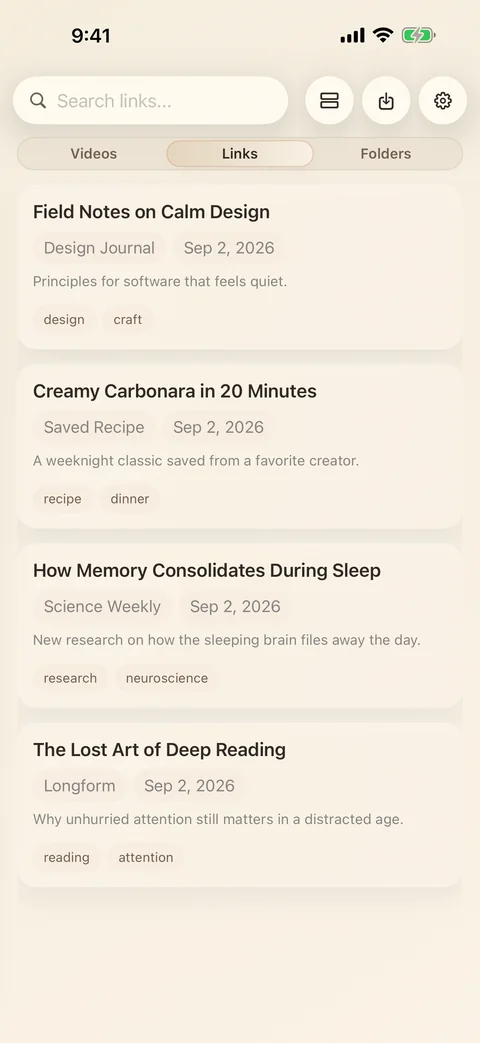
Keep the reason you saved it
Add a short note, such as “compare for the trip,” and a useful tag. Mark a favorite when you want to return soon. Use search to find the words you added later.
Folders require Premium; saving links, tags, notes and ordinary search are included in the free download.
A bookmark, a shortcut, or a file?
A bookmark stores a reference to a page. Safari’s Add to Home Screen creates a shortcut on your device. A PDF or EPUB is a reading file. Saving a link does not automatically download every page, image or video for offline use.
Safari Reading List can save supported articles for offline reading. LinkBook’s Reader can also keep eligible article text after a successful save. Prepare and check the copy before going offline.
If the link did not appear
Open LinkBook and search for the page title or URL. Check whether it is inside a folder or hidden from Home. If an app shares text or an image instead of a web URL, copy the actual link and add it in LinkBook. Keep the source page available until you confirm the save.
Related guides
Download LinkBook