
Reader Experience
Read Saved Links on iPhone: LinkBook Reader & Book Mode
If you save links on your iPhone, you probably know the pattern: you spot something worth reading, tell yourself you'll come back, and then it disappears into a pile of tabs or bookmarks.
The issue usually isn't motivation. It's friction. Mobile pages are noisy, text is uncomfortable, and one interruption can break your momentum. LinkBook's Reader Mode and Book Mode are built for this exact moment.
In this guide
- Why saved links pile up while reading doesn't happen.
- How Reader Mode and Book Mode reduce mobile reading friction.
- How font size and highlighting make reading more active and comfortable.
- A quick setup to turn "saved" into "read" on iPhone.
Problem: saved links pile up, but reading doesn't happen
Most read-later workflows fail in the same ways:
- Tabs explode into dozens of "read later" pages.
- Bookmarks are out of sight, so they are out of mind.
- Mobile pages are cluttered with popups and layout shifts.
- Small text and cramped spacing create eye strain.
- Interruptions break your place and your intent.
If this sounds familiar, the answer is not more willpower. It's a better reading environment where your saved links already live. For the bigger context, see Why your bookmarks fail.
Try LinkBook on iPhone
Install in 30 seconds, save your first link from Share Sheet, and see Smart Cards immediately.

Solution: a reading-first workflow inside LinkBook
LinkBook doesn't just store links. It helps you finish them. From each saved item, you can choose:
- Open link for the original page.
- Open in Reader for a cleaner reading view.
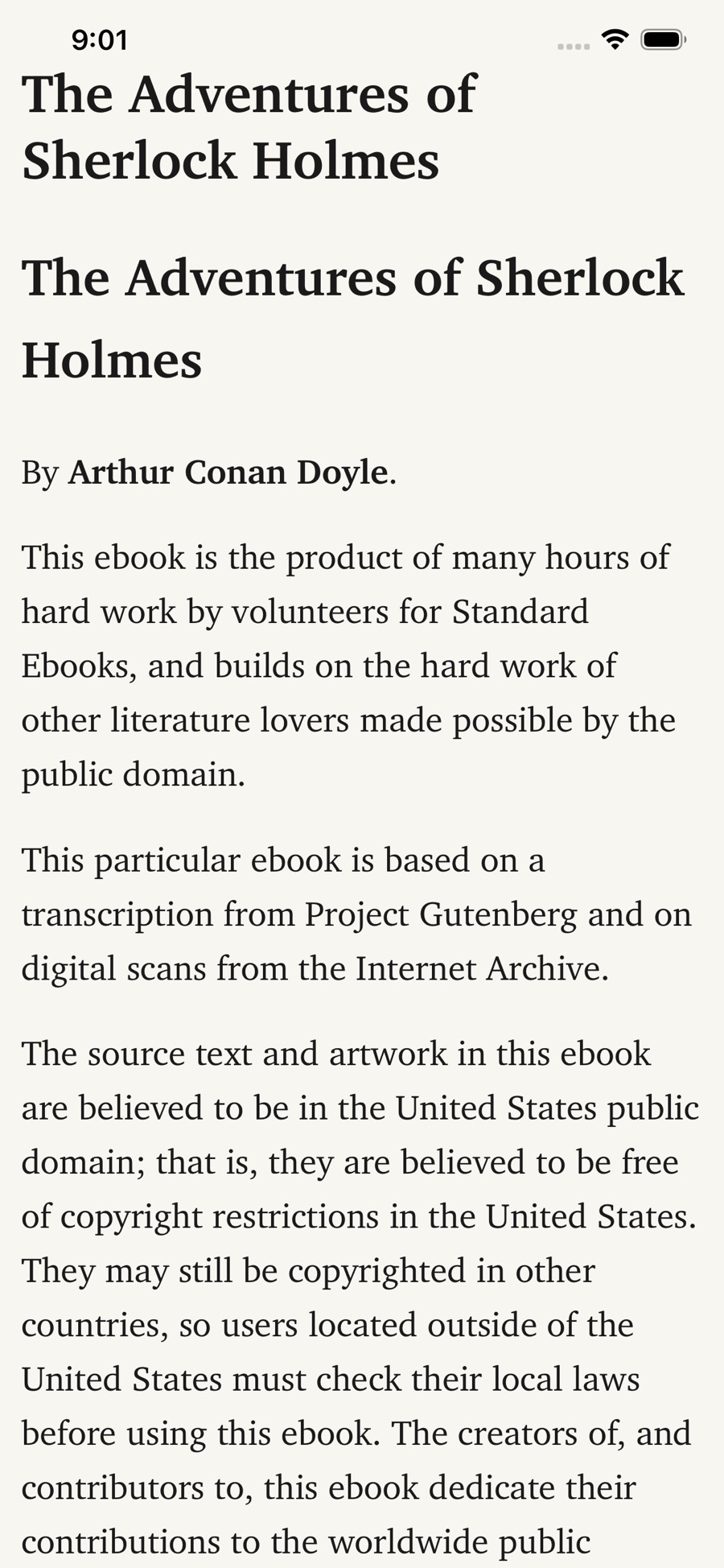
Then you can use four reading features designed for mobile:
Reader Mode
Reader Mode simplifies the page so you can focus on text instead of website chrome.
Book Mode
Book Mode is designed for longer sessions such as essays, chapters, and report-style content.
Font size controls
Increase or decrease text size based on your context: commute, couch, one-handed reading, or low-light sessions.
In-reader highlighting plus notes
Highlight key lines while reading and keep context with quick notes on the saved-link screen. If you are refining your iPhone save flow first, see How to save links on iPhone.
Benefits: what changes when reading gets easier
- Start faster. Less page friction means less delay before reading.
- Stay focused longer. Clean layout and readable type reduce cognitive noise.
- Reduce eye strain. Font controls remove constant zooming and squinting.
- Make reading active. Highlights and notes turn links into reusable knowledge.
Browser tab vs Reader Mode vs Book Mode
| Experience | What it's like | Best for | Typical friction |
|---|---|---|---|
| Browser tab | Full page with everything | Forms, comments, interactive widgets | Popups, shifts, distractions |
| Reader Mode | Clean article-style view | Focused reading without noise | Some page types may simplify imperfectly |
| Book Mode | More immersive long-form layout | Essays, chapters, and longer sessions | Not every source needs this view |
Who this is for
- People who save links all day but rarely read them.
- Users with too many open Safari tabs.
- Readers of long articles and public-domain books on iPhone.
- Anyone who wants clean typography and adjustable text size.
- People who highlight key lines while reading.
If your first pain point is retrieval rather than reading, also check Smart cards for saved links.
Quick setup in 4 steps
- Install LinkBook on iPhone.
- Save a link into LinkBook via Share.
- Open the saved item and tap Open in Reader.
- Adjust font size, switch reading mode, and highlight important lines.
How Reader Mode works

Use a simple two-door flow: open in Reader when you want focus, open the original link when you need full site functionality. This keeps content reading and web browsing separate, on demand.
Book Mode and comfortable long-form reading
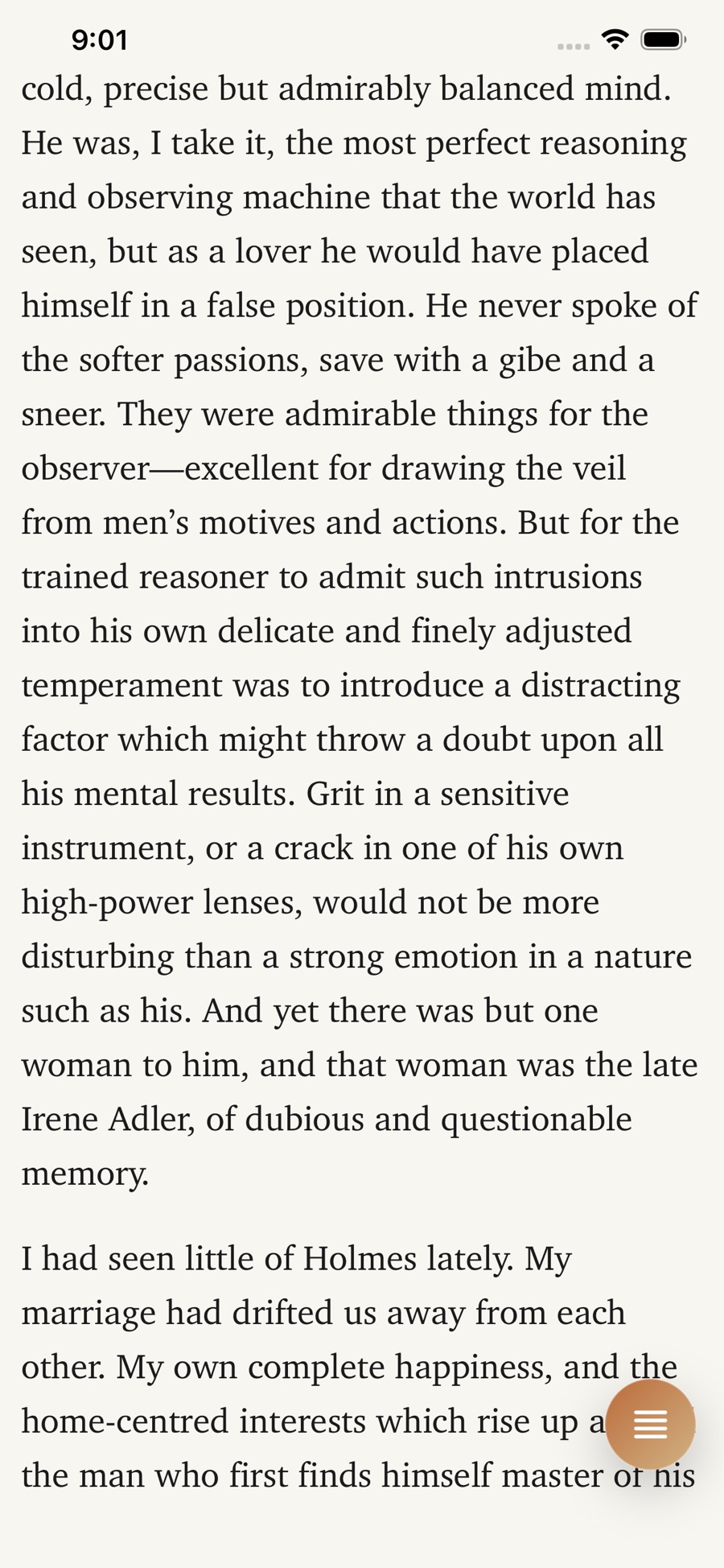
For chapter-length or essay-length content, Book Mode helps maintain continuity so reading feels more immersive and less fragmented. If you are trying to read PDFs on iPhone without constant pinch-zooming, see Best PDF Reader iPhone 2026: Read PDF on iPhone Without Zooming.
Font size controls: make text fit your context
Use larger text when reading at night, commuting, or handling dense content. Use smaller text when scanning quickly.
The core advantage is simple: you can tune readability per session without changing global iPhone settings.
Highlighting and active reading
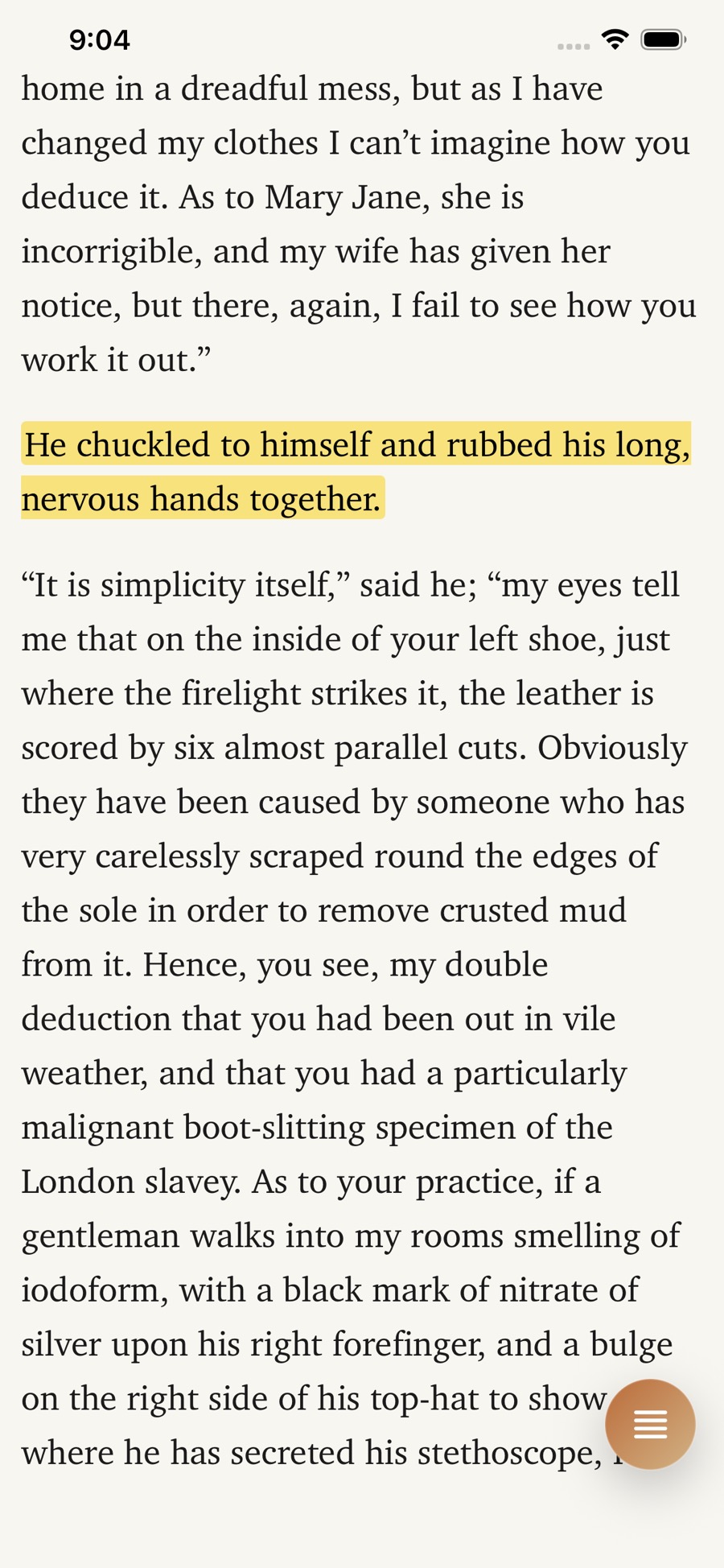
Highlighting turns passive scrolling into active reading. Mark one line you want to revisit, then add a short note for future context.
Limits and compatibility
- Reader views work best on article-style pages with clear text structure.
- Heavily scripted or interaction-heavy pages may be better in original view.
- You can always switch back to Open link for the native page experience.
FAQ
What is Reader Mode?
Reader Mode is a cleaner reading view inside LinkBook that helps you focus on the text of a saved link, without the usual web clutter.
What's the difference between Reader Mode and Book Mode?
Reader Mode is optimized for reading web articles in a simplified layout. Book Mode is built for more immersive long-form reading sessions.
Can I change font size?
Yes. LinkBook includes font size controls so you can make the reading view larger or smaller until it's comfortable.
Can I highlight text?
Yes. LinkBook supports in-reader highlighting, so you can mark important sentences as you read.
Do I keep access to the original page?
Yes. You can open the original page (Open link) or use the cleaner reader view (Open in Reader).
Is this useful for long articles or books?
Yes, especially for long reads where distractions and eye strain are the main reasons people stop.
Ready to turn "saved" into "read"?
Download LinkBook on the App Store and start reading saved links with less friction.

Scan to download
App StoreReady to build your link library?
Download LinkBook and start saving in seconds.