
PDF Readers for iPhone: Open Files and Read Comfortably
Start with the document: a text-based PDF can be easier to read in a text view, while a scan or diagram may need its original layout. LinkBook keeps PDFs beside your saved articles and EPUBs.
Open a PDF and make its text easier to read
- Download the PDF into Files. In LinkBook, use the library’s Import file button and choose the document.
- Open the saved PDF. Use the original page view when you need a diagram, table or exact layout.
- For a PDF with extractable text, switch to the text reading view and adjust type, spacing and margins.
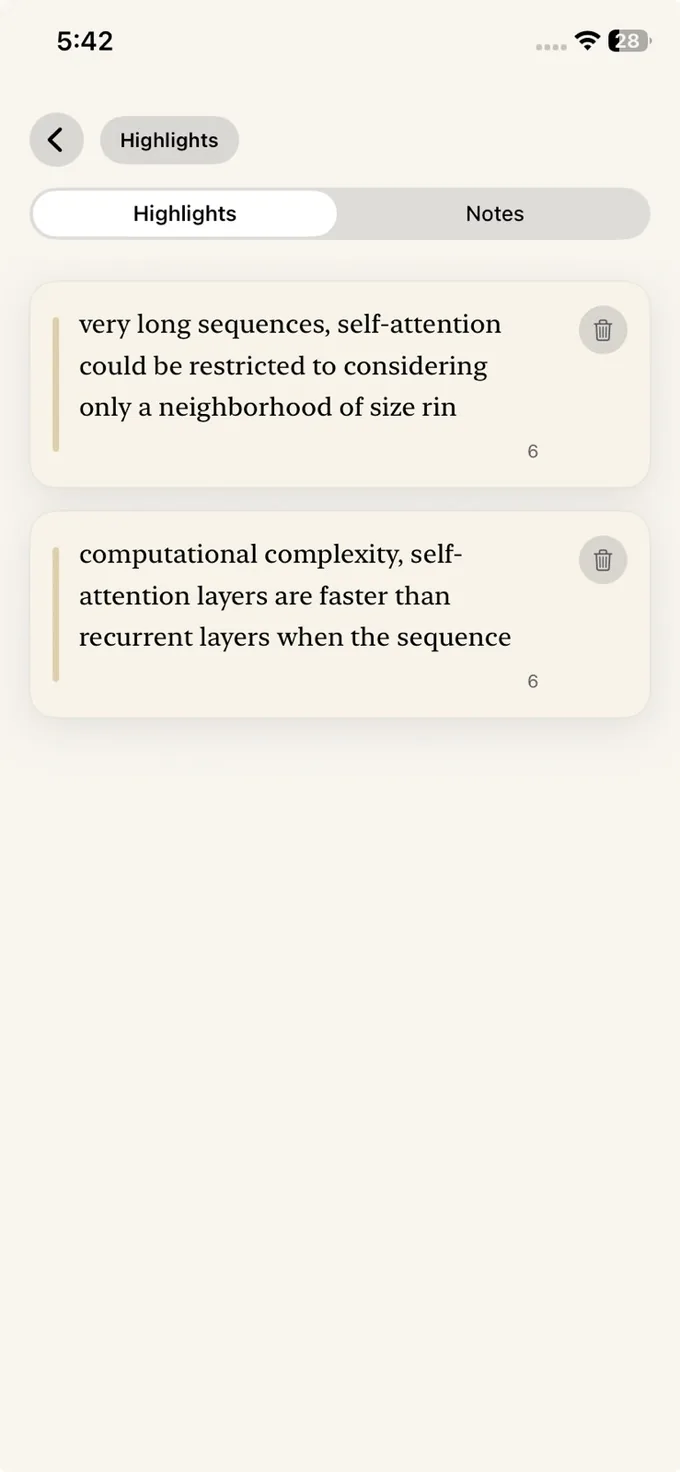
- Select text to highlight or add a note, and reopen the document later to continue from saved progress.
Text view has limits
Selectable text is the best starting point for a comfortable phone reading view. Image-only scans and complex layouts may not produce useful text. Keep the original page view for figures, tables and forms. This guide does not describe LinkBook as an OCR, signing or PDF editing tool.
PDF import and Book Mode require Premium. Download the file on each device before relying on it offline; a synced file record may need its first download.
Choose a PDF app around the task
We publish LinkBook. It is intended for reading PDFs alongside saved articles and EPUBs. If you mainly need to edit or sign documents, compare a dedicated PDF product’s current feature list and plans. This is a task guide, not a scored benchmark.
- Adobe Acrobat Reader: review its mobile reading and document tools.
- GoodReader: review its PDF reading and file-management tools.
- PDF Expert: review its Apple-platform PDF features and current plan scope.
Try the same document in your chosen app. Check the page layout, text readability, highlights and offline access that matter for your files.
Related guides
Download LinkBook