New in LinkBook 4.0
How to Ask a PDF Questions on iPhone, Privately on Device
To ask a PDF a question in LinkBook, open it, tap More (…) › Reader insights, choose Ask and type your question. The answer comes only from the document’s own text, with links to the pages it relies on, and Apple Intelligence writes it on your device.
Long documents are where questions pile up: which chapter defines a term, where the author makes a claim, what a dense paragraph actually says. LinkBook’s Ask, Explain and Insights find those answers inside the document itself, without uploading it anywhere.

How to ask a PDF a question on iPhone
- Open the document. A PDF, an EPUB book or a saved article.
- Tap More (…) › Reader insights. The Insights sheet opens.
- Choose Ask. Type your question in Ask a question and send it.
- Check the sources. Tap a source under the answer to jump to that page.
Answers that point back to the page
Every answer is labelled From this document, Partly answered by this document or Not found in this document. LinkBook first finds the passages that match your question, then answers from those passages only. When nothing in the document matches, it says “I couldn’t find that in this document.” instead of guessing.
Your recent questions stay listed under the answer, so you can return to an earlier answer without asking again.
Explain a passage
- Select a phrase or a sentence.
- Tap Selection tools, then Explain.
- Read the Meaning, a version In simpler words, and the key Terms. The bookmark next to a term saves it to your vocabulary.
For a single word, use Look Up instead.
Briefs, overviews and highlight digests
The Insights sheet does more than answer questions. Each kind of document has its own tabs:
| Document | Insights |
|---|---|
| Page Brief, Document Overview, Highlight Digest, Ask | |
| EPUB book | Chapter Brief, Book Overview, Highlight Digest, Ask |
| Article | Article Brief, Highlight Digest, Ask |
Highlight Digest gathers themes, decisions and next steps from your highlights. For more on briefs, see the reading assistant guide.
Keep answers and summaries as notes
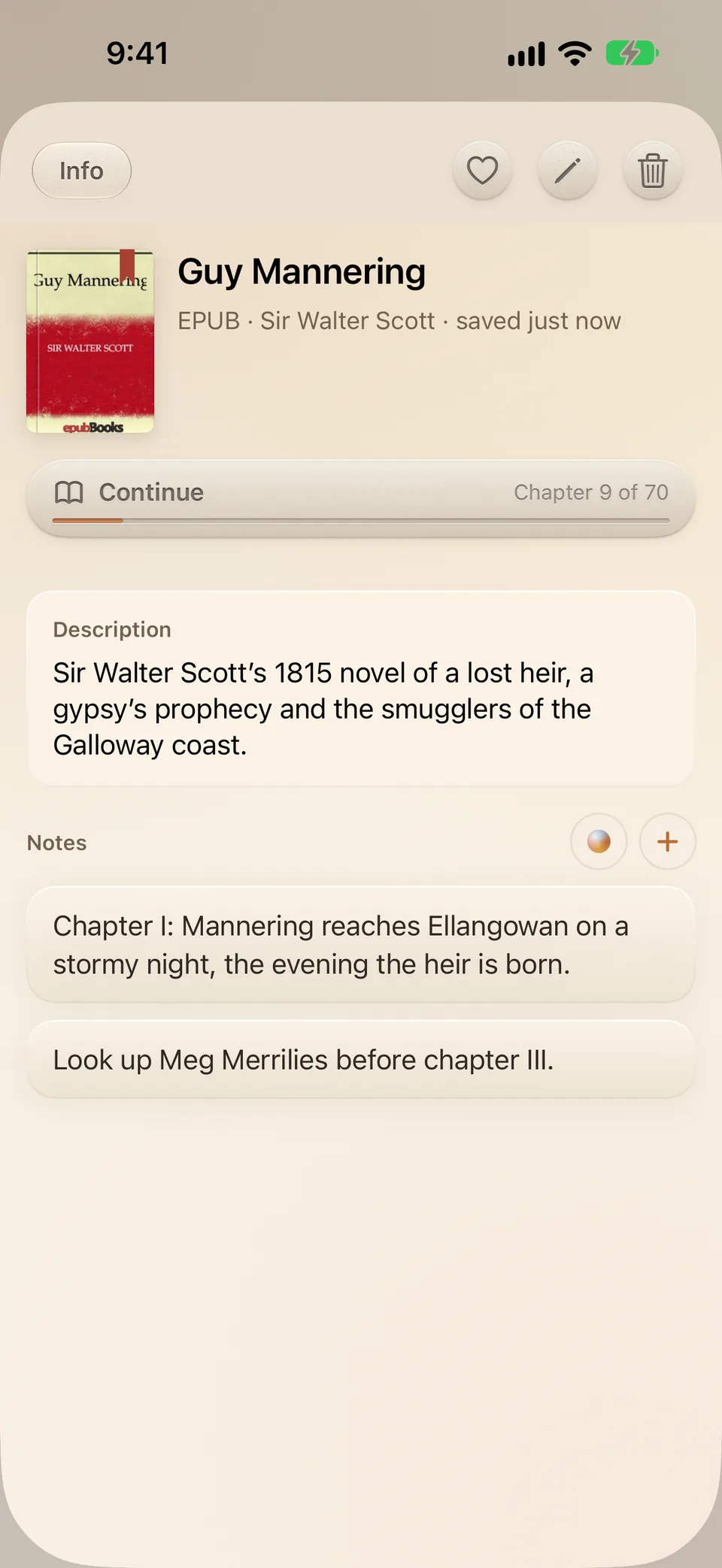
A link can hold several notes. On the link’s page, Add note writes your own, and AI note writes a Summary or Key points from the text. In the Insights sheet, Save to notes keeps an answer or a brief with the link. The link’s page also lists your past insights, and with iCloud sync on they appear on your other devices too.
Privacy and what you need
Ask, Explain, briefs and AI notes run on Apple Intelligence’s on-device model. LinkBook does not upload your document to answer a question. They need an iPhone or iPad that supports Apple Intelligence, iOS 26 or later, and Apple Intelligence turned on in Settings.
Common questions about asking a PDF
Can I ask questions about a whole book?
Yes. LinkBook looks for the passages that match your question across the whole document and answers from those, with links to where they are.
What if the answer is not in the PDF?
LinkBook says it could not find it in the document. It does not fill the gap with outside knowledge.
Does it work offline?
Yes. The model runs on your device, so once the document is on your iPhone or iPad you can ask questions without a connection.
Does it work with scanned PDFs?
Yes, once LinkBook has recognized the text of the scanned pages for Text View. Ask then answers from that text.
Which devices can use Ask and Explain?
iPhone and iPad models that support Apple Intelligence, with iOS or iPadOS 26 or later.
Ask the document, not the internet.
Save PDFs, books and articles in LinkBook and get answers from their own pages, privately on your iPhone and iPad.