New in LinkBook 4.0
How to Write on PDFs and Books on iPhone and iPad
To write on a PDF, EPUB or saved article in LinkBook, open it and tap the pen button at the top right. Then draw on the text with your finger or Apple Pencil: a line under words becomes an underline, a line through them a strike-through, and a loop around them a circle, each snapped neatly to the words.
Marks in the margin are how a text becomes yours. LinkBook turns quick finger strokes into tidy marks, lets you draw freely on a PDF’s pages, and keeps handwritten notes next to the passages they are about.

How to turn on the pen
- Open the text. The pen works in articles in Reader, in EPUB books and in PDFs.
- Tap the pen. It is the pencil button in the group at the top right of the reader. Tap the page once if the controls are hidden.
- Pick an ink. The palette at the bottom has red, blue, green and violet ink, Undo, and a checkmark to finish.
- Draw with one finger. Two fingers still turn the page or scroll, so you can move through a chapter without putting the pen away.
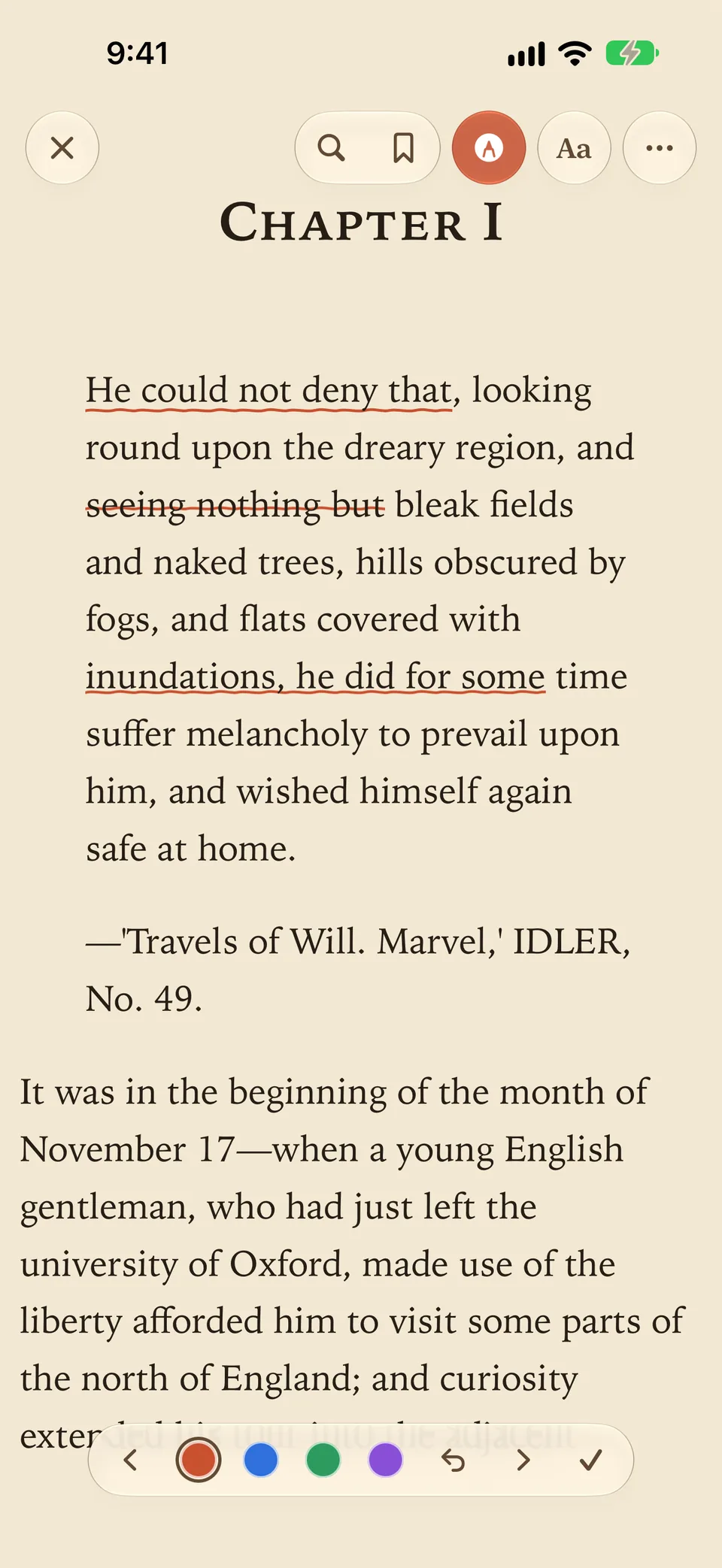
Underline, circle or strike through words
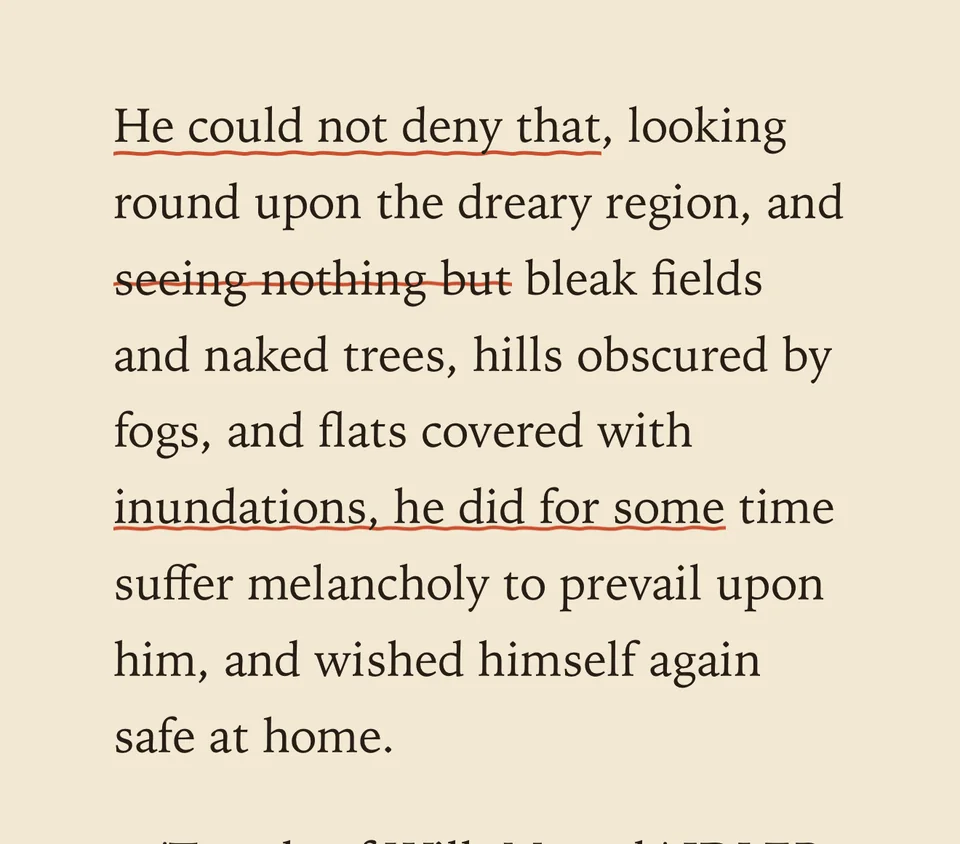
You do not need to draw neatly. LinkBook reads the shape of your stroke and turns it into a clean mark on the words under it.
| You draw | You get |
|---|---|
| A line along the foot of the words | An underline |
| A line through the middle of the letters | A strike-through |
| A loop that closes around words | A circle around them |
| A scribble or zigzag over words | A highlight in a light tint of the ink |
A mark snaps to the words under your stroke and stays at the height you drew it. If it lands on the wrong words, tap Undo and draw it again.
Change, recolor or remove a mark
Tap a mark to open its menu. Highlight changes its color, Note adds a typed or handwritten note, and Remove deletes it.
Add a handwritten note to a passage
- Tap a mark, then choose Note › Handwrite.
- Write on the ruled sheet. The words you marked are quoted at the top, and you can switch between pen, highlighter and eraser.
- Tap the checkmark. The note appears under the marked passage.
Swiping the sheet away keeps what you wrote; only Cancel throws it away. To change a note later, tap the mark and choose Note › Edit Handwriting. In a PDF, handwritten notes are made in Text View. On iOS 27, LinkBook recognizes your handwriting as text, so VoiceOver can read the note aloud.
Draw on a PDF’s pages
On a PDF’s own pages, the pen works like paper. Open the PDF with Pages, tap the pen, and choose the Pen, Highlighter or Eraser.
- Draw with your finger or Apple Pencil. On iPad, if Only Draw with Apple Pencil is on in your Apple Pencil settings, your finger scrolls instead.
- Scroll and zoom with two fingers while you draw.
- Your ink stays attached to the page at any zoom.
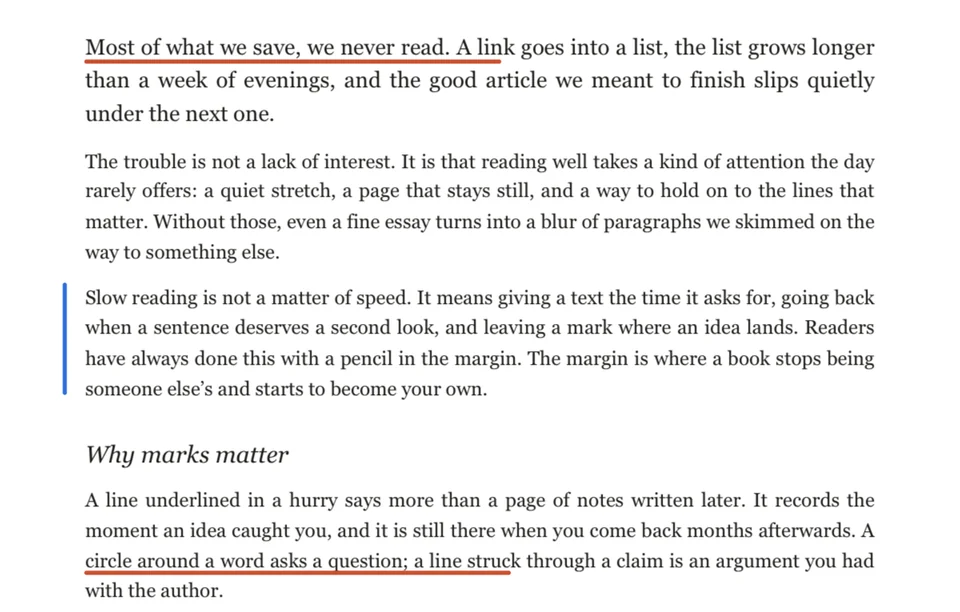
Pen marks on a PDF’s text are saved into the PDF as standard underline, strike-out, circle and highlight annotations. With iCloud sync on, your marks, page drawings and handwritten notes appear on your other iPhone and iPad too.
Highlights from other apps
If a PDF already has highlights made in another app, LinkBook shows them on the page and in Text View. Tap one to change its color, add a note or remove it. LinkBook changes the highlight inside the PDF itself rather than drawing a copy over it.
Common questions about writing on PDFs and books
Do I need an Apple Pencil?
No. Everything works with a finger on iPhone and iPad. Apple Pencil works too on iPad.
How do I erase a mark?
Tap Undo right after drawing it, or tap the mark later and choose Remove. On a PDF’s pages, use the Eraser.
Can I mark up EPUB books?
Yes. Underlines, strike-throughs, circles, highlights and notes all work in EPUB books. LinkBook keeps them with your library; the book file itself is not changed.
Do my marks sync between iPhone and iPad?
Yes. With iCloud sync on, marks, page drawings and handwritten notes travel with the document to your other devices.
Which devices can use the pen?
Any iPhone or iPad with iOS or iPadOS 16 or later. Handwriting recognition needs iOS 27.
Read with a pen in hand.
Save PDFs, books and articles in LinkBook, then mark what matters with a finger or Apple Pencil and keep your notes beside the words.