New in LinkBook 4.0
How to Listen to Articles, PDFs and EPUBs on iPhone
To have a saved article, EPUB or PDF read aloud in LinkBook, open it and tap the headphones button at the bottom right. Listen starts on the page you are on, highlights each word as it is spoken, turns the pages with the voice and keeps playing when you lock your iPhone.
Listening is a good way through the reading you keep putting off: a long essay on a walk, a chapter while you cook, a paper on the train. This guide shows how to start Listen, what its controls do, how to get a more natural voice, and how LinkBook handles books and research papers.

How to listen to an article, book or PDF on iPhone
- Open what you want to hear. In LinkBook, open a saved article in Reader, or an EPUB book or PDF from your library.
- Tap Listen. It is the round headphones button at the bottom right of the page, above the Book Mode button. If the reader’s controls are hidden, tap the page once.
- Follow along. The voice starts on the page on screen. The word being read is highlighted, and in Book Mode the page turns when the voice reaches the end of it.
- Stop when you like. Tap the X on the player bar. The place the voice reached becomes your reading position, so the book opens there next time.
What the Listen controls do
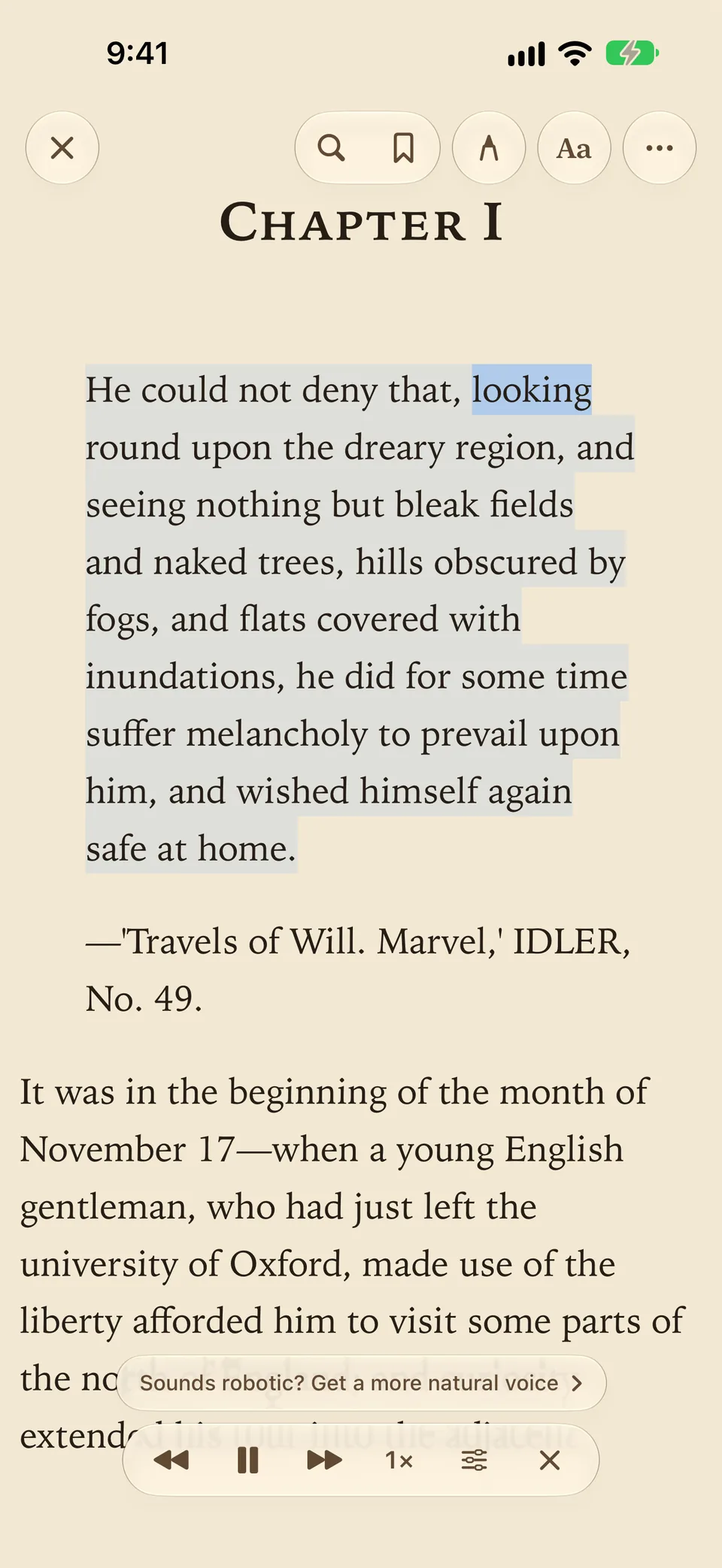
While Listen plays, a small bar floats at the bottom of the page.
| Control | What it does |
|---|---|
| Back and forward | Moves one sentence back or ahead. |
| Play and pause | Pauses the voice and picks up where it stopped. |
| Speed (1×) | Each tap steps to the next speed: 1.25×, 1.5×, 1.75×, 2×, then 0.75× and back to 1×. |
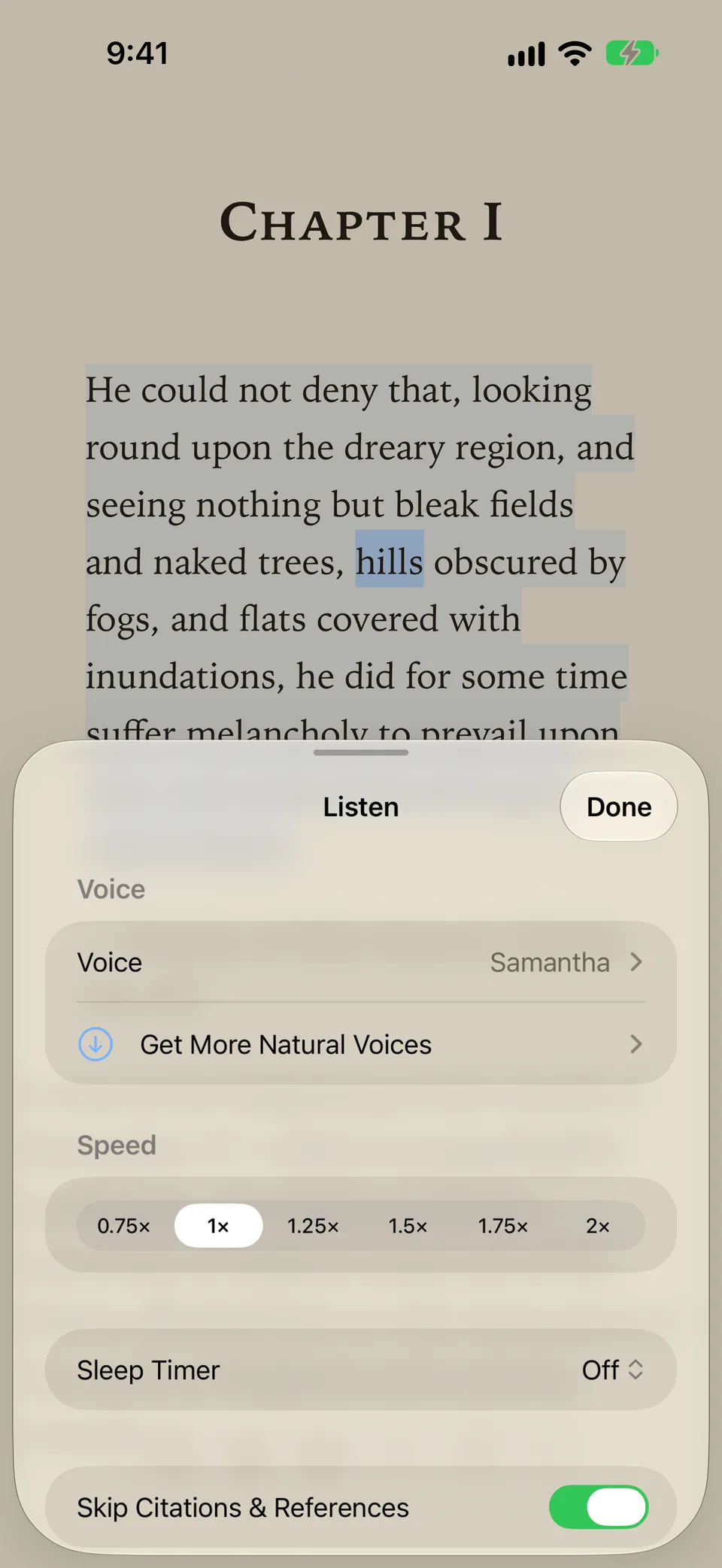
| Settings | Opens the Listen settings: voice, speed, sleep timer and citation skipping. |
| X | Stops listening and closes the bar. |
If you swipe away from the words being read, the page stops following the voice and a Follow along button appears. Tap it to jump back to the words being read.
Books, PDFs and scanned pages
Articles are read from Reader’s clean copy of the page, without menus, ads or comments.
EPUB books go on into the next chapter when one ends, so a long listen does not stop at a chapter break, even with the screen locked.
PDFs are read on their own pages, page by page, with the spoken words highlighted on the page. In Text View you hear the same reflowed text you read. A scanned PDF with no text layer is read from the text LinkBook recognizes for Text View, without the word highlighting.
Listen and the pen take turns: starting Listen puts the pen away. To mark up what you hear, see how to write on PDFs and books.
Listening to research papers
A paper read aloud word for word is hard to follow: author lists, reference numbers, DOIs and figure labels break up every sentence. Skip Citations & References, on by default in the Listen settings, leaves out author lists, citations, links, figure labels and the References section, so you hear the argument rather than the apparatus.
Sentences also run on across page breaks and line-end hyphens, so a sentence split between two PDF pages is read as one sentence, not two halting pieces.
How to get a more natural voice
Listen speaks with the voices on your iPhone or iPad, so the reading happens on your device. Many devices start with a compact voice that can sound robotic. Apple’s Enhanced voices sound far more natural, and you can download them in Settings:
- Open Settings › Accessibility › Read & Speak › Voices. Before iOS 26, this is Spoken Content › Voices.
- Choose your language, then a voice marked Enhanced, and download it.
- Back in LinkBook, open the Listen settings and pick the new voice under Voice.
In the Listen settings, Get More Natural Voices shows these steps with an Open Settings button. If you have made a Personal Voice (iOS 17 or later), Use My Personal Voice lets LinkBook read to you in your own voice.
Sleep timer and lock screen
The sleep timer pauses Listen after 5, 10, 15, 30, 45 or 60 minutes, or, in a book, at the end of the chapter. When your iPhone is locked, the lock screen shows the title and cover with play and pause, and the skip buttons move one sentence back or ahead. A phone call pauses Listen, and it carries on afterwards.
Common questions about listening in LinkBook
Can LinkBook read PDFs aloud?
Yes. Listen reads a PDF page by page and highlights the spoken words on the page, or reads it in Text View. Scanned pages are read from the text LinkBook recognizes on them.
Does Listen work offline?
Yes, for anything already on your device: downloaded EPUBs and PDFs, and articles whose Reader copy is saved. The voices run on your iPhone or iPad.
Does LinkBook remember where I stopped listening?
Yes. While Listen plays, the spoken word is your reading position. Close the book or article and it opens where the voice stopped.
Can I change the reading speed?
Yes, from 0.75× to 2×. Tap the speed on the player bar, or choose one in the Listen settings.
Which devices can use Listen?
LinkBook runs on iPhone and iPad with iOS or iPadOS 16 or later. Reading with your Personal Voice needs iOS 17 or later.
Let your reading list read to you.
Save articles, books and PDFs in LinkBook, then listen on a walk, in the kitchen or on the train, with every word highlighted as you go.