Best Read-Later Apps for iPhone: Offline Reading and Private AI Summaries
Your next good read should be ready when you are—on a flight, on the train, or away from Wi-Fi. LinkBook lets you read saved articles and generate private AI summaries offline, using Apple Intelligence on a compatible iPhone.

The best read-later app for iPhone is the one that fits how you actually read. This guide compares LinkBook, GoodLinks, Readwise Reader, and Instapaper on the things that matter when you open a saved article: offline access, useful summaries, where AI processes the text, and whether you need another account.
For offline reading and on-device AI in an organized personal library, start with LinkBook. Save from the Share Sheet, keep articles alongside PDFs and EPUBs, and turn what you read into summaries, key facts, and notes you can return to.
The best read-later apps for different reading habits
- LinkBook: a strong fit for offline reading, private Apple Intelligence summaries, and a library organized with folders, tags, and notes.
- GoodLinks: a good fit for an Apple-focused article library, highlighting, and a choice of AI services.
- Readwise Reader: a good fit for a reading and research workflow built around highlights and Ghostreader’s AI assistance.
- Instapaper: a good fit for a straightforward article queue with summaries and passages you can jump back to.
| App | Offline reading | Article summaries and where AI runs | Separate app account? |
|---|---|---|---|
| LinkBook | Saved Reader copies of supported articles. | Reader Insights uses Apple Intelligence on your device. Generate offline once the text and model are ready. | No. Optional iCloud sync uses your Apple Account. |
| GoodLinks | Downloaded articles; check image download settings too. | Apple Intelligence or external AI services, depending on your selection. Private Cloud Compute is a server option. | No separate GoodLinks account for the library. |
| Readwise Reader | Downloaded documents. Its Offline documents settings let you choose what to keep. | Ghostreader provides AI summaries through online models. New AI requests need a connection. | Yes, a Readwise account. |
| Instapaper | Articles downloaded to the mobile app. | Article overviews and Summary Highlights. Its published summary design uses server processing and an external AI service. | Yes, an Instapaper account. |
Which iPhone read-later apps work offline?
LinkBook, GoodLinks, Readwise Reader, and Instapaper all support offline reading of downloaded article content. The useful question is whether the particular article you want is already on your phone.
In LinkBook, open a saved article in Reader while connected and let its reading copy load. You can use Save offline copy from the article’s menu when available. Once the text is saved, you can return to it without an internet connection. Our guide to Reader and offline copies walks through that flow.
GoodLinks supports offline articles and offers automatic image downloading. Readwise Reader has an Offline documents screen for checking download progress and selecting sections of your library; its Feed is not downloaded by default. Instapaper also makes downloaded articles available offline in its mobile apps. See GoodLinks’ reading features, its image download options, Reader’s offline guide, and Instapaper’s getting-started guide.
A two-minute check before you travel
- Save two or three articles from the sites you read most.
- Open each article while connected and check that the full text has loaded.
- Turn on Airplane Mode, make sure Wi-Fi is off, and reopen them.
- If you want summaries on the trip, generate a new one while still offline.
This checks your real reading list. A saved URL or preview image alone is not a downloaded article. Pages with sign-in requirements, interactive content, or embedded video may need a connection even when their article text is available offline.
Which apps summarize saved articles with AI?
All four apps offer article summaries, with different approaches to reading and privacy. If you want a read-later app with AI summaries, look at what the summary helps you do next: choose an article, recall its main points, or return to a passage worth reading closely.
LinkBook: private summaries beside your reading
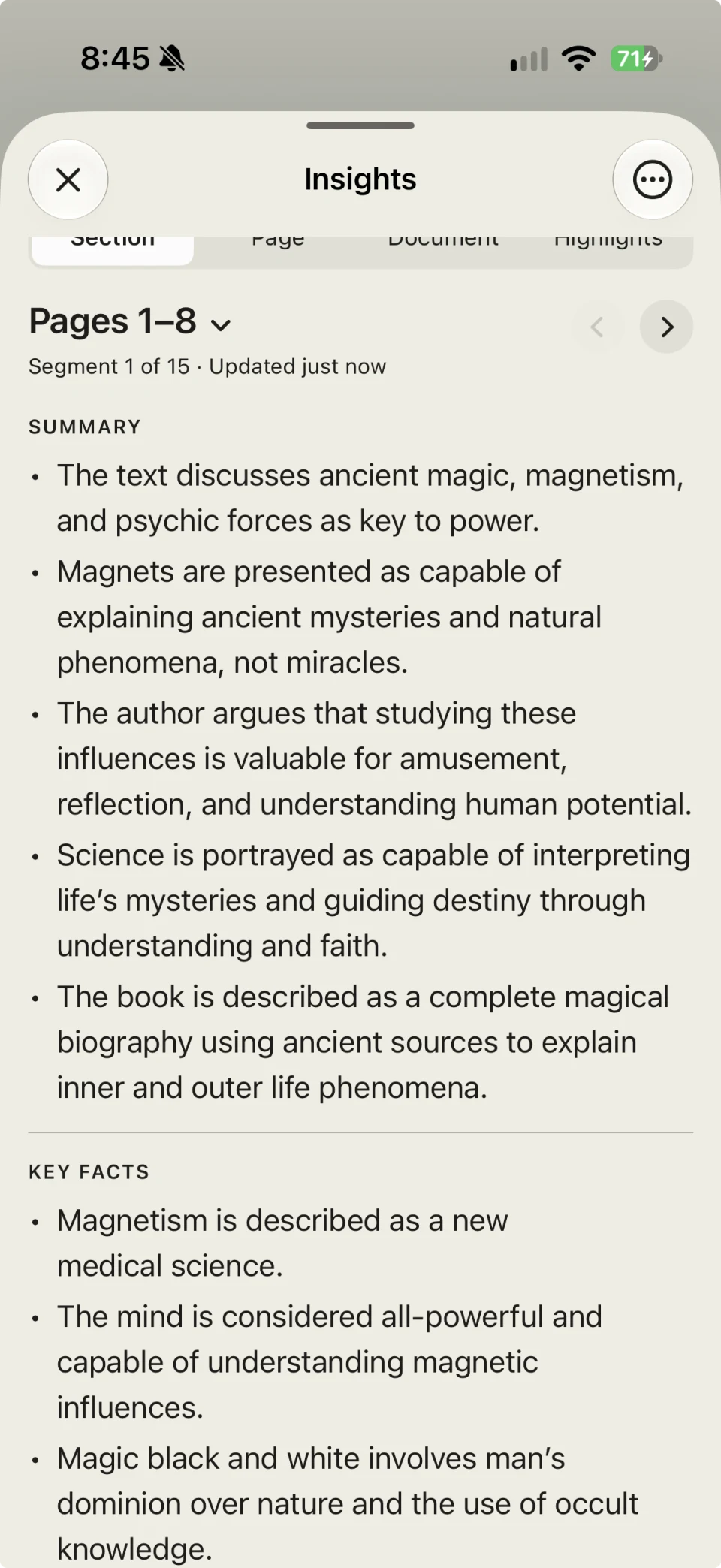
LinkBook’s Reader Insights gives you a Quick Brief of an article, with key facts and uncertainties. Highlight Digest brings together the passages and notes you selected, helping you revisit themes, decisions, action items, and open questions.
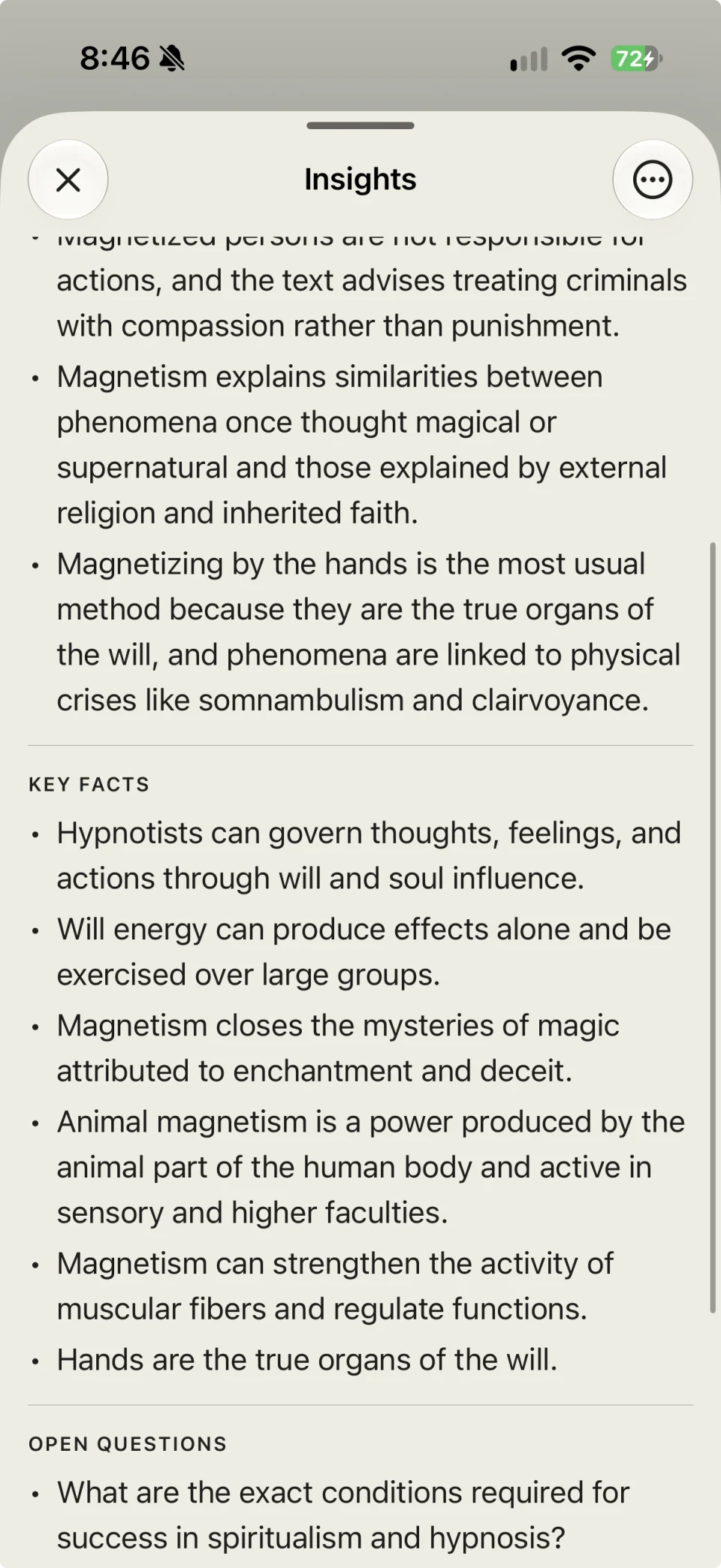
Longer reading has its own Insights views. Work with a section, a page, the document, or your highlights. A section summary helps you pick up the thread after a break; a document overview helps you remember how the larger work fits together. These summaries use Apple Intelligence on your device.
GoodLinks: choose how you summarize
GoodLinks offers article summaries with Apple Intelligence or external AI services. Its latest release adds Private Cloud Compute and model choices, so check the selected AI service when deciding where your article will be processed. Its App Store description and release notes explain those choices.
Readwise Reader: summaries and follow-up questions
Ghostreader is useful if a summary is the start of your research. You can summarize a document and ask questions about what you are reading. Its online AI workflow suits readers who want an assistant alongside a connected reading library. Readwise describes this in the Ghostreader guide and summary documentation.
Instapaper: an overview with a route back to the text
Instapaper pairs an article overview with Summary Highlights: selected sentences that take you back to their place in the article. That is useful when you want to skim first and then read the supporting passage. Its summary guide explains the experience; the team’s published description of summary processing describes an online service, rather than generation on your iPhone.
Can I summarize articles without uploading them?
Yes. LinkBook generates Reader Insights on your iPhone using Apple Intelligence, without uploading the article text to a cloud AI service for summarization. Once the reading content and Apple’s on-device model are available, you can generate a summary without a connection.
That makes LinkBook a natural choice if you want a private AI summarizer on iPhone built into the place where you already save and read. You can go from article to summary to your own highlights without copying the text into a separate AI chat.
When comparing other apps, check the specific AI option. On-device processing means the phone generates the answer. Private Cloud Compute processes requests on Apple’s servers with Apple’s privacy protections. External AI services receive the text needed for the request under their own policies. GoodLinks’ AI guide describes these cloud choices. Apple explains how its on-device model can work privately and offline.
Also consider how your reading library is stored. LinkBook can be used locally without a separate account; optional iCloud sync is a separate choice from where summaries are generated. For a private read-later app on iPhone, both choices matter.
Does offline reading also mean offline AI summaries?
In LinkBook, you can do both: read a saved article and generate a new summary offline with Apple Intelligence on a supported iPhone. Download the article and finish Apple Intelligence setup before disconnecting.
Across other apps, it depends on where the AI runs. Readwise Reader’s Ghostreader uses online models. Instapaper’s published summary workflow uses online processing. GoodLinks offers different AI choices, so check the selected model; its cloud options need internet access.
For an AI read-later app on iPhone that you plan to use while traveling, try generating a fresh summary in Airplane Mode. Opening a summary you generated earlier checks access to that saved result; generating a new one checks the offline AI feature itself.
Which iPhones support private AI summaries?
LinkBook’s on-device Reader Insights requires iOS 26 or later and an iPhone that supports Apple Intelligence. Apple’s supported hardware includes iPhone 15 Pro, iPhone 15 Pro Max, iPhone 16 models or later, and iPhone Air. The standard iPhone 15 and iPhone 15 Plus do not support Apple Intelligence.
Make sure Apple Intelligence is enabled and its on-device model has finished downloading. Language and regional availability also apply. Check Apple’s current compatibility guidance for your device and location.
An iPhone that can run a reading app does not automatically support its on-device AI features. Check these requirements when choosing a phone for private summaries.
Can I use a read-later app without an account?
Yes. LinkBook lets you build and use a local reading library without creating a LinkBook account. Save links, organize them, and return to downloaded reading copies. If you choose iCloud sync, it uses your Apple Account.
GoodLinks also works without a separate web-service account for its library, using iCloud for sync. Readwise Reader and Instapaper use their own accounts. See GoodLinks’ account and sync details, Readwise’s sign-in guide, and Instapaper’s setup guide.
Build a reading habit with LinkBook
The most useful library is one you come back to. Start with a few articles you actually want to finish, then use summaries to decide where to spend your attention.
- Save from Safari or another app. Open the Share Sheet and choose LinkBook. Add a folder, tag, or short note so you remember why the article caught your eye.
- Prepare your reading copy. Open the article in Reader while connected and confirm its text has saved.
- Get the overview. Open Reader Insights and generate a Quick Brief. On a compatible iPhone with Apple Intelligence ready, this works offline.
- Read the parts that matter. Highlight useful passages and add your own notes. Use Highlight Digest to revisit what you took from the article.
- Keep longer reading together. Bring PDFs and EPUBs into the same library and use the available Insights views to review sections, pages, or the document.
For a commute, a flight, or a quiet hour with a book, LinkBook brings saving, offline reading, and private AI summaries into one place. Your next read can already be waiting on your iPhone.
Save it now. Read and summarize it anywhere.
Build your reading library with LinkBook, then enjoy saved articles and on-device Apple Intelligence summaries wherever you have time to read.