
How to Hide a Bookmark on iPhone Without Deleting It
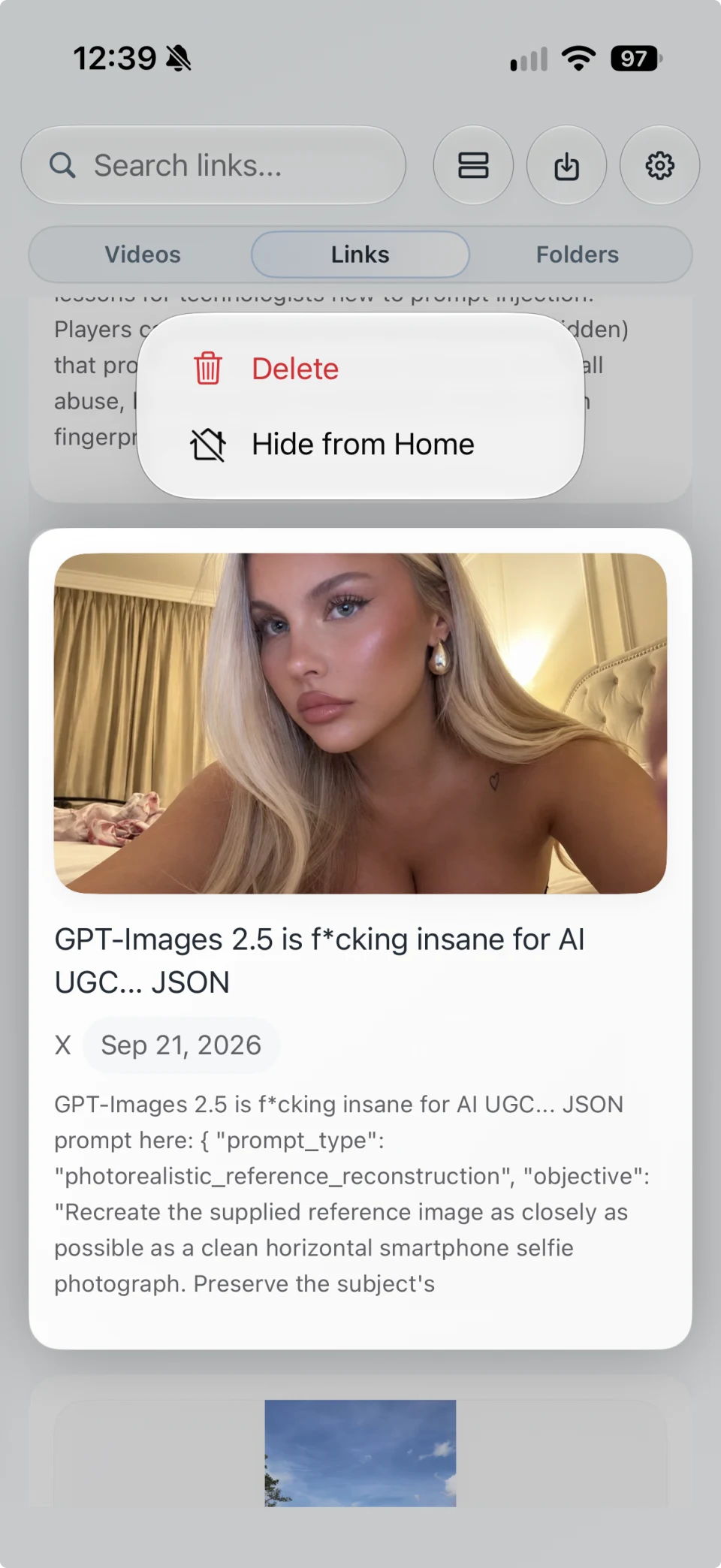
To hide a saved link in LinkBook, press and hold its card and choose Hide from Home. The link stays saved, and you can find it again through search. For bookmarks displayed on Safari’s start page, turn off the Favorites section instead.
Maybe you are saving gift ideas, planning a surprise trip, or keeping personal reading out of your everyday feed. The right method depends on where the bookmark appears. This guide shows you how to hide an individual link in LinkBook, tidy Safari’s start page, and add an app lock when you want authentication before opening your library.

Can you hide bookmarks on iPhone?
Yes—you can keep saved links out of the view you normally use without deleting them. LinkBook offers an individual Hide from Home action. Safari lets you hide its Favorites section or move a bookmark into another folder. To restrict access to your LinkBook library, use iPhone’s separate app-lock option.
| Your goal | What to use | What changes |
|---|---|---|
| Keep one saved link out of your regular feed | LinkBook: Hide from Home | The card leaves the usual view; the link remains searchable in LinkBook. |
| Stop showing Favorites when you open Safari | Safari: start-page settings | The Favorites section is hidden; bookmarks remain saved. |
| Require authentication before opening your library | iPhone: lock LinkBook | Opening the app requires Face ID, Touch ID, or the device passcode. |
A folder helps organize links. An app lock controls access. Choose both if you want an orderly library that also requires authentication to open.
How to hide a bookmark on iPhone with LinkBook
LinkBook gives saved websites a home separate from Safari’s bookmarks. Start with a link you want to keep, such as a gift idea, and hide its card when you no longer want it in your regular browsing view.
- Save the page. In Safari, open the website, tap the Share button, and choose LinkBook. Save the link to your library. If it is already in LinkBook, skip this step.
- Open LinkBook. Find the saved link’s card in your library.
- Press and hold the card. This opens its actions menu.
- Choose Hide from Home. The card disappears from the regular view while the saved link stays in your library.
That is useful for a personal reading list you want to revisit on your own schedule. You do not need to delete the link and later try to remember the website.
New to saving with the Share Sheet? Follow our guide to saving links from Safari.
How to hide Favorites on Safari’s start page
If the bookmarks you want to hide are the Favorites tiles on a new Safari tab, change the start-page display:
- Open Safari and create a new tab to reach the start page.
- Scroll to the bottom and tap Edit.
- Turn off Favorites, then close the settings panel.
Your bookmarks stay saved. This hides that section; it does not remove entries from the Bookmarks screen. Apple explains the available sections in its Safari start-page guide.
Move one bookmark out of Favorites
To keep other Favorites visible, open Safari’s bookmarks, press and hold the bookmark, and choose Edit. Change its Location to a folder outside Favorites, then save. Apple’s bookmark guide covers editing and folder management.
The bookmark will still be visible inside its new folder. This is a way to organize Safari, not a password-protected space for individual bookmarks.
Require Face ID before opening LinkBook
For access protection, you can use iPhone’s app lock alongside LinkBook’s Hide from Home feature:
- On your iPhone’s Home Screen, press and hold the LinkBook app icon.
- Choose Require Face ID. The wording may mention Touch ID or a passcode on your device.
- Confirm the lock and authenticate.
You can also choose the option to hide and require Face ID, which moves the downloaded app to the Hidden folder in App Library. Consult Apple’s instructions for locking or hiding apps for device-specific details.
Use LinkBook’s menu to choose which links appear in your feed. Use the iPhone setting to control access to the app as a whole.
Common questions about hidden bookmarks
Can I hide a bookmark without deleting it?
Yes. LinkBook’s Hide from Home keeps the saved link in your library. You can open it through search and restore its visibility whenever you want.
Does hiding a link in LinkBook also hide its Safari bookmark?
No. The two apps keep separate libraries. If you previously bookmarked the same website in Safari, that entry stays there. To move your save entirely to LinkBook, first confirm the saved link opens correctly, then remove the original Safari bookmark if you no longer want it there.
Does hiding a saved link clear my browsing history?
No. Hiding changes how a saved link appears in LinkBook. Safari’s browsing history is managed separately in Safari.
Can I hide a whole folder in LinkBook?
Yes. A folder’s actions also include Hide from Home. This is useful for keeping a collection, such as surprise gift ideas, out of the usual folder view.
Do I need a LinkBook account?
No separate LinkBook account is required for your local library. If you want to keep your library across Apple devices, you can choose iCloud sync.
Keep the link. Choose when you see it.
Save the websites you want to return to, organize them in LinkBook, and hide the cards you want out of your everyday view. Your next good idea can stay saved without taking over your feed.