Video Downloads
Download Videos and Organize Them in Folders on iPhone
Some videos are worth keeping close: a class clip, a product demo, a research interview, a tutorial, or a reference you know you will need later. LinkBook gives video downloads a proper home on iPhone: paste a video URL, download the video for offline access, keep the source context, and organize downloads into folders you can search.
In this guide
- Why downloaded videos get messy in Photos, Files, and generic download apps.
- How LinkBook downloads videos from video URLs for offline access.
- How video folders turn downloads into a reusable library.
- How to rename, hide, and clean up a growing video library.
The problem: downloads become another pile
iPhone already gives you places to put files. The Files app can show downloads and folders. Photos can store camera-roll videos. That is useful, but it does not always match how people save videos for later.
- A downloaded tutorial sits beside receipts, PDFs, and random attachments.
- A research clip gets mixed into vacation photos and camera-roll media.
- A useful source URL gets separated from the local video file.
- A folder name helps, but search often misses the context you remember.
If the video is part of a project, class, research trail, or watch-later habit, it needs more than a generic download location. It needs a library.
Try LinkBook for saved videos
Paste a video URL, download it to your Videos tab, then organize it with folders and search.

What LinkBook adds: a Videos tab built for retrieval
LinkBook's Videos tab is designed for the moment after you find a video worth keeping. Paste a video URL, tap save, and LinkBook downloads a local video file when the page exposes usable media. It also keeps useful context such as title, source URL, platform, file size, duration, and a generated thumbnail when available.
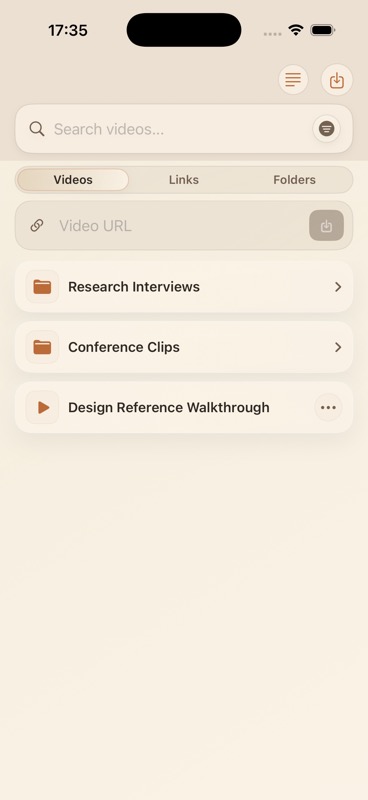
The important difference is not just "there is a file." LinkBook treats the video as a saved item you can rename, search, hide, delete, and group with related videos.
How to download a video in LinkBook
- Copy the video URL from the page, post, or file source.
- Open LinkBook and switch to Videos using the top page toggle.
- Paste the URL into Video URL and tap the save button.
- Wait for LinkBook to resolve the video and write the local file.
- Rename or organize the video so it is easy to recover later.
LinkBook works best with direct video files and pages that expose a downloadable video stream. If a URL does not expose a usable video file, LinkBook shows a failure instead of creating a broken local player.
Organize downloaded videos into folders
A video library grows quickly. One or two saves are easy to remember; twenty saved clips need structure. LinkBook can group saved videos into folders so your library stays browsable:
- Research Interviews: customer calls, expert clips, and field notes.
- Course Lessons: modules, demos, and examples you want offline.
- Product References: competitor demos, teardown clips, and launch examples.
- Travel or Home Projects: how-to clips you need when connection is weak.
Folders keep broad projects clear. Search handles the details. Together, they turn a saved video list into an offline video library you can actually use.
Rename, hide, or delete videos when the library changes
Downloading is only the first step. LinkBook also gives each saved video a small action menu so you can clean up the library as your work changes.
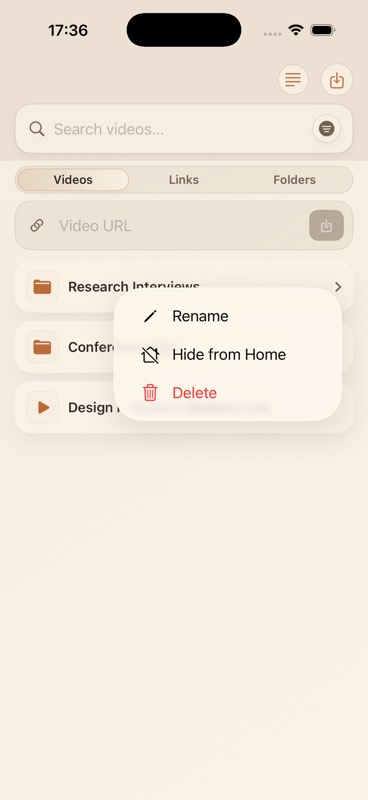
- Rename vague titles so search still works weeks later.
- Hide sensitive video saves from the main visible library.
- Delete stale downloads and remove their local media files.
LinkBook vs. Files, Photos, and generic download apps
| Tool | Best for | Where LinkBook is different |
|---|---|---|
| Files | General documents, folders, and file locations. | LinkBook keeps video saves with source URLs, titles, search, and a dedicated Videos tab. |
| Photos | Camera videos, screen recordings, and personal media. | LinkBook keeps research and web videos out of the camera roll. |
| Generic downloader | One-off downloads. | LinkBook focuses on revisit, folders, search, and a larger saved-link library. |
Use video folders for real workflows
The best folder names are based on why you saved the video, not where it came from.
- For research: one folder per project, interview series, or evidence trail.
- For learning: one folder per course, skill, or practice area.
- For work: one folder per product launch, competitor set, or client.
- For personal projects: one folder per repair, recipe, workout, or trip plan.
If the folder name is something you would search for later, it is probably a good folder name.
FAQ
Can LinkBook download videos on iPhone?
Yes. LinkBook can download videos from direct video files and web pages that expose a video file into a local Videos library. Some pages do not expose a usable video file.
Can I create folders for downloaded videos?
Yes. LinkBook can group saved videos into folders, and those folder names become part of the search and browsing workflow.
Does LinkBook save the source URL too?
Yes. LinkBook keeps source context with the saved video so a local file does not become an anonymous clip you cannot trace later.
Can LinkBook download any video from any website?
LinkBook can download videos when the URL exposes a usable video file or downloadable media stream. Some sites hide media behind login, block downloading, or do not expose a file LinkBook can save.
Why did my video link fail?
The page may not expose a usable video file, the video may require login, or the URL may be an embedded player that cannot be resolved. LinkBook shows a failure instead of creating a broken local player.
Is this a camera-roll replacement?
No. Keep personal camera videos in Photos. Use LinkBook when a saved web video belongs with source context, folders, search, and a larger research or watch-later library.
Copyright and platform rules to keep in mind
LinkBook is designed to organize videos you can legitimately save: your own files, videos shared with you for download, and sources that make a download available. Keeping the source URL beside the local file also makes your video library easier to trace later.
Before downloading from a website or platform, check that source's rules. Some services allow playback in a browser but restrict downloads. When in doubt, save the link in LinkBook instead of downloading the file.
Sources
Download LinkBook and build a video library you can find again
Download videos, group them into folders, and keep your video research separate from camera-roll clutter. Download LinkBook on the App Store.
Scan to download
App Store