New in LinkBook 4.1
How to Export Kindle Highlights and Keep Them on Your iPhone
Kindle hands over your highlights in two files: My Clippings.txt on a Kindle e-reader, and the Notebook export from the Kindle app. LinkBook reads both. Import one, and your highlights and notes are in Read Elsewhere on your iPhone, iPad and Mac, next to the rest of your library.
Books you read on paper belong there too: type a passage, scan the page or read it aloud. And when the same book is in your library as an EPUB or PDF, LinkBook can copy its highlights into it, so you see them as you read.

My Clippings.txt or the Notebook export?
Kindle keeps your highlights in two places you can get a file from. LinkBook imports either one.
| My Clippings.txt | Notebook export | |
|---|---|---|
| Comes from | A Kindle e-reader | The Kindle app on iPhone or iPad |
| Holds | Notes and highlights made on that Kindle, for every book | One book’s notes and highlights |
| How you get it | Copy it from the Kindle with a USB cable | Email it to yourself from the book’s Notebook |
| File | Plain text (.txt) | A web page (.html) |
Use My Clippings.txt to bring everything over from a Kindle at once. Use the Notebook export for a book you read in the Kindle app, or when you have no computer to hand.
How to get My Clippings.txt off a Kindle
A Kindle adds every note and highlight you make to a file called My Clippings. To copy it:
- Connect the Kindle to a computer with its USB cable.
- Open the Kindle. On Windows it shows up as Kindle in File Explorer. On a Mac, a Kindle released before 2024 shows up as a drive; a Kindle Scribe or a Kindle released in 2024 or later needs Amazon’s Send to Kindle for Mac app: choose Tools › USB File Manager to browse it.
- Copy My Clippings.txt from the Kindle’s documents folder to your computer.
- Disconnect the Kindle with the Disconnect button on its screen, or unplug the cable.
On a Mac, import the file straight into LinkBook. For your iPhone or iPad, put it in iCloud Drive so it is in the Files app.
How to export a Notebook from the Kindle app
The Kindle app’s Notebook shows all your notes and highlights for one book, and can send them by email.
- Open the book in the Kindle app on your iPhone or iPad, tap the page, and tap the Notebook icon.
- Export the Notebook by email with the Notebook’s share button, and send it to your own address. Exporting needs Kindle’s Sync, which is on unless you turned it off.
- Save the attachment. In Mail, touch and hold the attached file and tap Save to Files.
Each export is one book, so repeat it for each book you want to bring in.
How to import Kindle highlights on iPhone or iPad
- Put the file in Files. Save My Clippings.txt or the Notebook export somewhere the Files app can see it, such as iCloud Drive or On My iPhone.
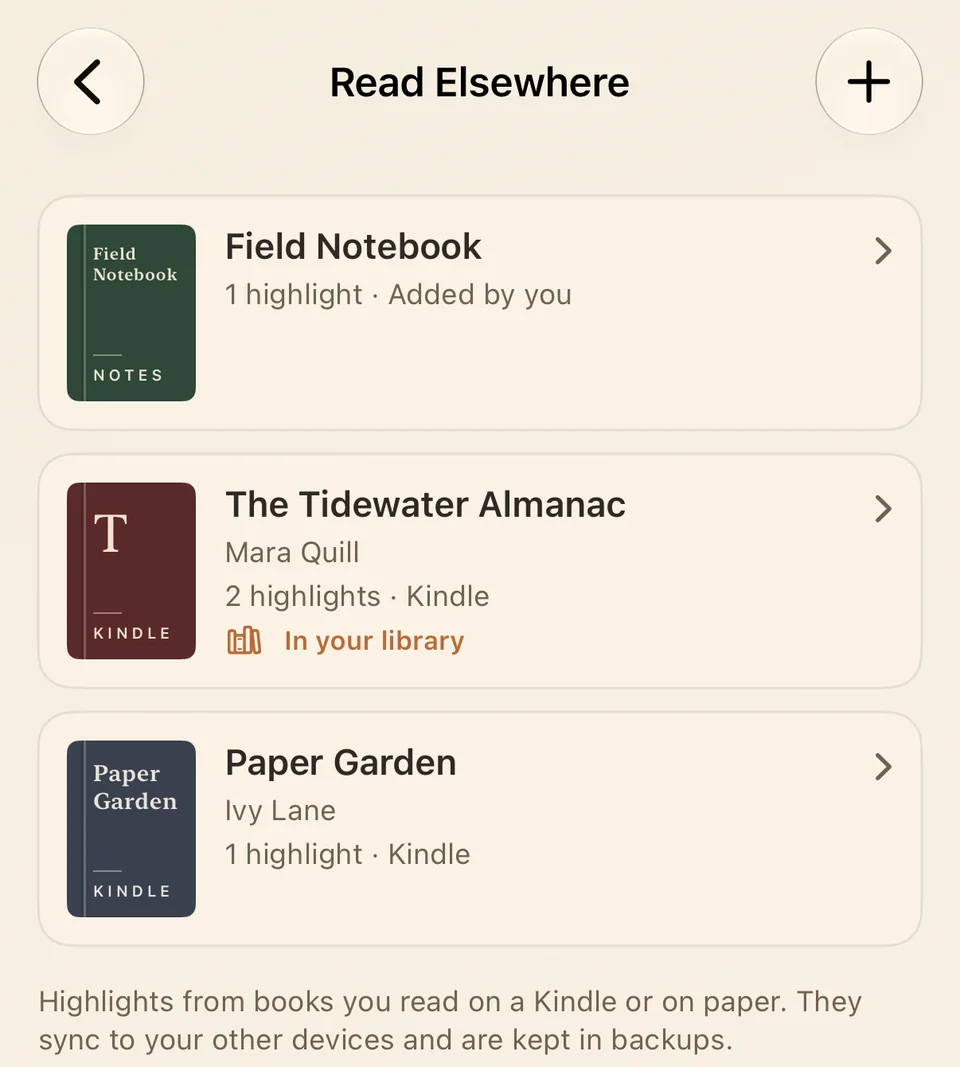
- Tap + and choose Import Kindle Highlights. The + button is at the top of LinkBook. You can also open Library › Read Elsewhere and tap + there.
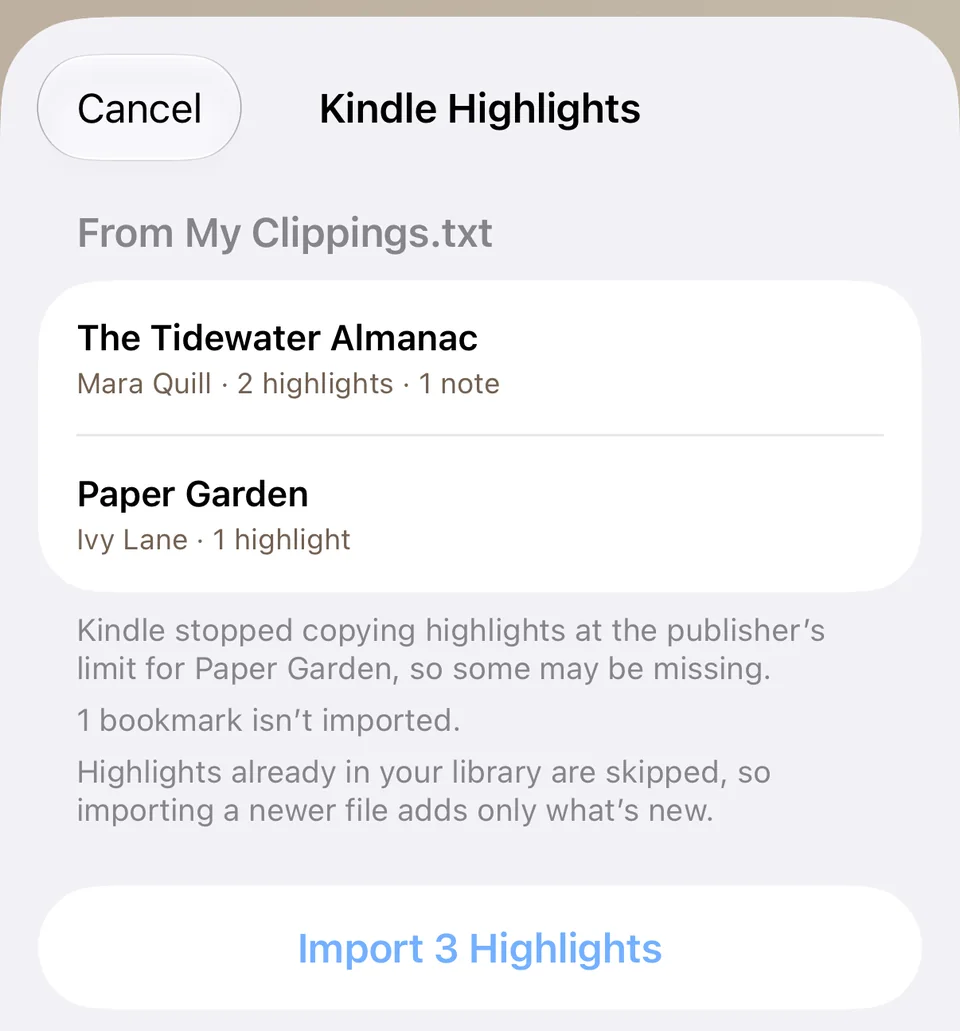
- Pick the file. Before anything is saved, LinkBook lists the books it found, with how many highlights and notes each one has.
- Tap Import. The button says how many highlights it will add. When it is done, Show Read Elsewhere opens your books.
What comes across from Kindle:
- Highlights and notes. Each note goes with the highlight you wrote it on, along with the page or location.
- The latest version of each highlight. If the file has more than one version of a highlight you extended or shortened, LinkBook keeps the last one.
- Colors. A Notebook export keeps each highlight’s color: yellow, blue, pink or orange.
- Not bookmarks. Kindle bookmarks mark a place, not a passage, so they are left out. The preview says how many.
If Kindle stopped copying a book’s highlights at the publisher’s limit, the preview names the book and warns that some may be missing.
How to import Kindle highlights on a Mac
In LinkBook for Mac, choose File › Import Kindle Highlights…, or choose it from the menu on the toolbar’s + button. Pick the file, check the preview and click Import. Your books appear under Read Elsewhere in the sidebar.
The preview, the duplicate check and everything below work the same on the Mac and on iPhone and iPad.
Import again without duplicates
My Clippings.txt grows with every highlight you make on your Kindle, so import it whenever you like. Highlights already in your library are skipped, and only what is new is added.
- Books and highlights you deleted in LinkBook stay deleted, even though the file still has them.
- Importing the same file on your iPhone and on your Mac does not make two copies once they sync.
Add highlights from a paper book
For a book on your shelf, add passages one at a time.
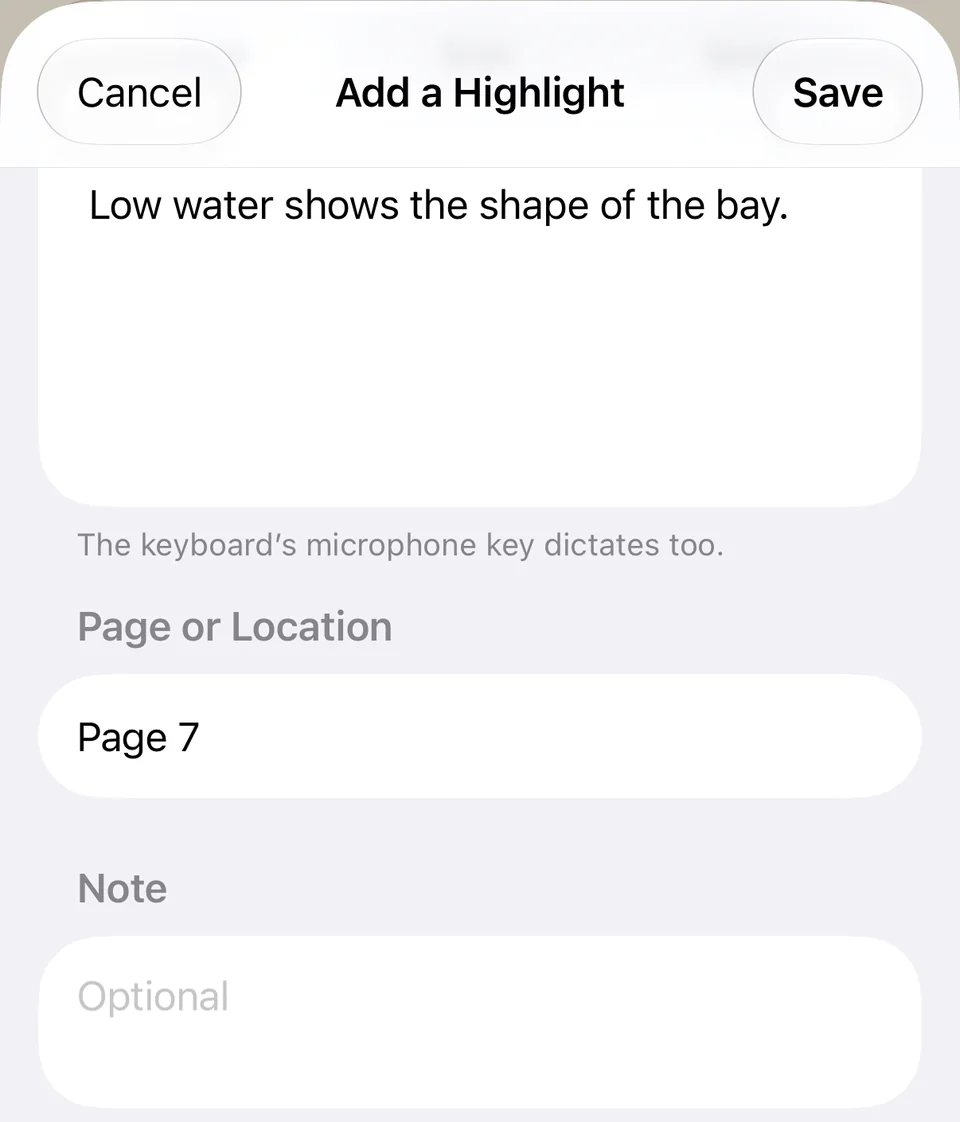
- Tap + and choose Type, Scan or Speak under Add a Highlight. On a Mac, choose File › Add a Highlight from a Book… (⇧⌘H).
- Choose the book. Tap Book and pick one in Read Elsewhere, or A New Book… to give its title and author.
- Get the words in.
- Type: type the passage. The keyboard’s microphone key dictates too.
- Scan: LinkBook opens the camera to read the page, or tap Photo of a Page to use a picture from Photos. Then delete the words you did not highlight.
- Speak: tap Start Speaking and read the passage aloud. LinkBook uses on-device recognition when your iPhone supports it.
- Add the page and a note if you like, then tap Save.
On a Mac, Scan reads a photo of the page from your Photos library. You can also choose a book in your LinkBook library as the destination: the passage is marked in the book where its words are found, and otherwise added to the book’s notes, so nothing you typed is lost.
Add the highlights to the book in your library
If you also have the book in LinkBook as a DRM-free EPUB or a PDF, its highlights can live inside it. When a book in your library has a matching title, the book’s page in Read Elsewhere says so.
- Open the book in Library › Read Elsewhere.
- Tap Add to the Book and choose the book; one with the same title is listed first. If the titles differ, tap ••• and choose Add to a Book in Your Library… to find it yourself.
- Tap Copy Highlights. LinkBook looks for each highlight’s words in the book and marks the ones it finds.
- Tap Open Book to read with your highlights in place.
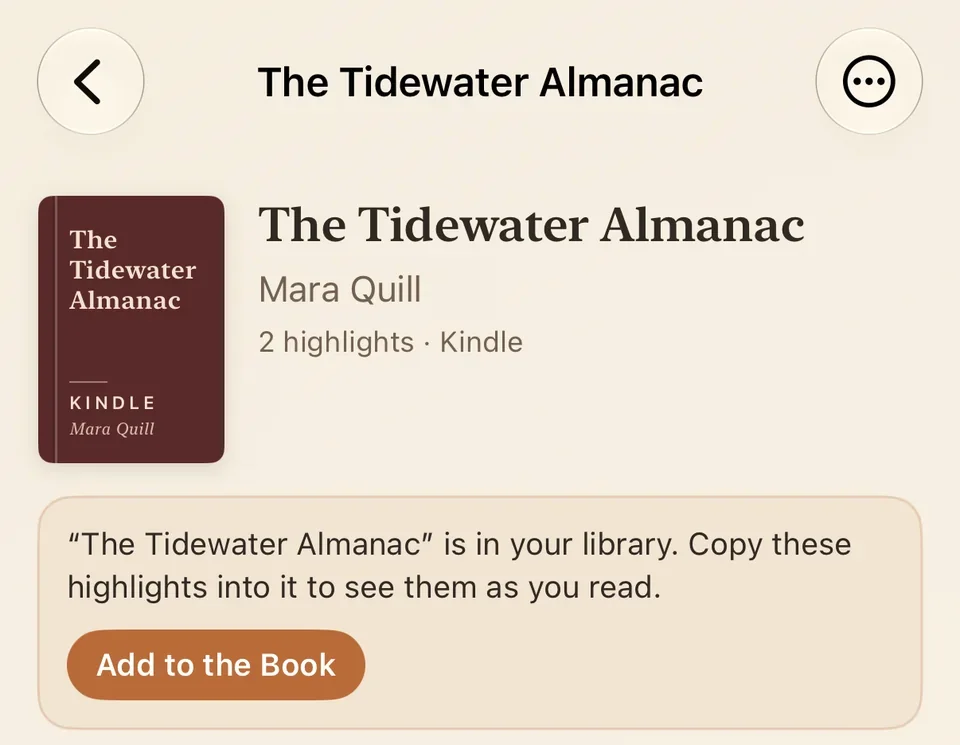
A passage that is worded differently in your edition stays in Read Elsewhere, and LinkBook tells you how many. Copied highlights are marked In the book; tap one to open the book at that passage.
Find, edit and sync your highlights
- One list. Library › Highlights shows Read Elsewhere highlights alongside the ones you made in LinkBook, and searching the Library page finds them too.
- Edit. Touch and hold a highlight to Edit, Copy or Delete it. On a book’s page, ••• has Edit Title and Author… and Delete Book….
- Sync. With iCloud sync on, Read Elsewhere is the same on your iPhone, iPad and Mac.
- Backups. LinkBook backups keep your Read Elsewhere books and highlights.
Common questions about Kindle highlights
Where is My Clippings.txt on a Kindle?
In the Kindle’s documents folder. Connect the Kindle to a computer with its USB cable to copy it. On a Mac, a Kindle Scribe or a Kindle released in 2024 or later needs Amazon’s Send to Kindle for Mac app to browse that folder (Tools › USB File Manager).
Can I get Kindle highlights onto my iPhone without a computer?
Yes, one book at a time. Export the book’s Notebook from the Kindle app by email, save the attachment to Files, then choose Import Kindle Highlights in LinkBook.
Why are some of my Kindle highlights missing?
Publishers can limit how much of a book Kindle copies out. When Kindle stopped copying a book’s highlights at that limit, LinkBook’s preview names the book. Kindle bookmarks are not imported, because they mark a place rather than a passage.
Will importing My Clippings.txt again create duplicates?
No. Highlights already in your library are skipped, so a newer file adds only what is new. Books and highlights you deleted in LinkBook stay deleted.
Does LinkBook need my Amazon account?
No. LinkBook reads the file you choose and never signs in to Amazon, so it cannot read your notebook on Amazon’s website. Import My Clippings.txt or a Notebook export instead.
Can LinkBook open my Kindle books?
No. LinkBook imports your Kindle highlights and notes, not the books. It opens DRM-free EPUB and PDF files; a book tied to a store’s DRM cannot be unlocked by importing it.
Every book you read, by its best lines.
Kindle highlights, paper-book passages and the books in your library, together on your iPhone, iPad and Mac.