New in LinkBook 4.1
LinkBook for Mac: A Bookmark Manager and Read-Later App That Syncs With Your iPhone
LinkBook is now a native Mac app. It opens the same library you keep on your iPhone and iPad—links, articles, PDFs, EPUB books and highlights—in one window with a sidebar, menus and keyboard shortcuts. Download it from the same App Store page, turn on iCloud sync, and what you saved on your phone is on your Mac.
You save on your phone, in the moment. Reading, sorting and finding things again is easier at a desk. LinkBook for Mac is built for that part: a big window for your library, reader windows for books and articles, and the Safari extension and Share menu for saving on the Mac too.

How to set up LinkBook on your Mac
- Download LinkBook from the App Store. It is the same listing as the iPhone and iPad app; on a Mac with macOS 15 or later, the App Store installs the Mac version.
- Turn on sync. Open LinkBook › Settings (⌘,), choose Sync and turn on Sync with iCloud. Use the same Apple Account as on your iPhone and iPad, and turn on iCloud Sync in LinkBook’s Settings there too.
- Keep it current. LinkBook syncs while it is open. In Settings › General, turn on Open LinkBook at login so your Mac stays up to date.
- Or sync nearby. Turn on Sync with nearby devices on the Mac and Nearby peer sync on your iPhone or iPad. On the same network and the same Apple Account, they sync directly.
The foot of the sidebar shows the sync status, and View › Sync Now (⌥⌘R) syncs on demand. There is no LinkBook account to create: your library lives on your devices and in your own iCloud.
The library window
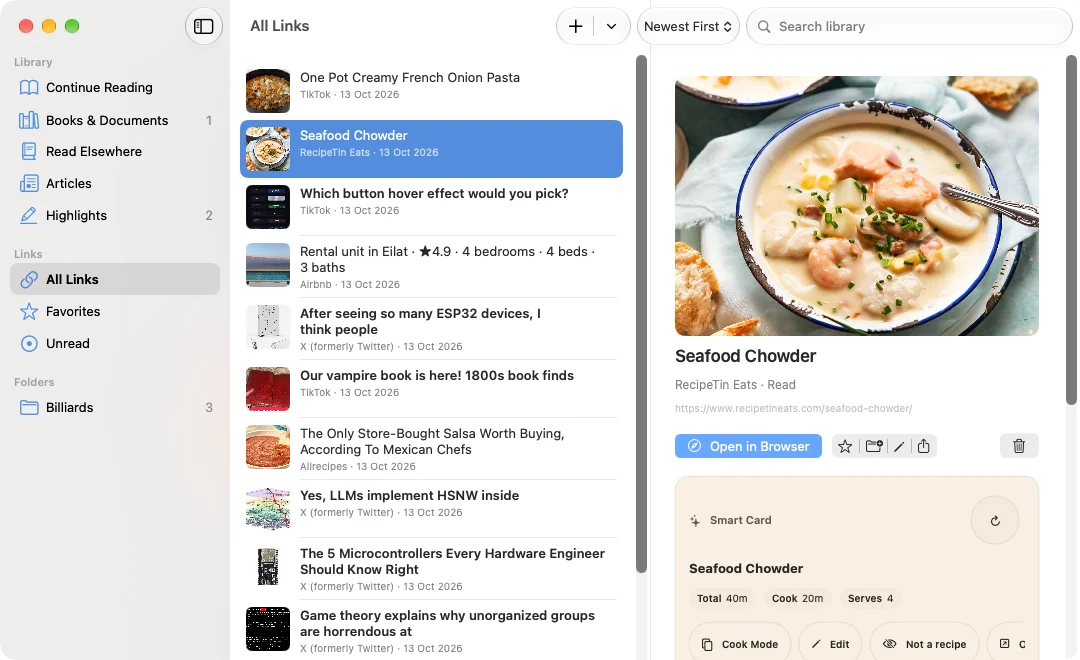
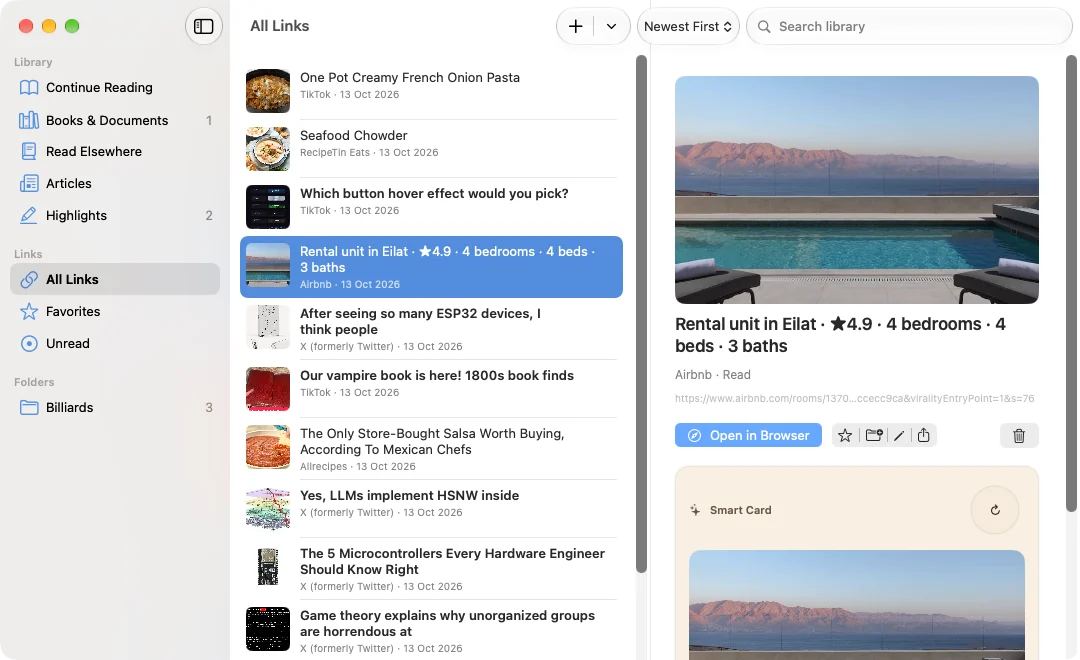
LinkBook for Mac shows your library in three columns: a sidebar, a list, and the selected item in detail.
- Library: Continue Reading, Books & Documents, Read Elsewhere, Articles and Highlights. Books show their covers in a grid.
- Links: All Links, Favorites and Unread, sorted Newest First, Oldest First or by Title.
- Folders: every folder with a count of what is in it.
The detail column shows the picture, source, folder, tags and notes, and the link’s Smart Card when it has one. Press ⌘1 to ⌘4 to jump between Books & Documents, Articles, Highlights and All Links. When you quit and reopen LinkBook, the window comes back to the same section and selection.
How to save links on a Mac
There are five ways to get a page into LinkBook on a Mac. Use whichever is closest to hand.
| From | How |
|---|---|
| An address you copied | Press ⌘N for New Link: the address is filled in. Or press ⌘V in the library window. |
| Safari’s toolbar | Turn on Save to LinkBook in Safari › Settings › Extensions, then click its toolbar button on any page. |
| The Share menu | Turn on LinkBook in System Settings › General › Login Items & Extensions › Sharing, then choose Share › LinkBook in Safari or another app. |
| A link in a browser | Drag the link or the address onto the LinkBook window. |
| A PDF or EPUB in Finder | Drag it onto the window, or choose File › Import Books & Documents (⌘O). It lands in Books & Documents. |
With LinkBook open, a page saved from the Safari extension appears within seconds; otherwise it arrives the next time you open the app. As on iPhone, supported links get a Smart Card a moment after you save them.
Coming from Safari bookmarks or another browser? Export your bookmarks as an HTML file and choose File › Import Browser Bookmarks. The bookmark import guide explains how folders and duplicates are handled.
Organize and find what you saved
With a keyboard and a pointer, tidying a library goes much faster than on a phone.
- Folders: drag links onto a folder in the sidebar, or choose Item › Move to Folder (⇧⌘M) to pick one or make a new one. Select several links first to move them together.
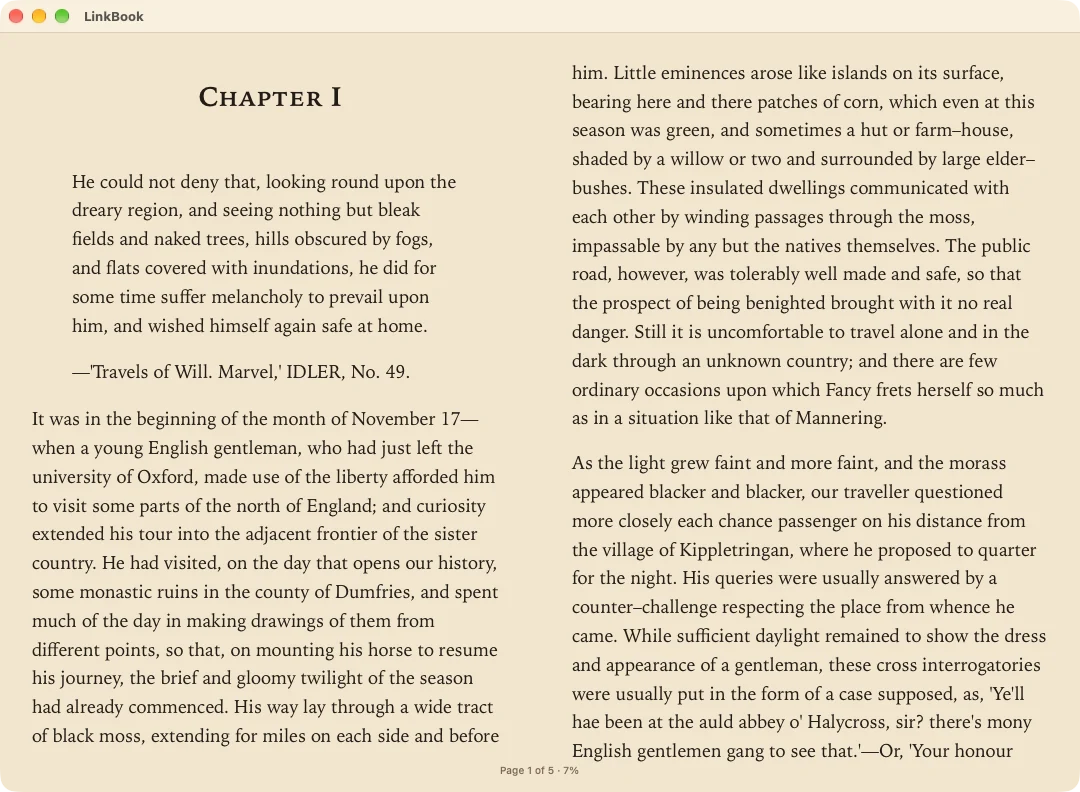
- Find in Library: press ⌘F and type. It is the same search as on your iPhone: titles, tags and notes, down to the words inside saved articles.
- Favorites and read state: ⌘D marks a favorite; ⇧⌘U marks a link read or unread.
- Undo: moves, favorites and read marks can be undone with ⌘Z.
- Hidden items: right-click a link and choose Hide to keep it out of your lists without deleting it. View › Show Hidden Items (⇧⌘.) shows them until you turn it off; it is off each time LinkBook opens.
Read books, PDFs and articles on the Mac
Double-click an item, press Return, or choose Item › Open (⇧⌘O). Books, PDFs, text documents and saved articles each open in a reader window of their own, so you can keep a book open beside your library or read two things at once. Reader windows reopen at the same page after you quit.
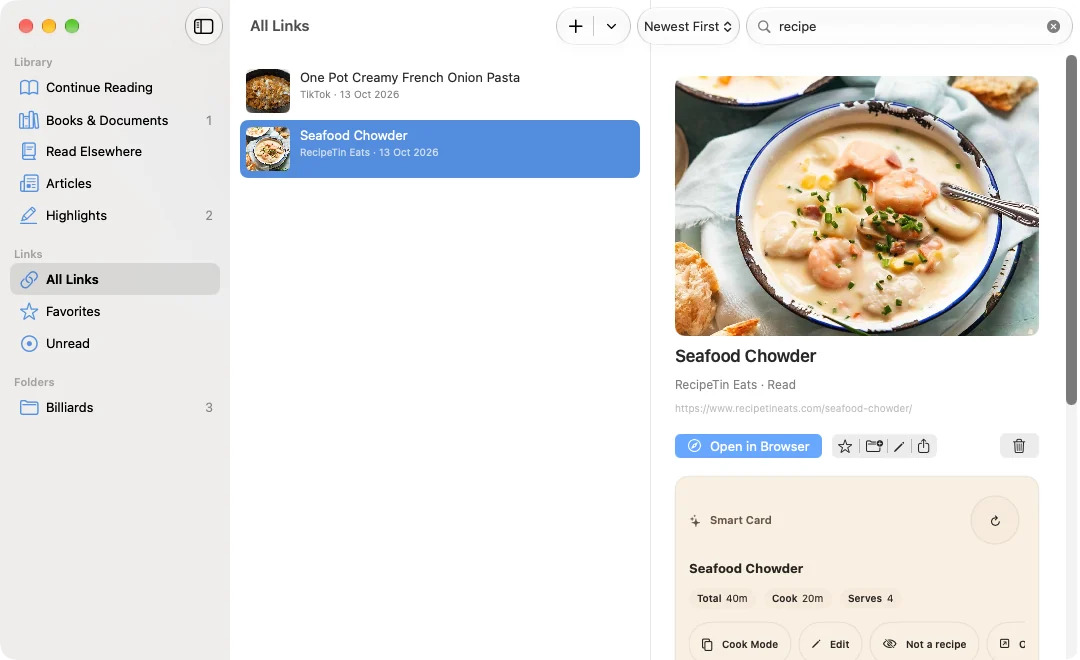
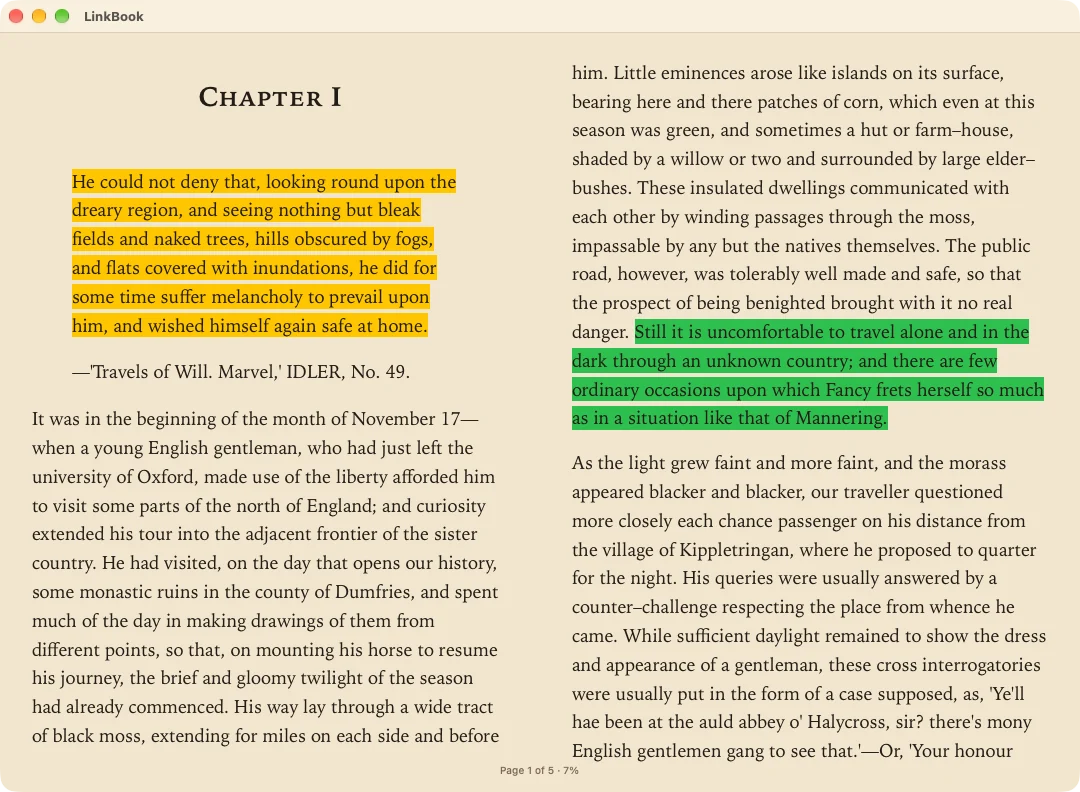
Book Mode, with two pages side by side
In a wide window, an EPUB opens as a two-page spread. Turn pages with ← and → or the Space bar. A trackpad swipe turns exactly one page, even a fast one, and so does one notch of a mouse wheel.
Highlights, notes and the pen
Select a passage and pick a color to highlight it. Click a highlight later to change its color, add a note or remove it. Turn on the pen and drag a line under words to underline them, or a loop around a word to circle it, just as you would with a finger on iPhone. On a PDF’s own pages, the pen draws freely, and your ink is still there when you reopen the PDF.
Listen
Listen works on the Mac too: it reads an article, book or PDF aloud with the Mac’s voices and highlights each word as it is spoken.
Smart Cards and Cook Mode on a big screen
The Smart Cards you know from the iPhone appear in the detail column: a recipe’s ingredients and steps, a stay’s rating and rooms, a post’s text and pictures. Smart Cards are made for links you save on the Mac too; you can turn that off in Settings › Smart Cards.
For a recipe, click Cook Mode to open the steps in a window of their own, and use ← and → to move between steps while you cook.
Keep Kindle and paper-book highlights with your library
Read Elsewhere is new in LinkBook 4.1, on the Mac and on iPhone and iPad. It keeps the highlights of books you read outside LinkBook, on a Kindle or on paper.
- From a Kindle: choose File › Import Kindle Highlights and pick My Clippings.txt from your Kindle, or the Notebook export from the Kindle app. Importing a newer file later adds only what is new.
- From a paper book: choose File › Add a Highlight from a Book (⇧⌘H) and type the passage, speak it, or pick a photo of the page.
- Into your copy: if the same book is in your library, open it in Read Elsewhere and copy its highlights into the book, so you see them as you read.
Read Elsewhere highlights sync to your other devices and are kept in backups.
Pick up where you left off on another device
Reading positions sync, so a book opens at the page you reached on your iPhone. Handoff makes it quicker: while you read in LinkBook on your iPhone or iPad, a LinkBook icon appears in your Mac’s Dock. Click it and the same book, PDF or article opens in a reader window. It works the other way too, from the Mac to your iPhone or iPad.
Handoff needs both devices signed in to the same Apple Account, with Handoff turned on in their settings.
LinkBook for Mac keyboard shortcuts
| Action | Shortcut |
|---|---|
| New Link | ⌘N |
| Import Books & Documents | ⌘O |
| Add a Highlight from a Book | ⇧⌘H |
| Find in Library | ⌘F |
| Books & Documents, Articles, Highlights, All Links | ⌘1, ⌘2, ⌘3, ⌘4 |
| Open in a reader window | ⇧⌘O or Return |
| Open in Browser or Show in Finder | ⌘Return |
| Copy Link | ⇧⌘C |
| Favorite | ⌘D |
| Mark as Read or Unread | ⇧⌘U |
| Move to Folder | ⇧⌘M |
| Show Hidden Items | ⇧⌘. |
| Delete | ⌘⌫ |
| Sync Now | ⌥⌘R |
| Turn a page in Book Mode | ← and →, or Space |
Also new in LinkBook 4.1 on iPhone and iPad
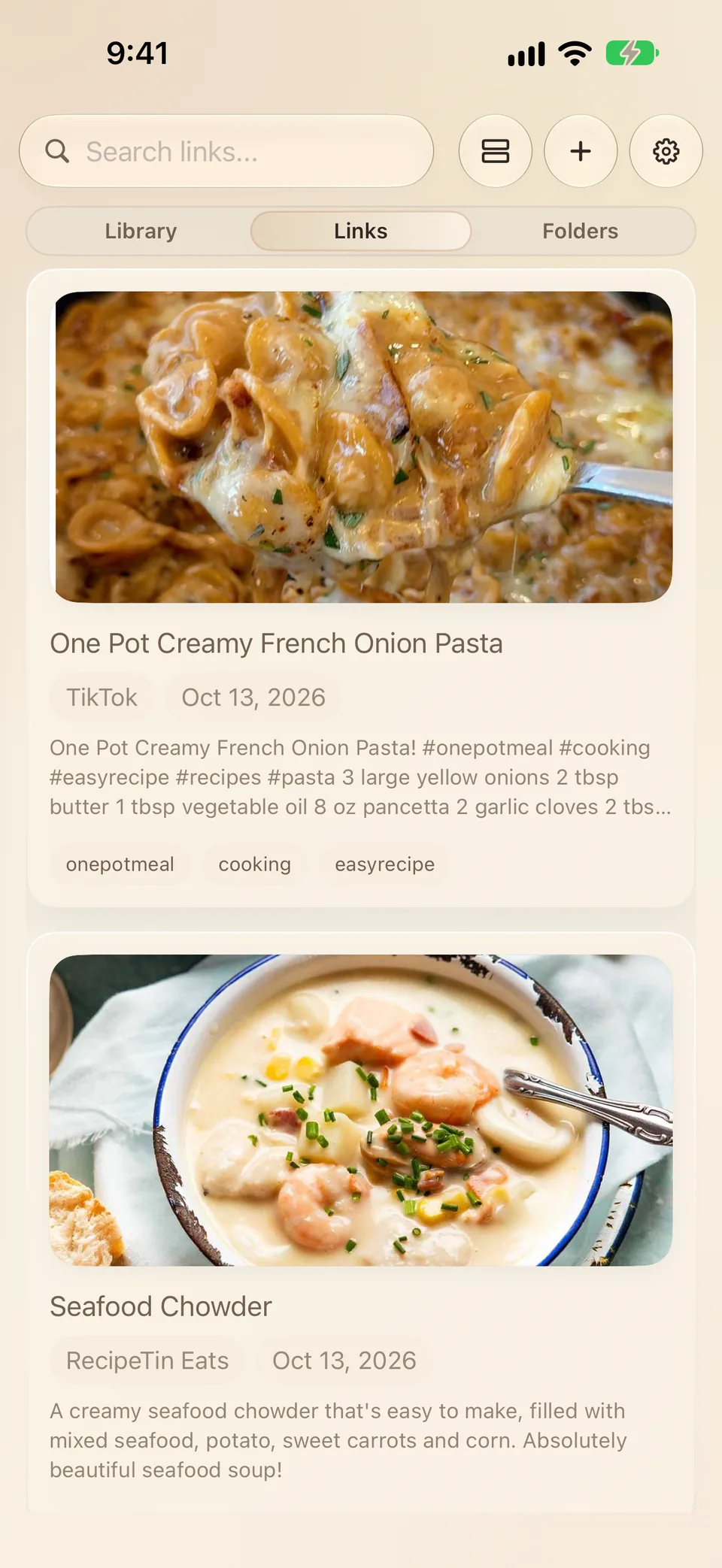
- A Library page. The top of the app now reads Library · Links · Folders. Library puts your books, documents, articles and highlights in one place, with Continue Reading at the top, and book covers now fill their tiles.
- Read Elsewhere. Import Kindle highlights, or type, photograph or speak a passage from a paper book, then copy those passages into the same book in your library.
- Clearer folders. A simpler folder menu, Move to Folder, and a count on every folder. A folder you hid from Home can be found again in Settings › Privacy › Hidden Folders.
- Better saving. Shares that carry text and a link save the right link, sharing a link you already saved updates it instead of adding a copy, and TikTok links save straight away and keep their picture.
- Handoff between the readers on your iPhone, iPad and Mac.
Common questions about LinkBook for Mac
Is LinkBook for Mac a separate app?
No. The Mac app is part of the same App Store listing as LinkBook for iPhone and iPad. On a Mac, the App Store installs the Mac version.
Which Macs can run LinkBook?
LinkBook for Mac needs macOS 15 Sequoia or later. The iPhone and iPad apps need iOS or iPadOS 16 or later.
Is it the iPad app running on a Mac?
No. LinkBook for Mac is a native Mac app with a sidebar, menus, keyboard shortcuts, reader windows, a Safari extension and a Share menu extension. It reads the same library as the iPhone and iPad apps.
Does LinkBook for Mac sync with my iPhone?
Yes. Turn on Sync with iCloud on the Mac and iCloud Sync on your iPhone and iPad, signed in to the same Apple Account. Links, folders, books, highlights, notes and reading positions sync. See how LinkBook’s iCloud sync works.
Can LinkBook replace Pocket on a Mac?
For saving articles to read later, yes. Save pages from Safari’s toolbar or the Share menu, read saved articles in Reader, and keep them in sync with your iPhone. A Pocket export may need converting to a bookmarks HTML file before you import it; see what to do with a Pocket export.
Can I import my Safari or Chrome bookmarks on a Mac?
Yes. Export your bookmarks from the browser as an HTML file, then choose File › Import Browser Bookmarks in LinkBook.
Can I back up my library from the Mac?
Yes. File › Back Up Library saves a backup file, and File › Restore from Backup brings one back. Backups made on an iPhone or iPad restore on the Mac too.
Your library, on every screen you read on.
Save on your iPhone, read and sort on your Mac, and pick up the same page wherever you are.