Capture
Use the Apple Share Sheet to save links, videos, PDFs, and other supported items.
 LinkBook
Official LinkBook Guide
Save from the Share Sheet, return to a calmer library, and turn supported links, files, recipes, and articles into something easier to use later.
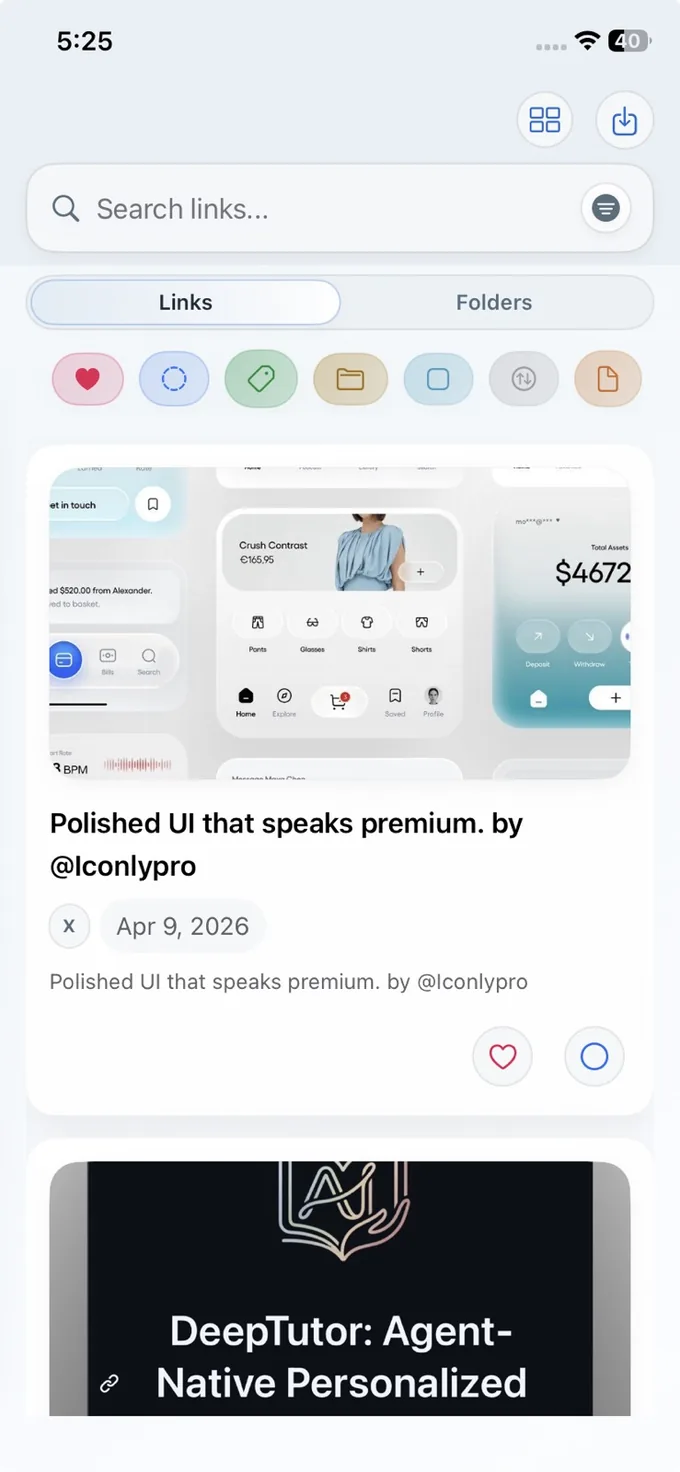
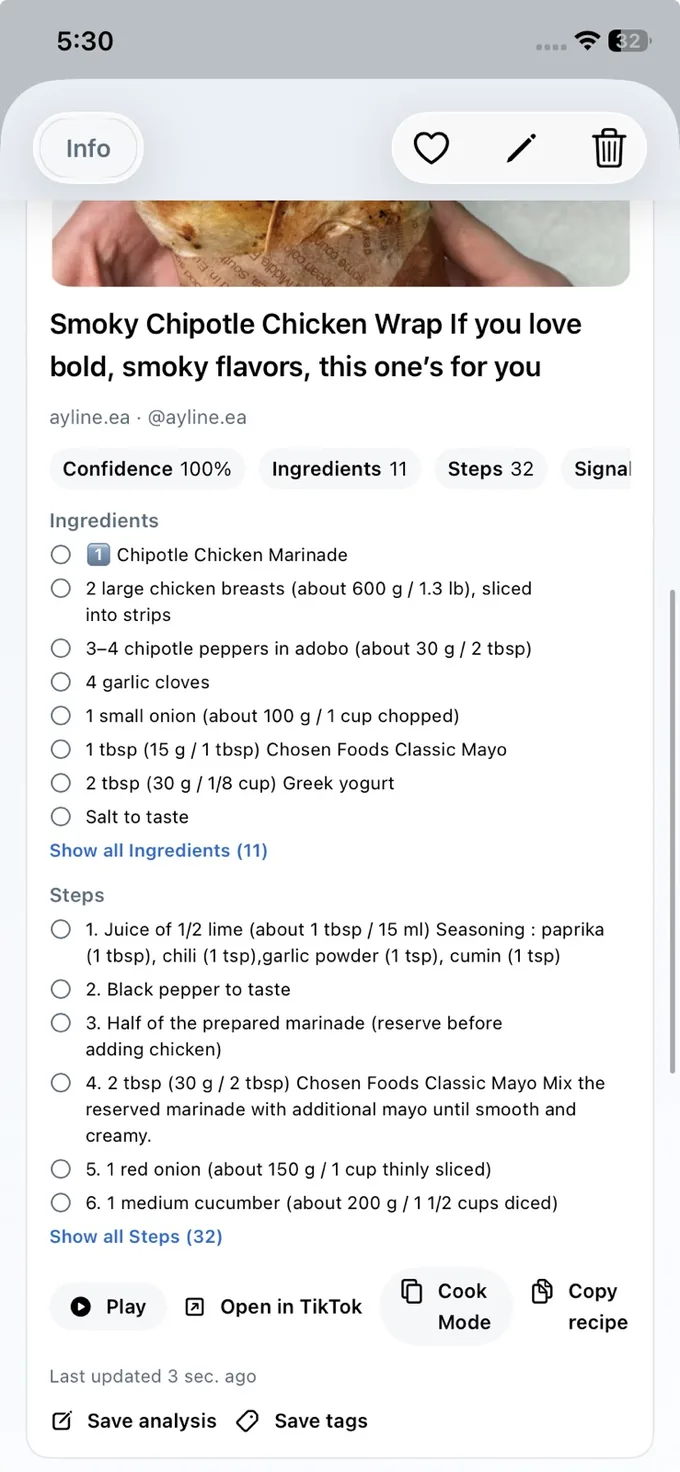
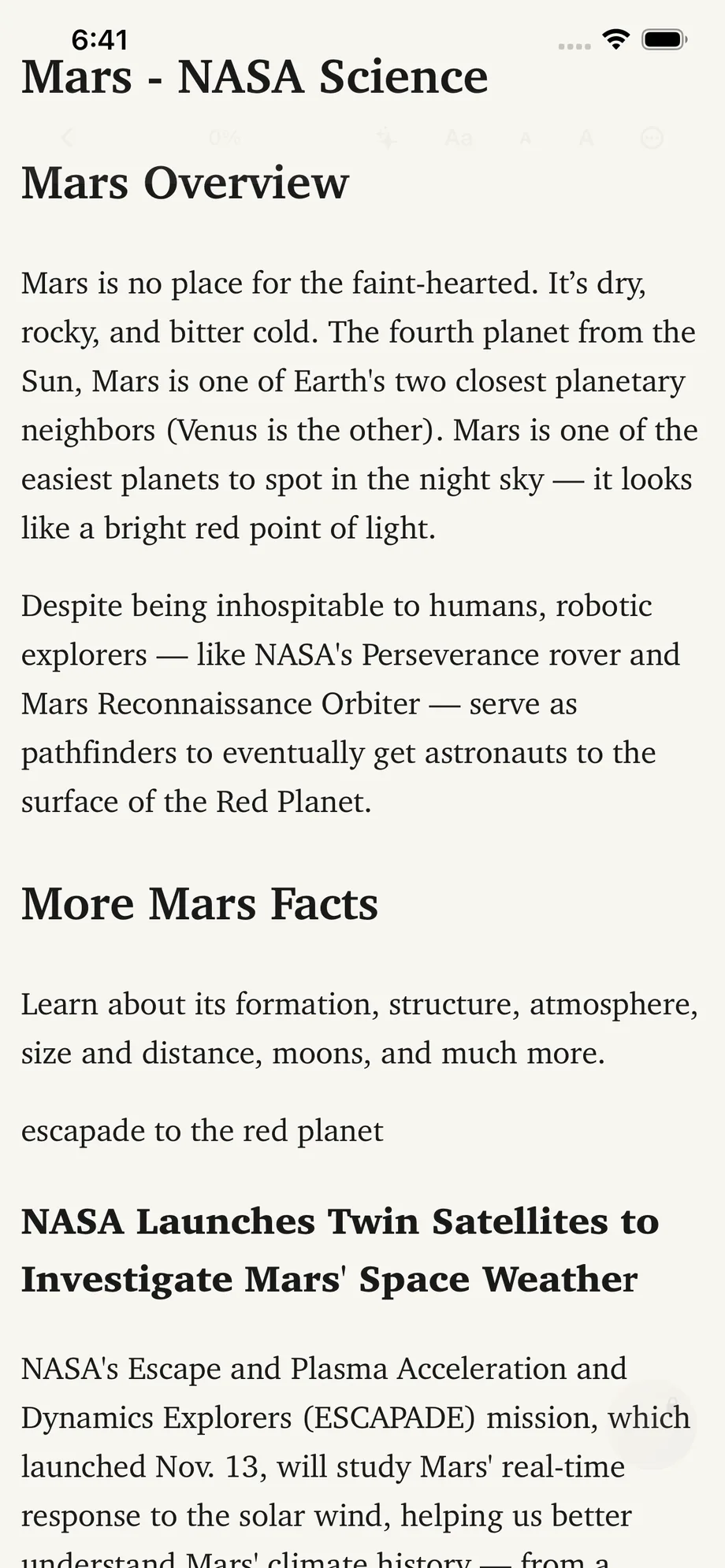
LinkBook is built around four repeatable jobs: capture, orient, read, and maintain.
Use the Apple Share Sheet to save links, videos, PDFs, and other supported items.
Start in the library, search fast, and use filters or folders when the collection grows.
Open Reader, generate insights, and keep PDFs or EPUBs in the same revisit flow.
Handle settings, backup, restore, sync, and bookmark import from the left drawer.
Capture
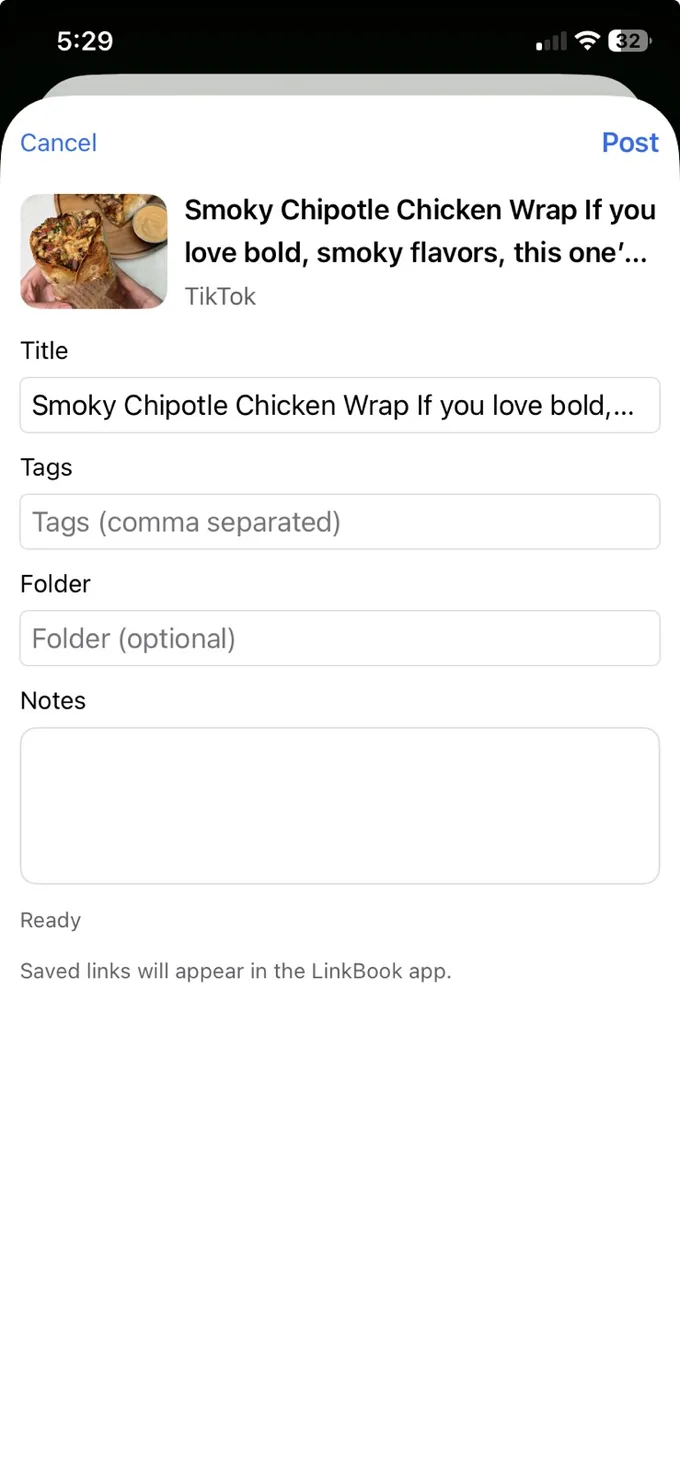
The normal way into LinkBook is the Apple Share Sheet. When you find something worth keeping, send it to LinkBook, review the Share Preview, and save it into the same private library used by the main app.
The Share Preview gives you one last pass before the save lands. It can prefill the title and source details, and it lets you add your own organization right away.
Library
Every save lands in the library first. That is where recent saves, layout controls, search, filters, and the Links or Folders toggle stay within easy reach.
Links is the running feed. It is the best place to scan recent saves, return to something you just captured, or decide what deserves richer organization next.
Search is meant to feel practical rather than technical. Look up a title, site, topic, or source, then narrow the feed with the chips below the page toggle.
Organize
Use Links when you want a running feed. Use Folders when you want grouped browsing around a project, research topic, travel plan, reading list, or meal plan.
The Folders side of the library turns saves into collections. It is the better view when the library starts covering multiple tracks of life or work and you want a calmer way to jump back into a theme.
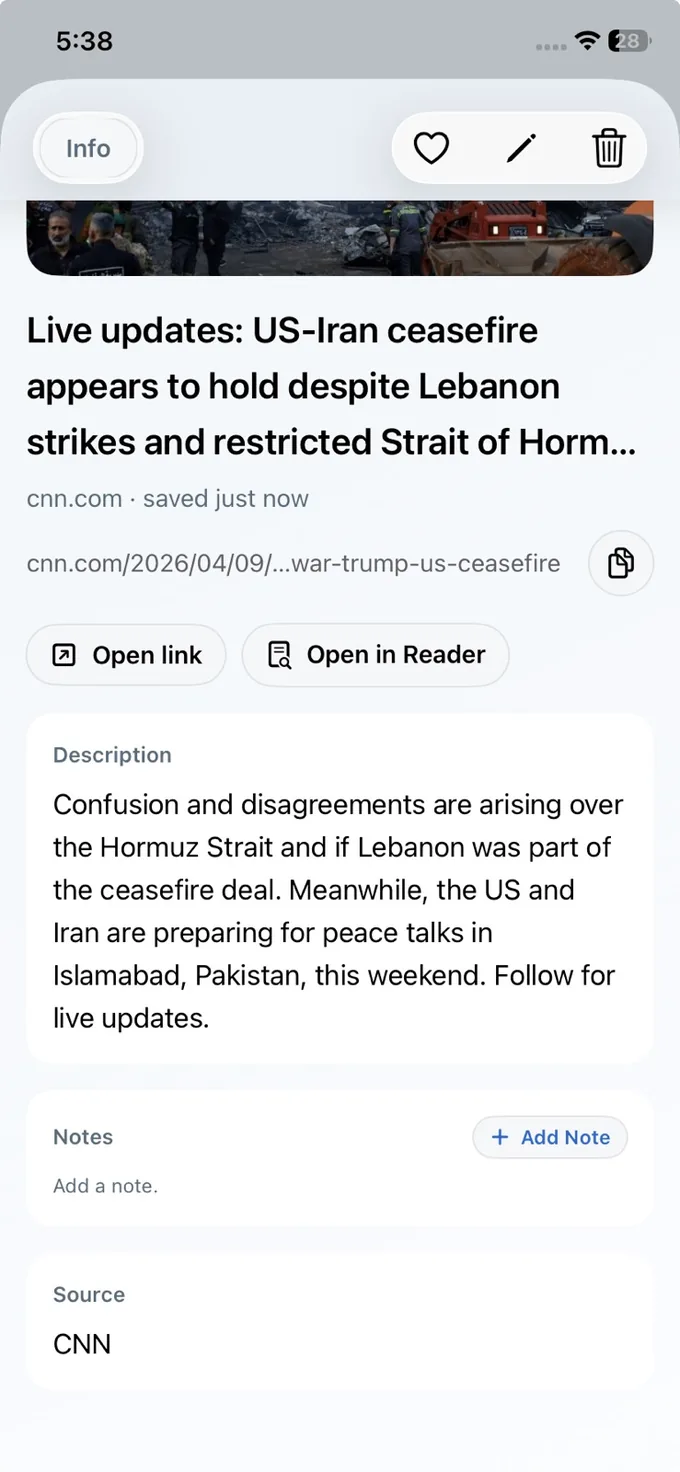
Tap any saved item to open its detail screen. This is where LinkBook moves from “I saved this” to “I want to work with this.”
Smart Cards
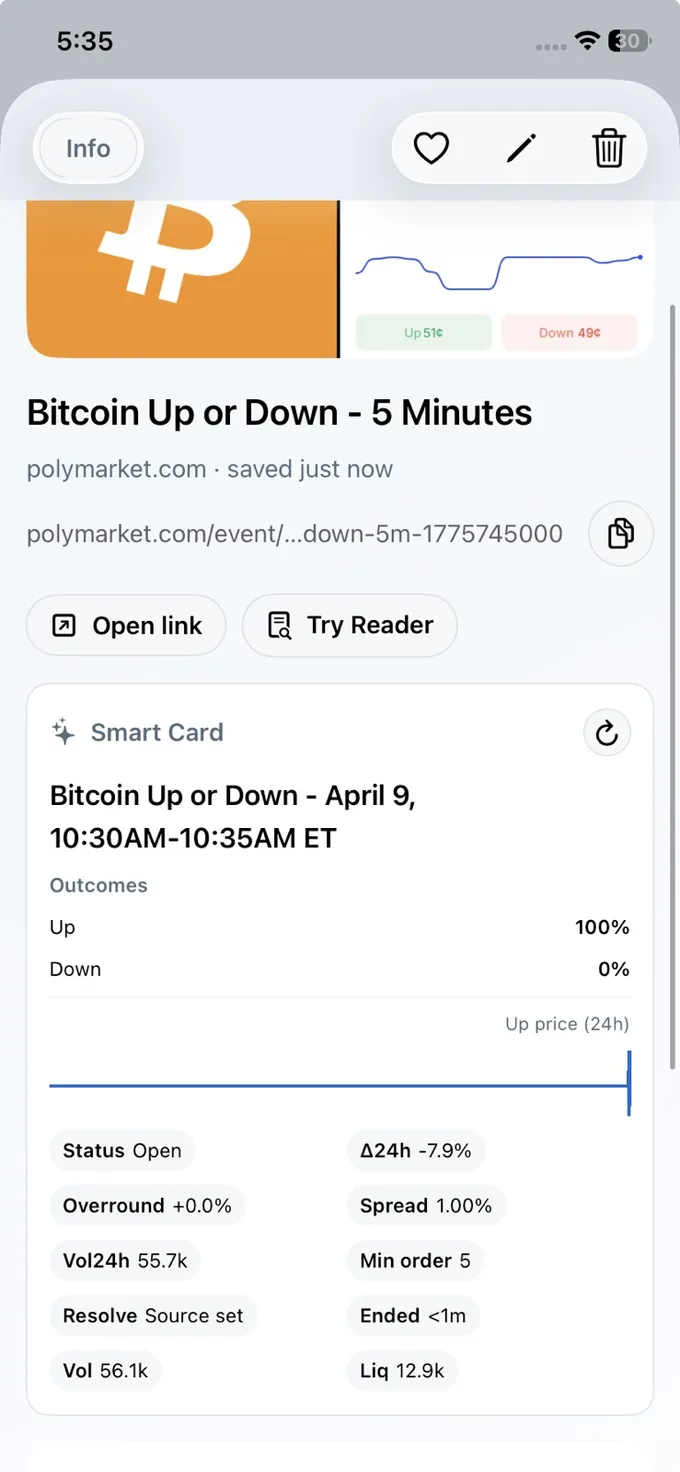
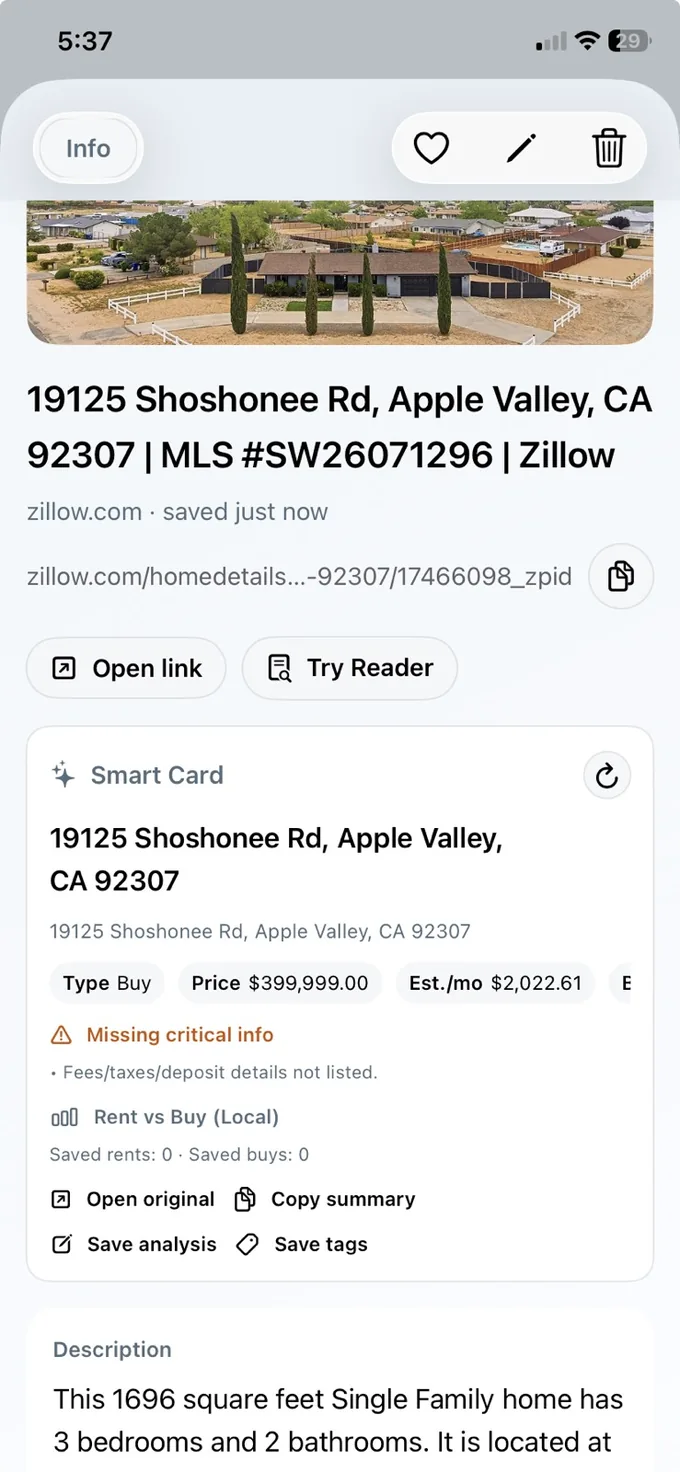
When LinkBook recognizes a supported content type, it can upgrade the save into a Smart Card so the useful structure is already visible the next time you come back.
Smart Cards reduce reopen-and-hunt behavior. Instead of sending you back through the original page every time, the card brings forward the fields, actions, or summaries that make the save useful.
Current examples in the app include domain-specific cards for markets and listings, plus recipe cards, shared chats, source packs, and other supported saves.
For a focused breakdown of the format itself, see Smart Cards for saved links on iPhone.
Some shared chats or grouped-answer saves are easier to revisit when they behave like compact reference packs. LinkBook can surface the key answer blocks, references, and reusable context inside the card for supported conversation and source-pack saves.
Recipes
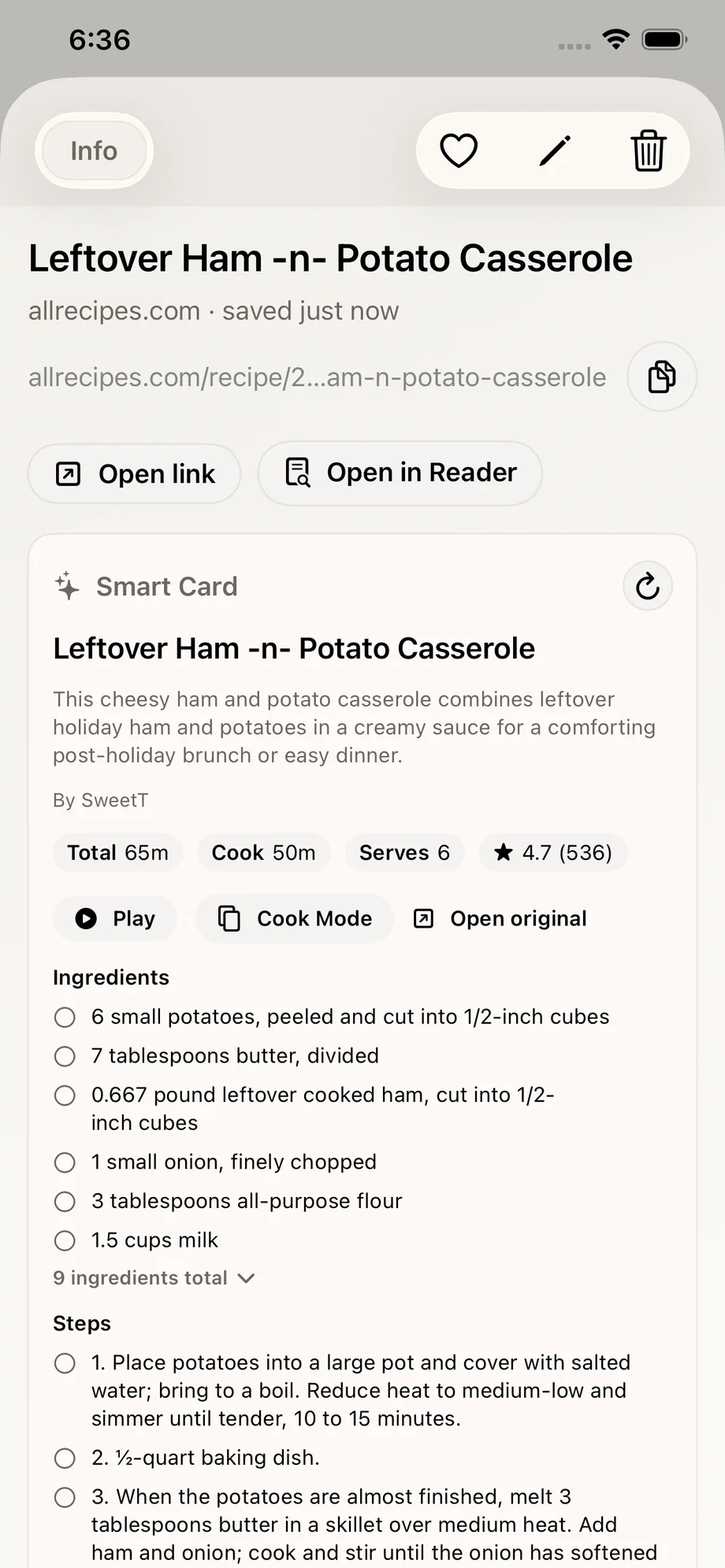
Recipe saves are one of the clearest Smart Card paths. Instead of treating a cooking save like a plain link, LinkBook can separate ingredients, steps, and useful actions.
Supported recipe saves can surface ingredients, steps, Cook Mode, Copy recipe, and the original source in a format built for actual use while cooking.
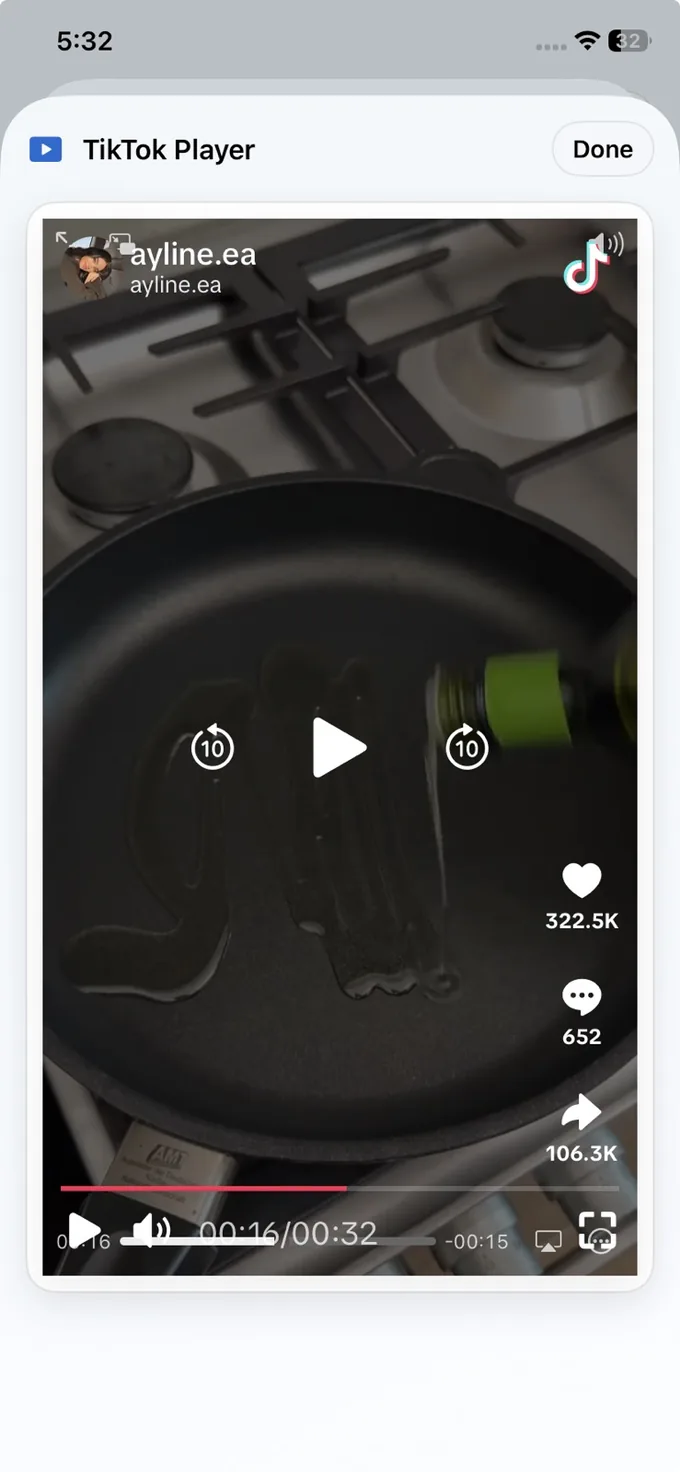
Some recipe and media cards can open the playable guide directly from LinkBook. That is especially helpful when the recipe steps and the source video are meant to stay together.
Reading
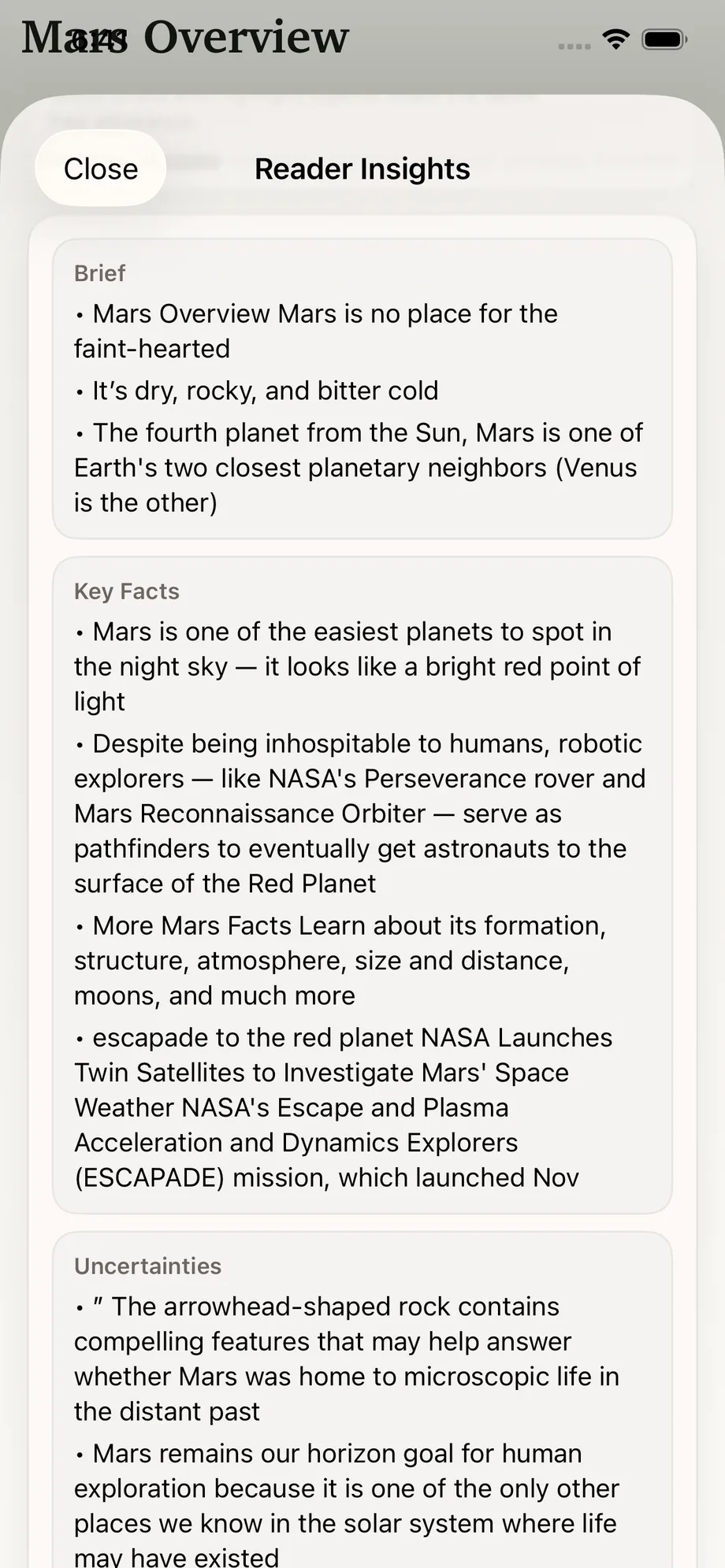
Reader is where saved web pages become calmer to revisit. Reader Insights adds a summary layer when you want the short version before the full piece.
Open Reader when you want the content without the webpage noise. The reading surface is built for longer sessions, stronger focus, and a better return visit than a normal tab.
If your main question is how LinkBook helps you read saved links later, the shorter version lives in this Reader walkthrough.
Reader Insights can turn an article into a Quick Brief or a Highlight Digest, which is useful when you want the summary first and the full article second.
Files
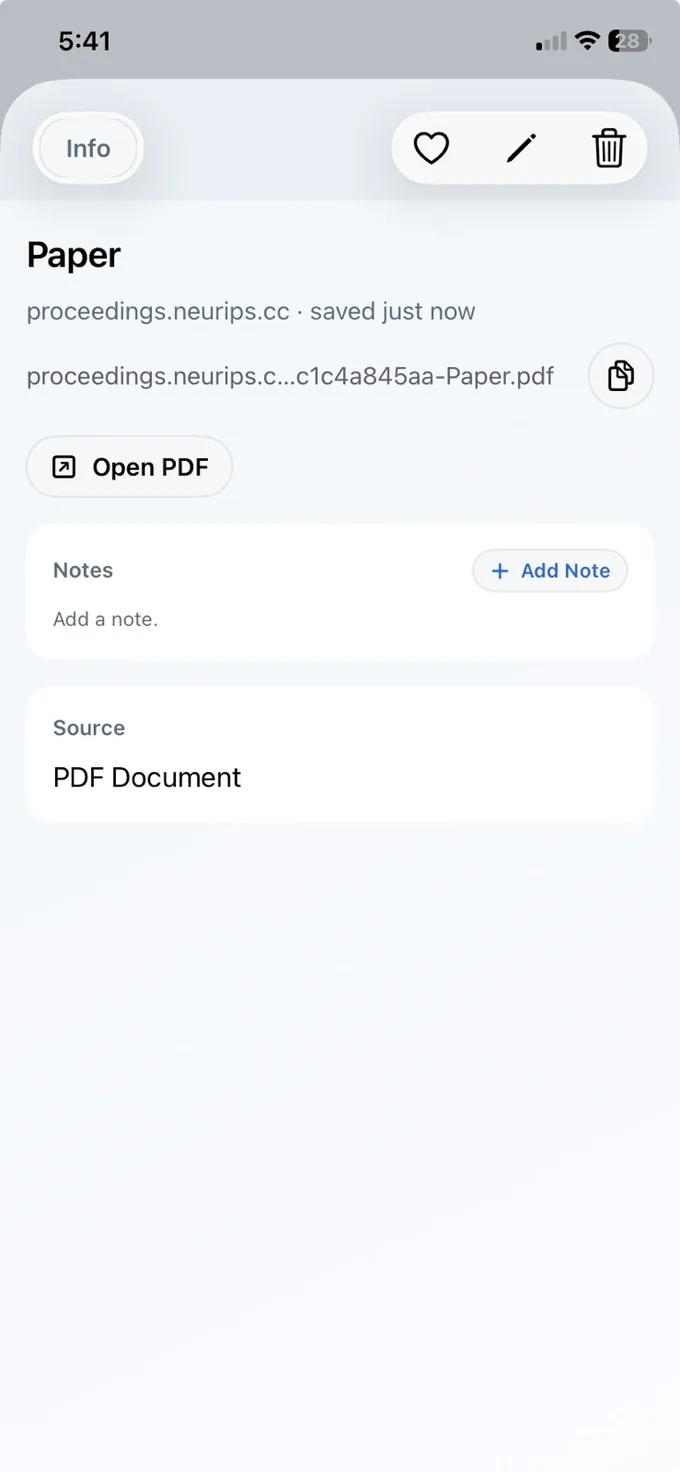
LinkBook is not limited to web pages. PDFs and EPUBs can live beside saved links in the same library, which keeps long-form reading and document reading inside one revisit system.
File-based saves get their own detail flow, in-app opening path, and reading-friendly presentation instead of acting like dead attachments.
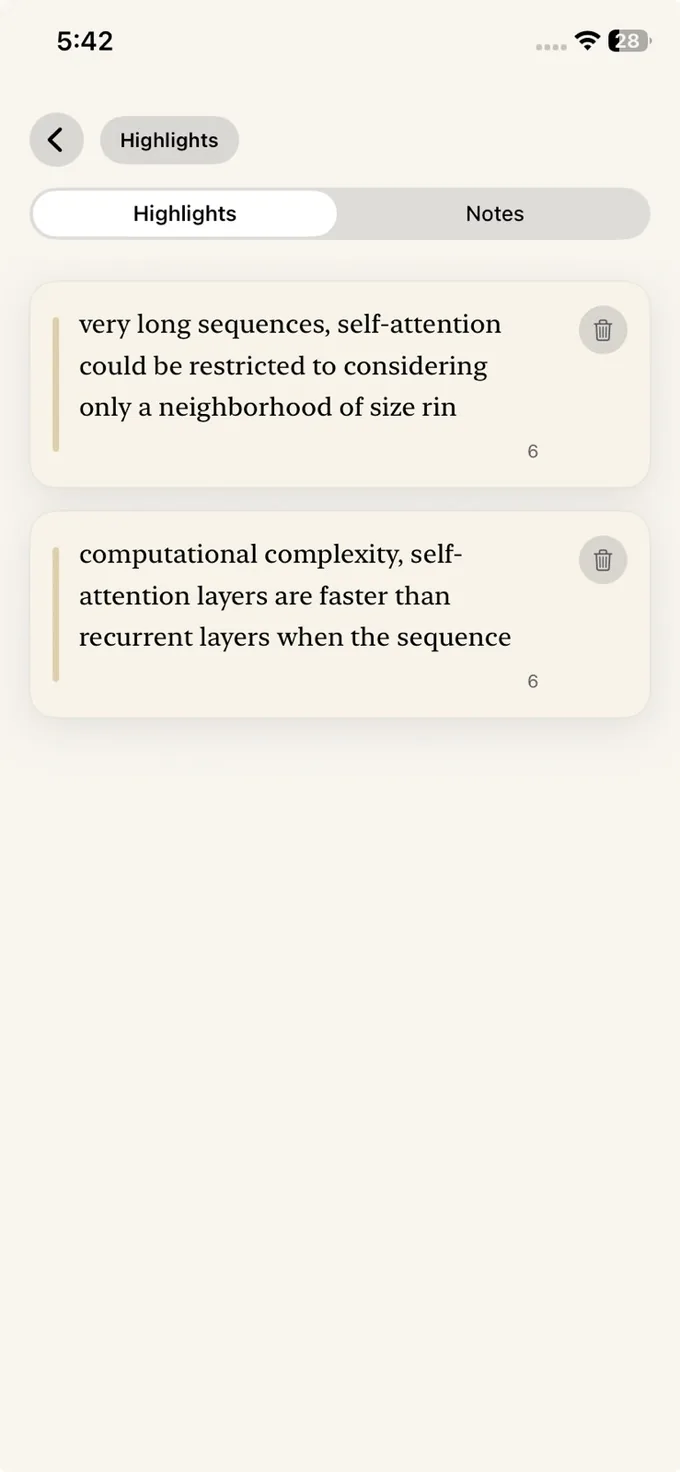
PDF detail, document reading, and highlight review follow the same library-first pattern you use for links. EPUBs fit into the same reading workflow once they are added. If PDFs are your main use case, the closer comparison is this PDF reader guide for iPhone.
Personalize
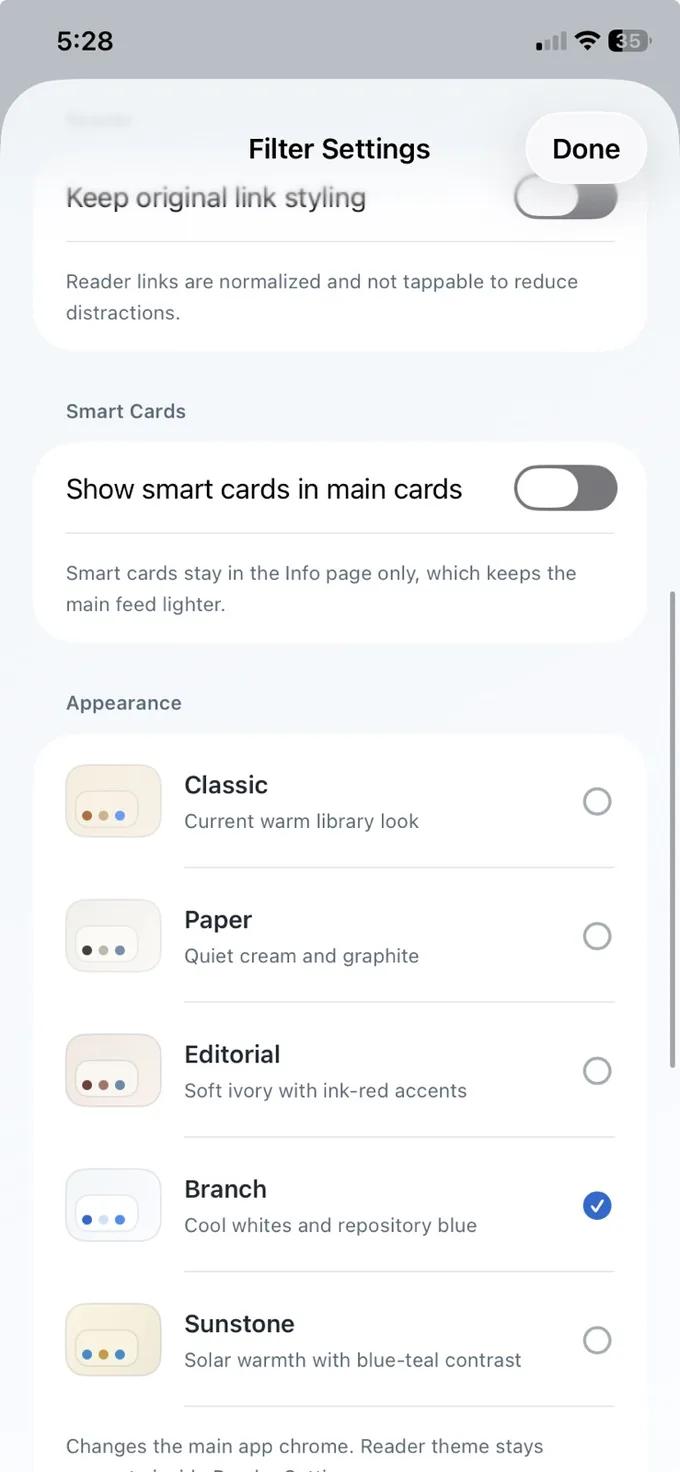
Theme selection changes the feel of the main app chrome, not just the landing screen. Reader keeps its own reading-specific settings, so library appearance and reading appearance stay related but separate.
The visible app themes are Classic, Paper, Editorial, Branch, and Sunstone. Use them when you want the library to feel warmer, calmer, more editorial, or more contrast-driven.
Library Tools
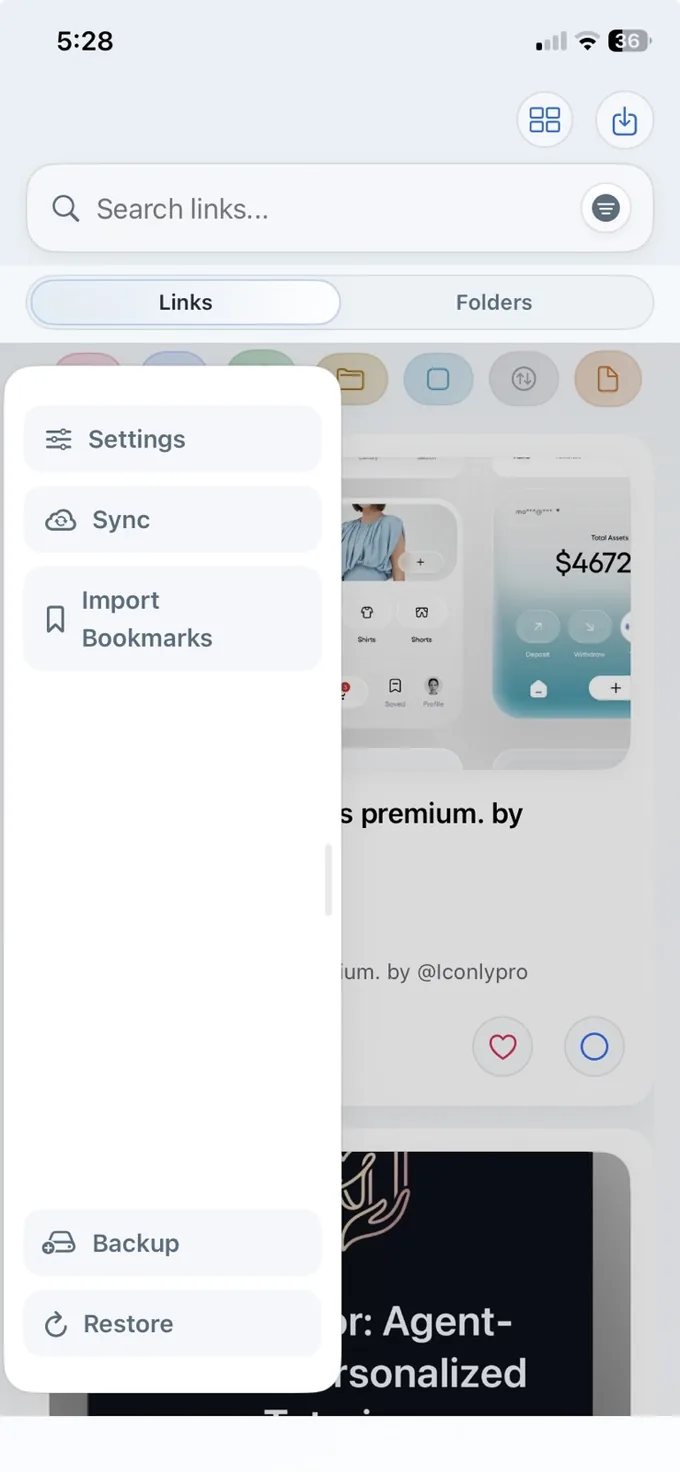
The left drawer is where library-level actions live. Open it when you want maintenance tools rather than browsing tools.
The current drawer gives you quick access to Settings, Sync, Import Bookmarks, Backup, and Restore. That keeps the operational side of LinkBook separate from the reading and browsing side.
Use backup when you want a safety copy of the library. Restore can either merge content into the current library or replace the current library state. Manual local backup and manual local restore remain part of the core recovery path, while automatic backup cadence and iCloud backup history are the deeper maintenance layer.
If you use private iCloud sync, LinkBook can keep the same library aligned across your Apple devices without turning it into a public or shared feed.
Bookmark import is migration, not day-to-day capture. Export a bookmark HTML file from your browser or service, save it to Files or iCloud Drive, then import that file into LinkBook. If you are moving from Safari, Chrome, Firefox, or another bookmark manager, the fastest reference is this bookmark import guide.
Use the same language LinkBook uses inside the app so the guide and the interface line up.
LinkBook currently supports English and Simplified Chinese across onboarding, the library, Reader, and the major settings and feature flows.
The main place where all your saved content lives. In LinkBook, the library includes both the Links view and the Folders view.
The card-based main feed where recent saves usually appear first.
The collection-based side of the library for grouped saves around a topic, project, or research area.
The screen you see after tapping a saved item. It gives you the full context for that save and the main actions around it.
A supported saved item that LinkBook upgrades into a more structured format, such as a recipe, source pack, conversation, or domain-specific card.
A cleaner reading view for saved web pages and other supported reading content.
A summary layer for Reader content that can surface outputs such as a Quick Brief or a Highlight Digest.
The system share menu on Apple devices. This is the main capture path for sending supported content into LinkBook.
The preview screen you see when sending something to LinkBook from the Share Sheet. It lets you confirm what is about to be saved.
A migration-style flow for bringing browser bookmarks into LinkBook from a bookmark HTML file.
A flow for bringing supported files such as PDFs or EPUBs into the library from inside the app.
A safety copy of your library that can be used later if you need to recover or restore content.
The process of bringing library content back from a backup source. Restore can merge content into the current library or replace the current library state.
A restore flow that adds recovered content into the existing library instead of replacing everything already there.
A restore flow that replaces the current library with the selected backup source.
The process of keeping the same LinkBook library aligned across your Apple devices.
The small controls under the page toggle that help narrow what you see in the library.
The visual style applied to the main app chrome, such as Classic, Paper, Editorial, Branch, or Sunstone.
A recipe-focused reading mode that surfaces one step at a time in a more usable cooking flow.
A structured card built from supported saves that contain grouped information, references, or shared conversation context.
These are the short answers people usually want before they settle into the full guide.
Use the iOS Share Sheet, choose LinkBook, review Share Preview, and save into your library. That same flow is the normal capture path for many supported links, videos, recipes, PDFs, and shared chats.
The library is where all saved items live, and where search, filters, folders, and detail views help you return to them. Reader is the calmer reading surface for supported articles once you want the content without the original page clutter.
Yes. LinkBook supports bookmark HTML import and can also bring supported files such as PDFs and EPUBs into the same library, so they follow the same revisit flow as saved links.
Manual local backup and restore remain part of the core recovery flow. Restore can merge a backup into the current library or replace it, and optional private iCloud sync can keep the same LinkBook library aligned across your Apple devices.
Use the Share Sheet once, then come back here whenever you want a refresher on Reader, Smart Cards, folders, or the library tools.