LinkBook 4.1.1 and 4.1.2
What’s New in LinkBook 4.1.2: X Posts, TikTok Links and PDFs That Open on Your Page
LinkBook 4.1.2 saves X posts with their text and picture, makes Open Link work on every card, and opens a highlight right at its passage. It follows LinkBook 4.1.1, which brought back TikTok links and recipe videos, made PDFs open on the page you were reading, and smoothed out scrolling.
Both updates are out now for iPhone and iPad. LinkBook for Mac 4.1.2 was sent to Apple at the same time and is waiting for Apple’s review. Your saved links, books and highlights carry over as they are.

Everything at a glance
| What | What you’ll notice | Update |
|---|---|---|
| X posts | Posts shared from X keep their text and picture | 4.1.2 |
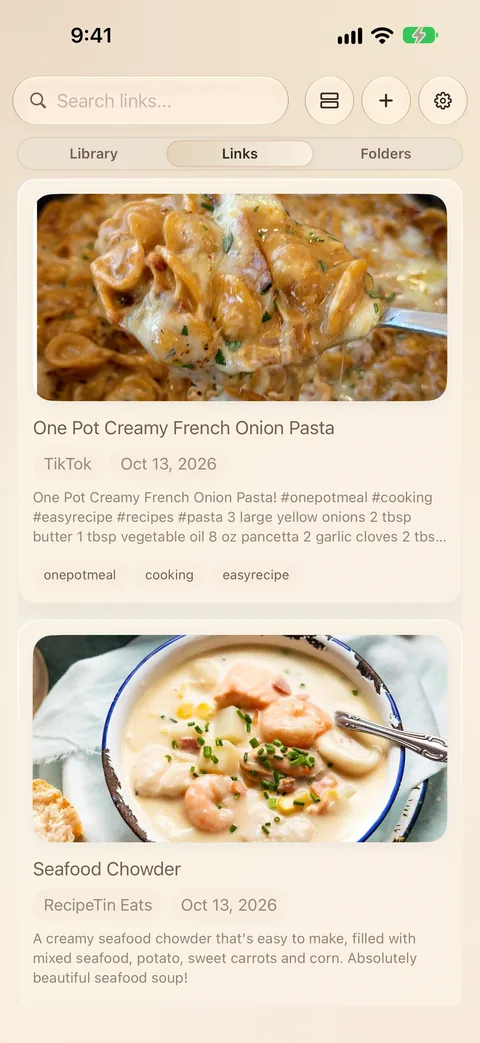
| TikTok | Cards load again, and cooking videos become recipes | 4.1.1 |
| PDFs | Continue opens on your page, even if you read it on another device | 4.1.1 |
| Safari | A clearer Save to LinkBook popup with the new icon | 4.1.1 |
| Scrolling | Long lists of cards scroll smoothly | 4.1.1 |
| Link page | Open Link and Copy Link work on every card; read links stay read | 4.1.2 |
| Reading buttons | Full labels, with your page and progress on one line | 4.1.2 |
| Highlights | A tap opens the book at that passage | 4.1.2 |
| Library | Continue Reading and Recently Read show the books you’re reading | 4.1.2 |
| Folders | Hold a folder and drag it, in any direction | 4.1.2 |
| Sync and backups | Changes appear right away; restores bring everything back | 4.1.2 |
| Storage | LinkBook takes less space and memory | 4.1.2 |
Save X (Twitter) posts with their text and picture
Some posts shared from the X app were saved with nothing but “@name on X” as their title and no picture, so you couldn’t tell them apart later. LinkBook 4.1.2 keeps the post’s text and picture that X hands over when you share, and if your connection drops while you save, LinkBook fills in the preview later.
- Open the post in the X app.
- Tap the share button. If X shows its own menu, tap Share via… to reach the iPhone share sheet.
- Choose LinkBook and tap Save. Saving stays quick: LinkBook doesn’t make you wait for the preview.
Posts you saved before the update don’t need saving again. When LinkBook loads an older post’s card, it puts the post’s text in place of “@name on X”, and keeps any title, note, tag or folder you set yourself. For more ways to keep posts and pages, see how to save links on iPhone.
TikTok links and recipe videos work again
In mid-October TikTok changed its pages, and the service LinkBook asked for a post’s details stopped answering. Every TikTok card, recipe or not, ended in “The request timed out”.
Since version 4.1.1, LinkBook reads the post from its own page first, and only asks that service when the page has nothing to give. Saved TikToks get their caption and picture again, and cooking videos turn back into recipes with ingredients and steps. Here is how to turn a TikTok recipe into a written recipe.
PDFs open on the page you were reading
A PDF’s details page in LinkBook shows a Continue button with your place, such as “p. 21 of 480”. If you had last read that PDF on another device, such as your Mac or iPad, the reader could open on page 1 anyway: it opened before your reading place arrived.
Since LinkBook 4.1.1, Continue opens the PDF on the page it shows, wherever you read it last. Your reading place travels between devices with iCloud sync.

The reading buttons were tidied up in 4.1.2 too. Their labels are no longer cut off, the page and progress bar share one line when they fit, and the two buttons stay where they are while a link’s preview loads. If you’re choosing a PDF app, our guide to PDF readers for iPhone compares the options.
A new Save to LinkBook popup in Safari
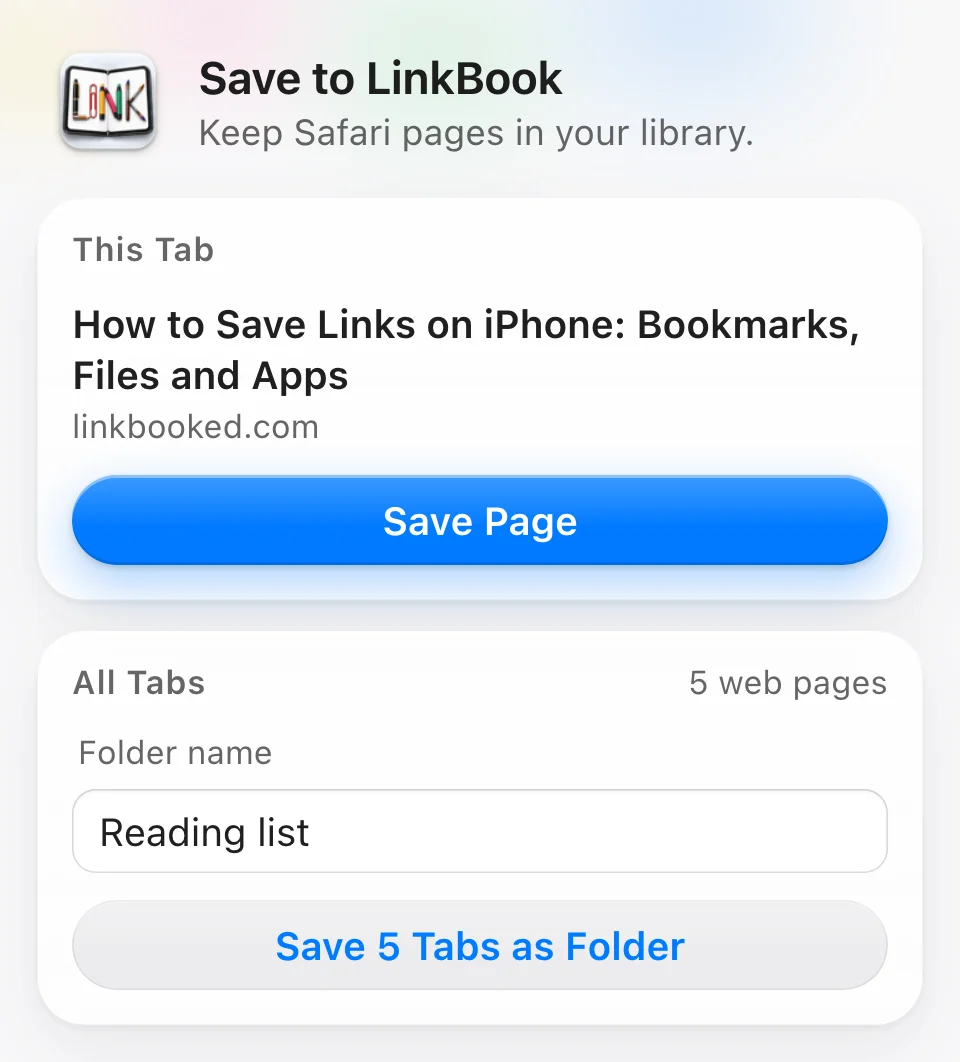
Since LinkBook 4.1.1, the Save to LinkBook extension in Safari has a fresh design and the new LinkBook icon.
- This Tab shows the page you’re about to save, with its title and site, above Save Page.
- On a Start Page or a tab without a website, it says “This tab has no web page to save.” instead of offering a button that can’t work.
- All Tabs shows how many web pages are open and saves them into a new folder. The button says how many (Save 5 Tabs as Folder), and Return in the folder name field saves them too.
- It follows Dark Mode and Increase Contrast, and on iPhone and iPad its buttons are sized for your finger.
To turn it on, go to Settings › Apps › Safari › Extensions on iPhone or iPad, or Safari › Settings › Extensions on a Mac. If you’re weighing LinkBook against Safari’s own bookmarks, see our Safari bookmarks alternatives for iPhone and Mac.
Smooth scrolling in a big library
The new Library page in LinkBook 4.1 made scrolling stutter in a big library. LinkBook 4.1.1 fixes that, and scrolling is now smoother than ever, even with hundreds of links in Cards. LinkBook opens faster too, right where you left off.
Open Link and Copy Link work on every card
On some TikTok, recipe and other cards with a tall picture, the picture’s hidden edge sat over the Open Link and Copy Link buttons, so tapping them did nothing. In 4.1.2 the picture on a card no longer catches taps, so both buttons work on every link.
A link you open now also stays marked as read. Before, it could show as unread again after you closed and reopened LinkBook.
Highlights, Continue Reading and Recently Read
- A highlight opens at its passage. In Library › Highlights, or in search results, tap a highlight: the book, PDF or article opens right at that passage, and closing it takes you back to your list. In a PDF, the passage is placed in the middle of the screen, clear of the reader’s buttons.
- Books show their details first. Tapping a book, document or article in the Library opens its details; tap Read when you’re ready.
- Continue Reading holds the books and PDFs you’re reading. Articles no longer push them off the row.
- Recently Read in Books & Documents puts the book you just read first.
New to the Library page? Here’s where your books live in LinkBook 4.1, and how to bring in your Kindle highlights.
Move folders around
On the Folders page, touch and hold a folder until it lifts, then drag it to its new place: up, down or sideways. Before 4.1.2, dragging sideways could swipe to the next page instead, and dragging up or down only worked if you started the right way. A quick swipe still moves between Library, Links and Folders.
More on keeping things tidy: organizing research links on iPhone, and finding a folder you hid.
Sync and backups you can count on
- Changes from your other devices show up right away in the library you have open, without leaving the screen and coming back.
- Restoring a backup brings everything back. A book or PDF whose file had gone missing is put back in place, with its reading place and highlights. Restoring the same backup twice doesn’t double your highlights.
- Your marks stay where you put them. Handwritten notes stay with their highlight after a restore and a sync, and a bookmark you deleted in a book stays deleted.
How to set them up: iCloud sync on iPhone, iPad and Mac, and backing up and restoring your library.
A lighter app
LinkBook keeps a copy of the pictures it downloads so cards appear quickly. In 4.1.2 that copy has a fixed size, and an oversized one is trimmed when LinkBook starts, so the app takes less space on your iPhone and iPad. Lists load smaller versions of each picture, which uses less memory as you scroll, and backups are written a piece at a time instead of all at once. Your own pictures, documents and highlights are never part of what gets trimmed.
LinkBook for Mac
Most of these fixes are in code that LinkBook for Mac shares with the iPhone app, so the Mac gets them too. LinkBook for Mac 4.1.2 was sent to Apple together with the iPhone and iPad update and is waiting for Apple’s review. It will be in the Mac App Store as soon as Apple approves it.
It brings X posts with their text and picture, TikTok cards and recipes, PDFs that open on your page even after reading on your iPhone, highlights that open at their passage, Continue Reading, sync and backups, and the new Safari popup.
Common questions
How do I save an X post to LinkBook on iPhone?
Open the post in the X app, tap the share button and choose LinkBook (in X’s own menu, tap Share via… first to reach the iPhone share sheet), then tap Save. With LinkBook 4.1.2 the post is saved with its text and, when the post has one, its picture.
Do I need to save my X posts again?
No. A post that was saved with only “@name on X” as its title gets the post’s text when LinkBook next loads its card. Titles, notes, tags and folders you set yourself are kept.
Why did my TikTok cards say “The request timed out”?
TikTok changed its pages, and the service LinkBook asked for a post’s details stopped answering. Since version 4.1.1, LinkBook reads the post from its own page first, so TikTok cards get their caption and picture again and cooking videos become recipes.
Why did a PDF open on page 1 instead of where I stopped?
When you had last read the PDF on another device, such as your Mac or iPad, the reader opened before your reading place arrived and fell back to page 1. Since LinkBook 4.1.1, Continue opens the PDF on the page it shows.
Will updating LinkBook change my saved links?
No. Your saved links, books, documents, highlights, folders and backups carry over as they are. There is nothing to export or set up again after updating.
How do I update LinkBook?
On iPhone or iPad, open the App Store, tap your account picture, pull down to refresh, and tap Update next to LinkBook. To get updates as they come out, turn on Settings › App Store › App Updates. On a Mac, open the App Store and click Updates.
Save it once. Find it, read it, pick it up again.
Links, posts, recipes, PDFs and books in one library on your iPhone, iPad and Mac.